Settings
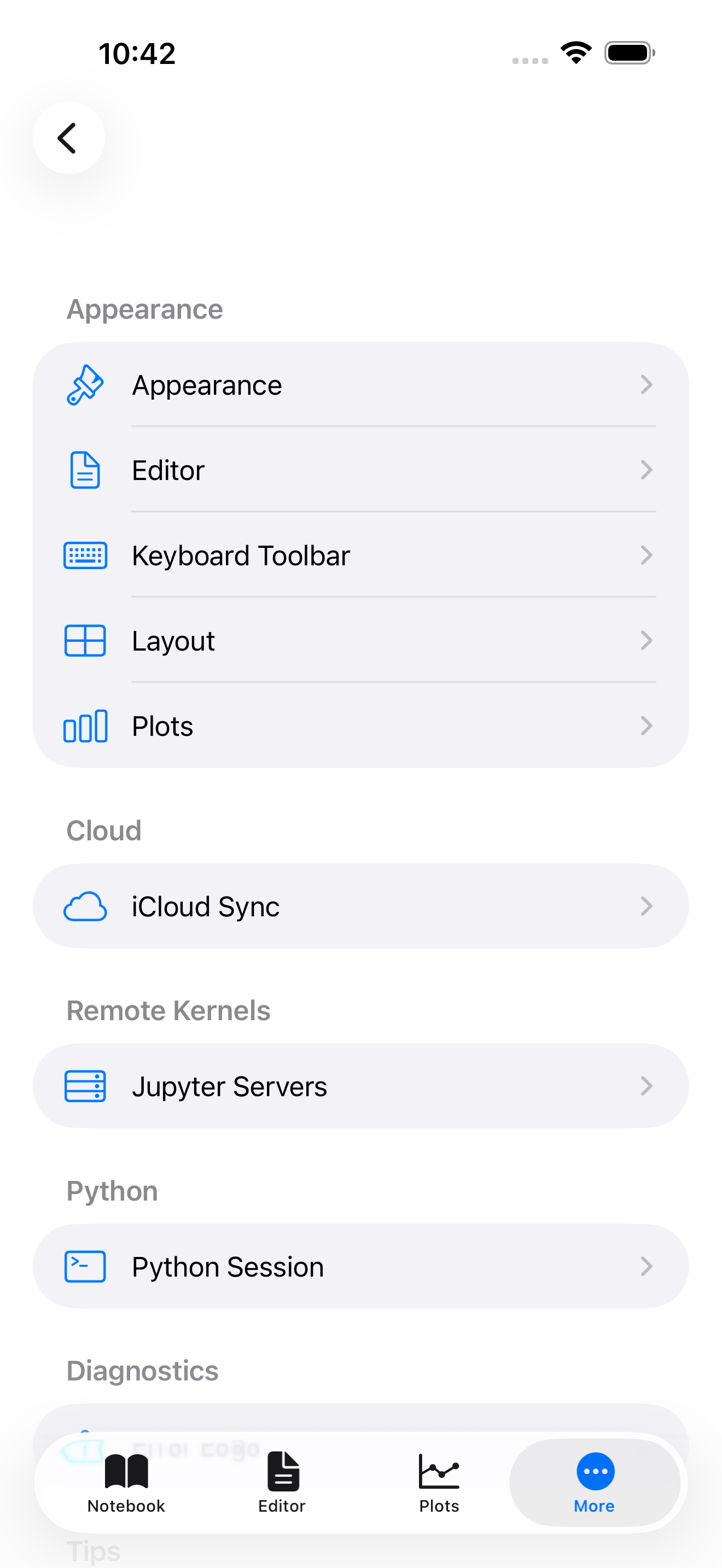
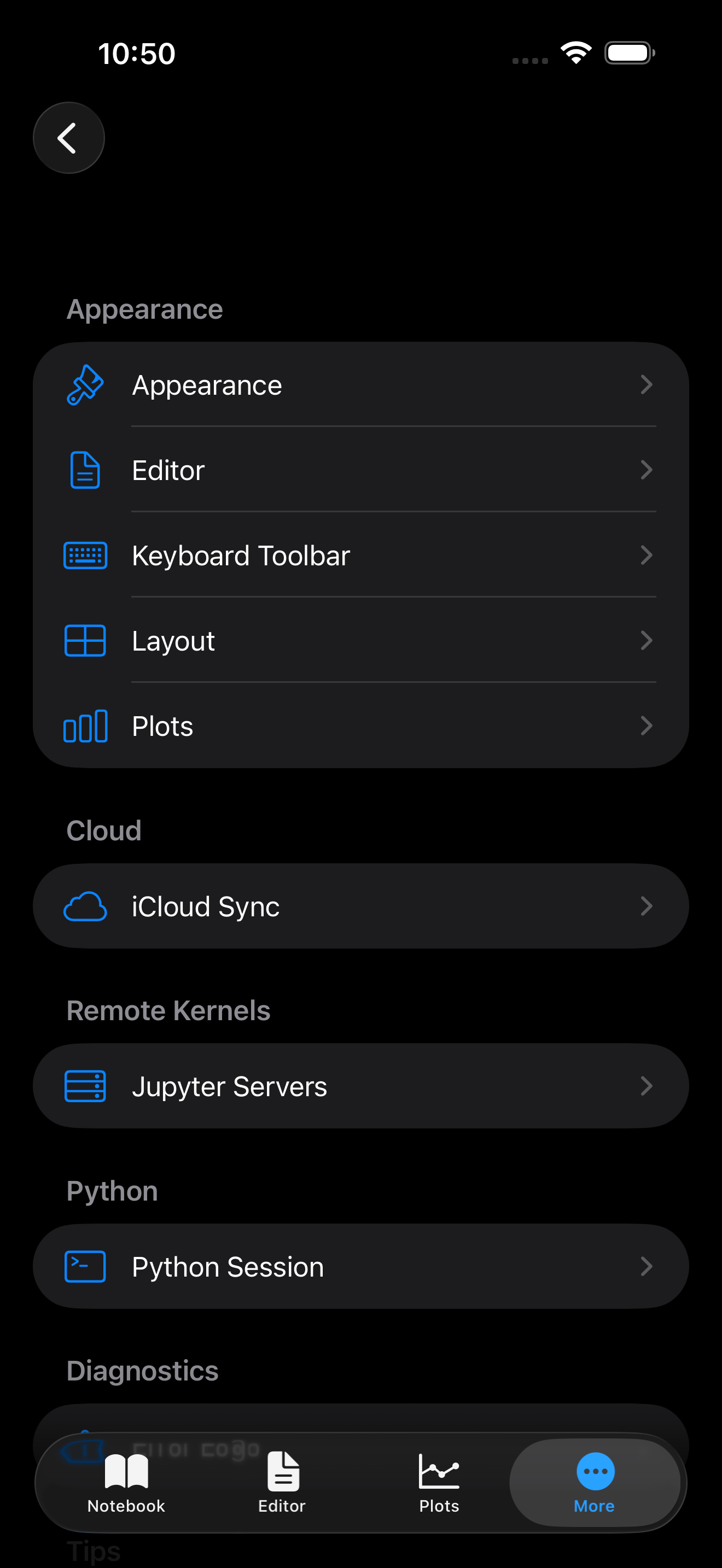
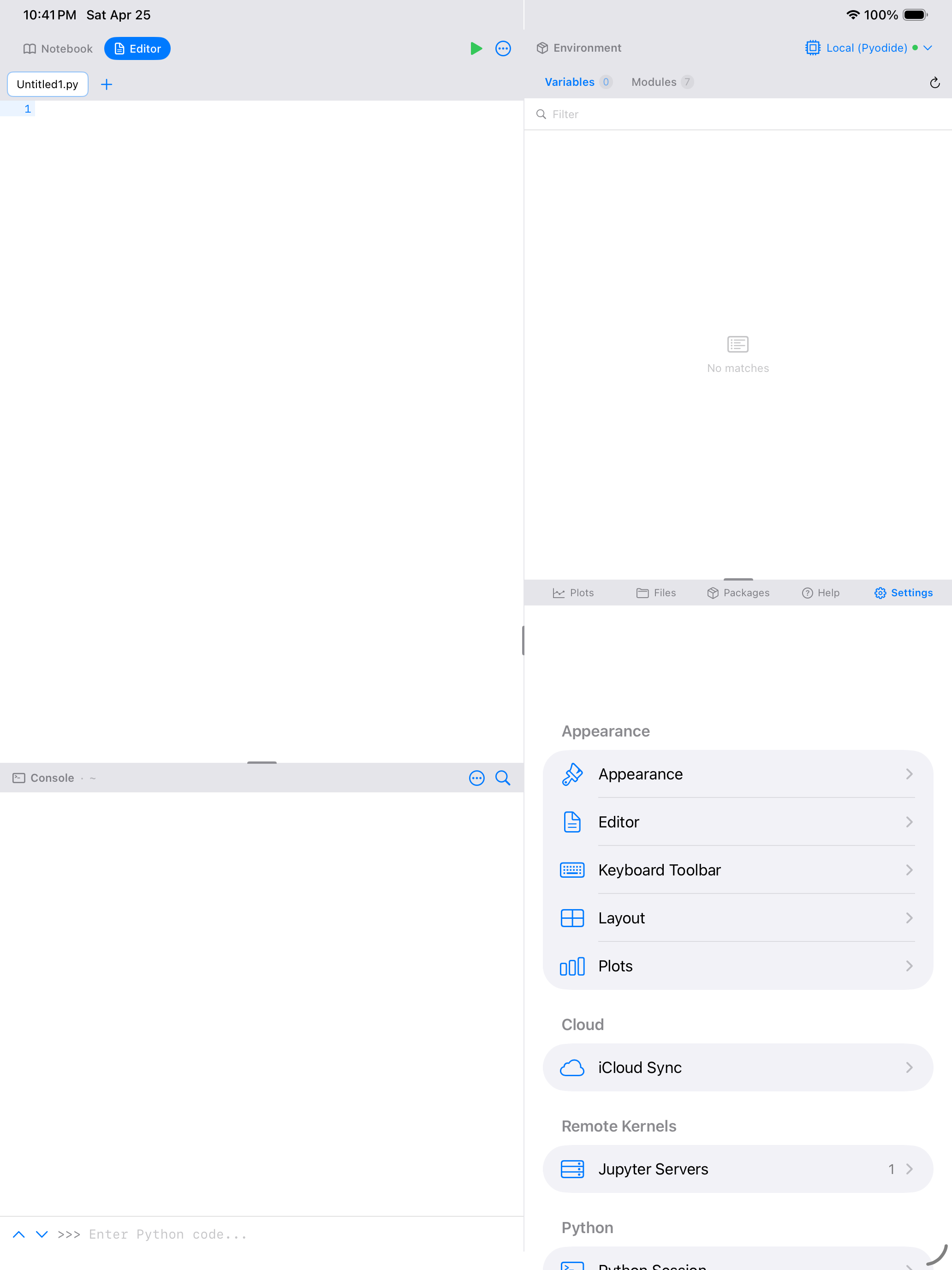
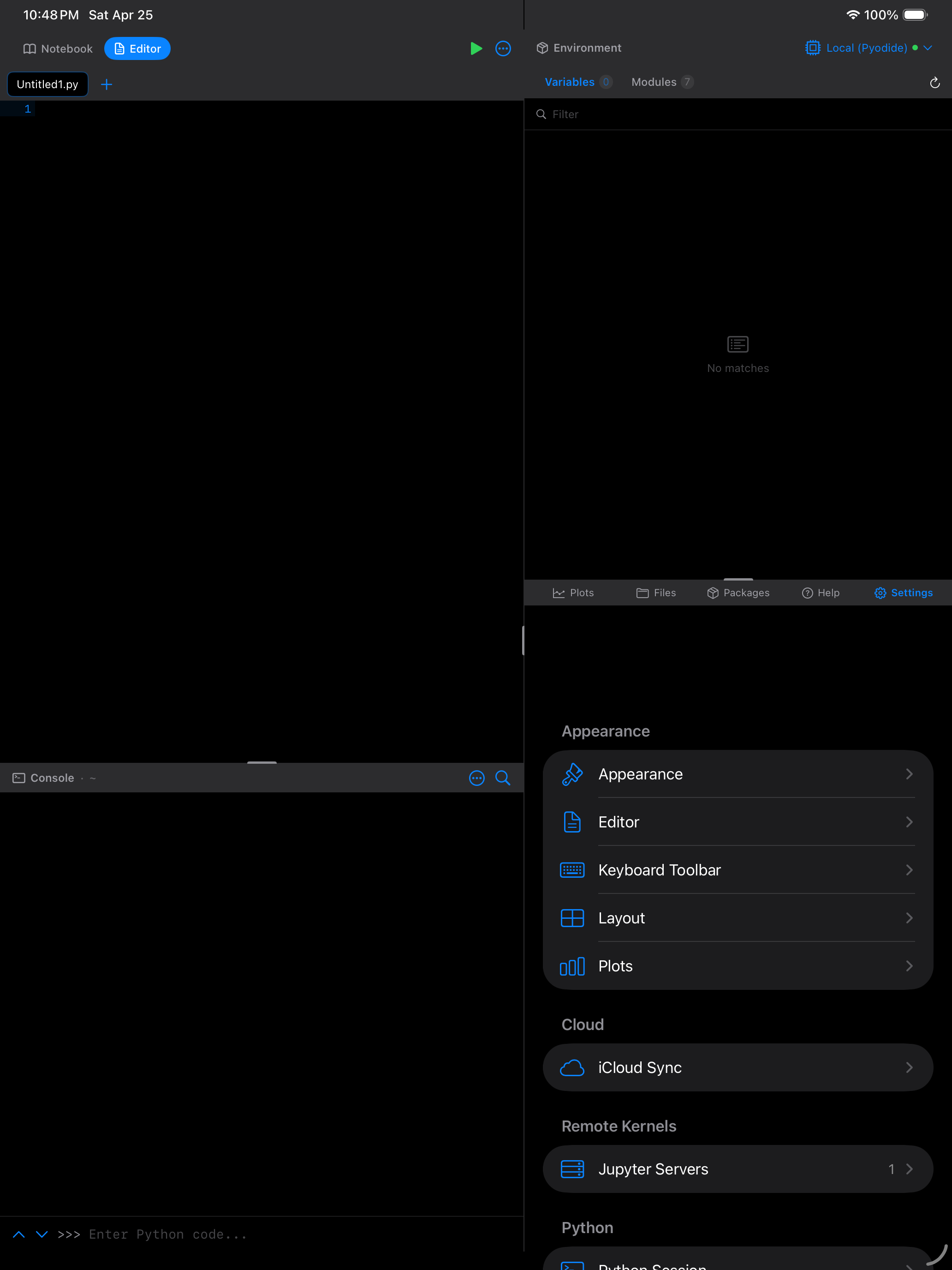
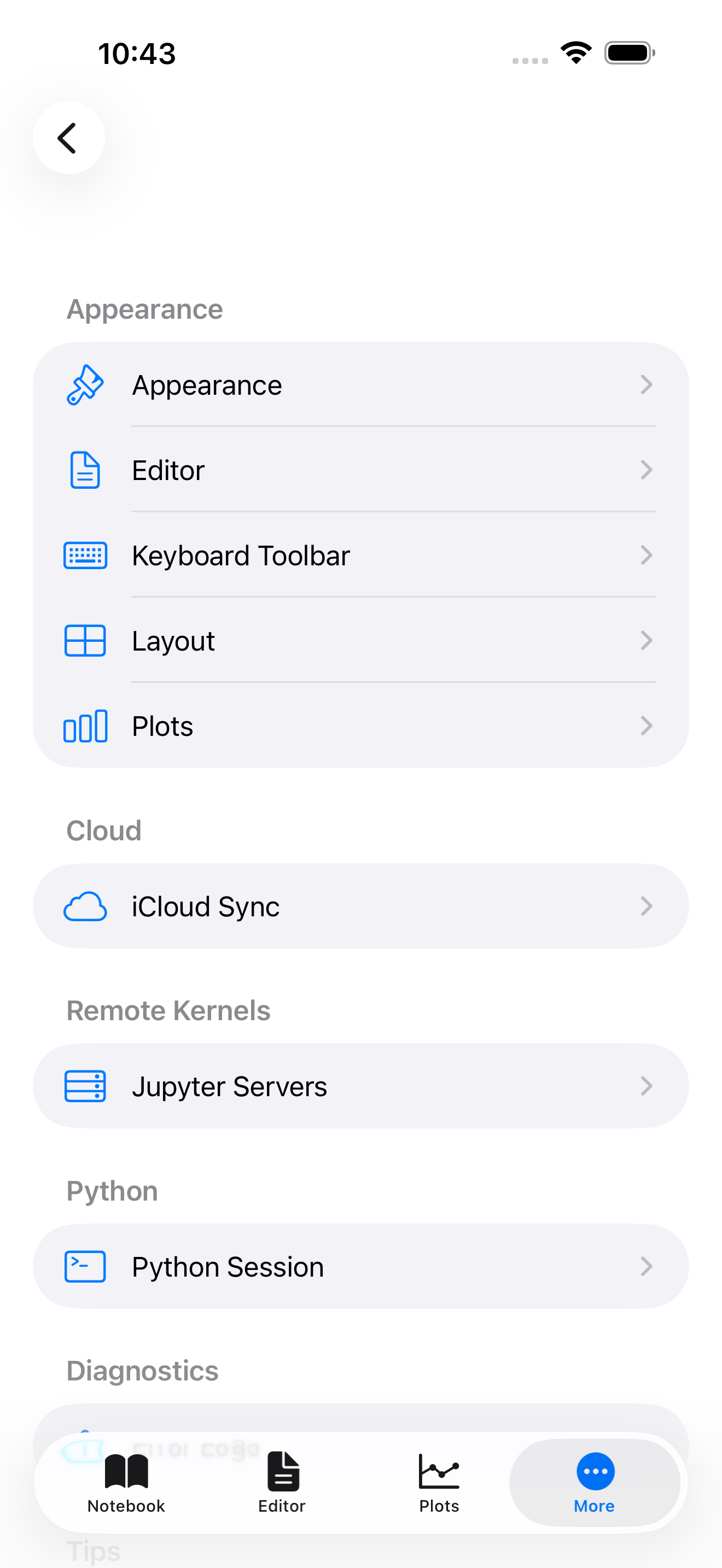
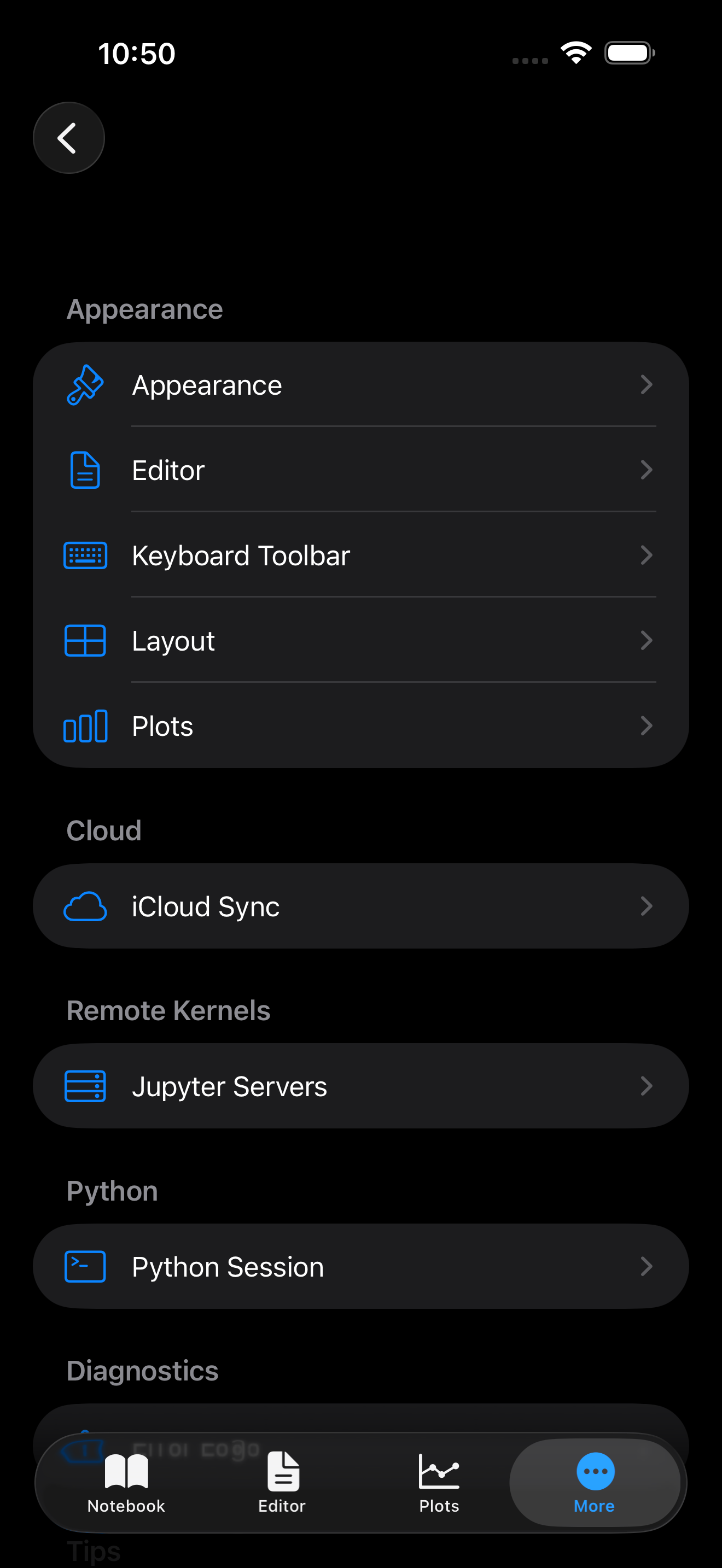
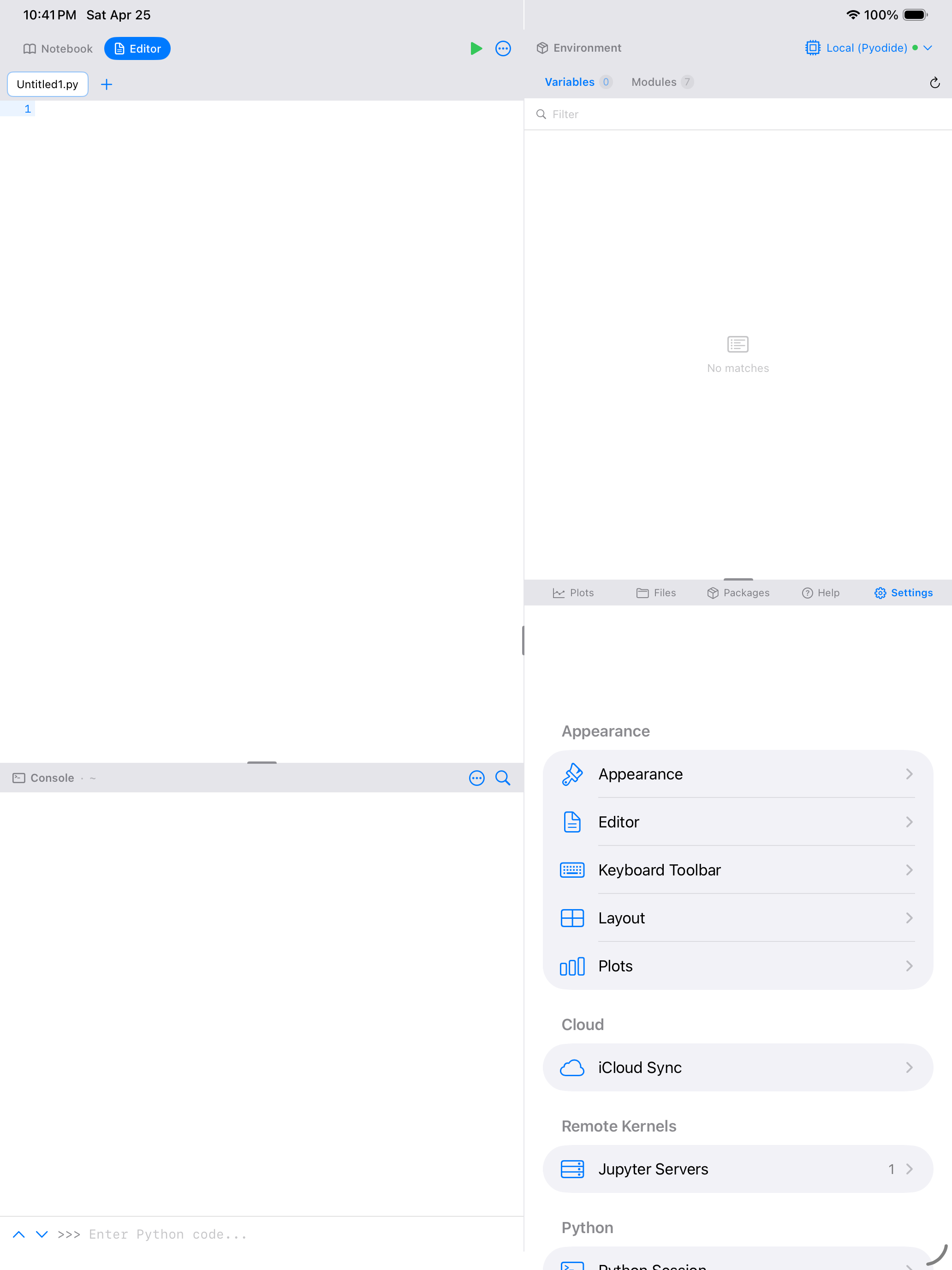
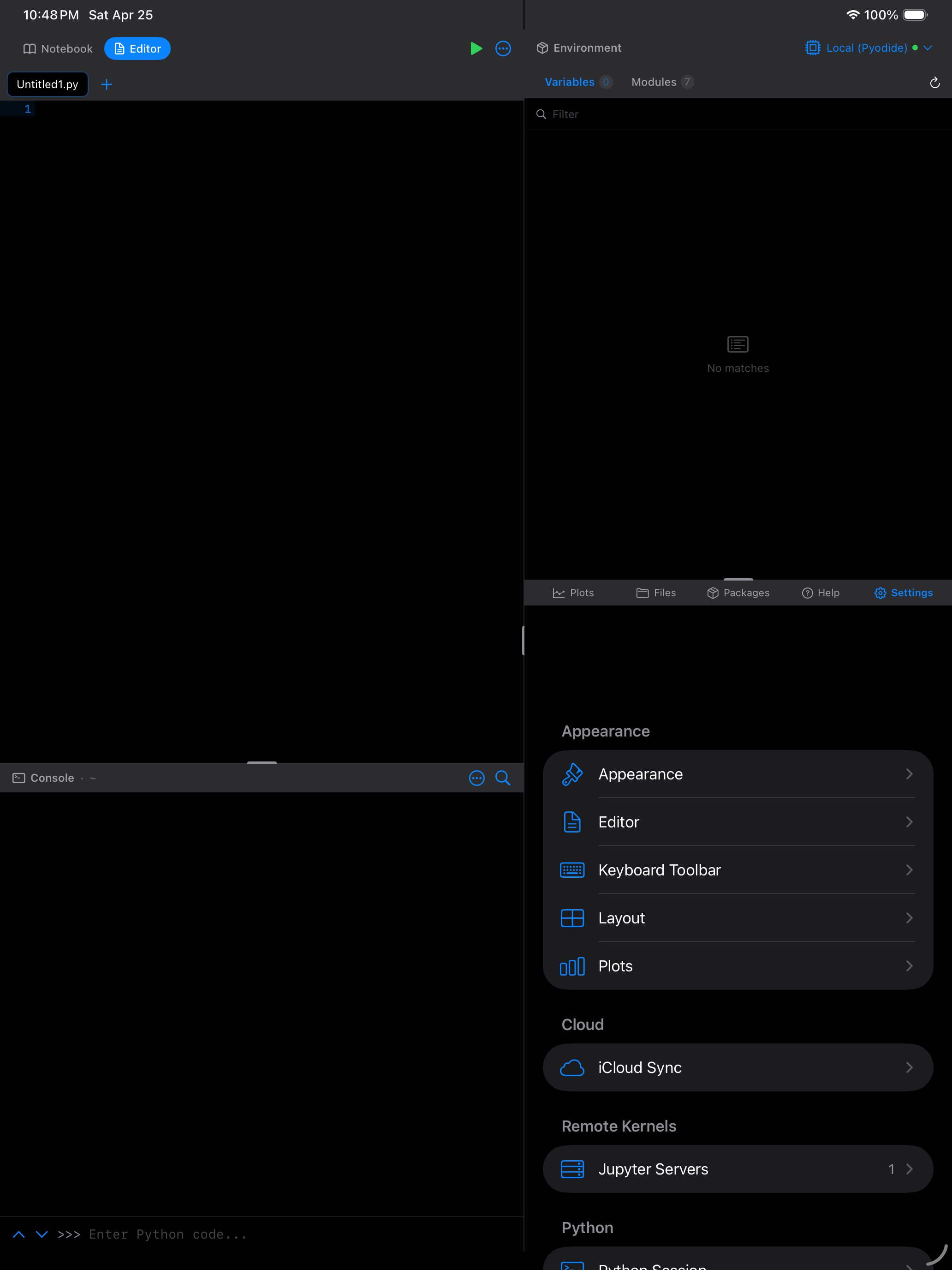
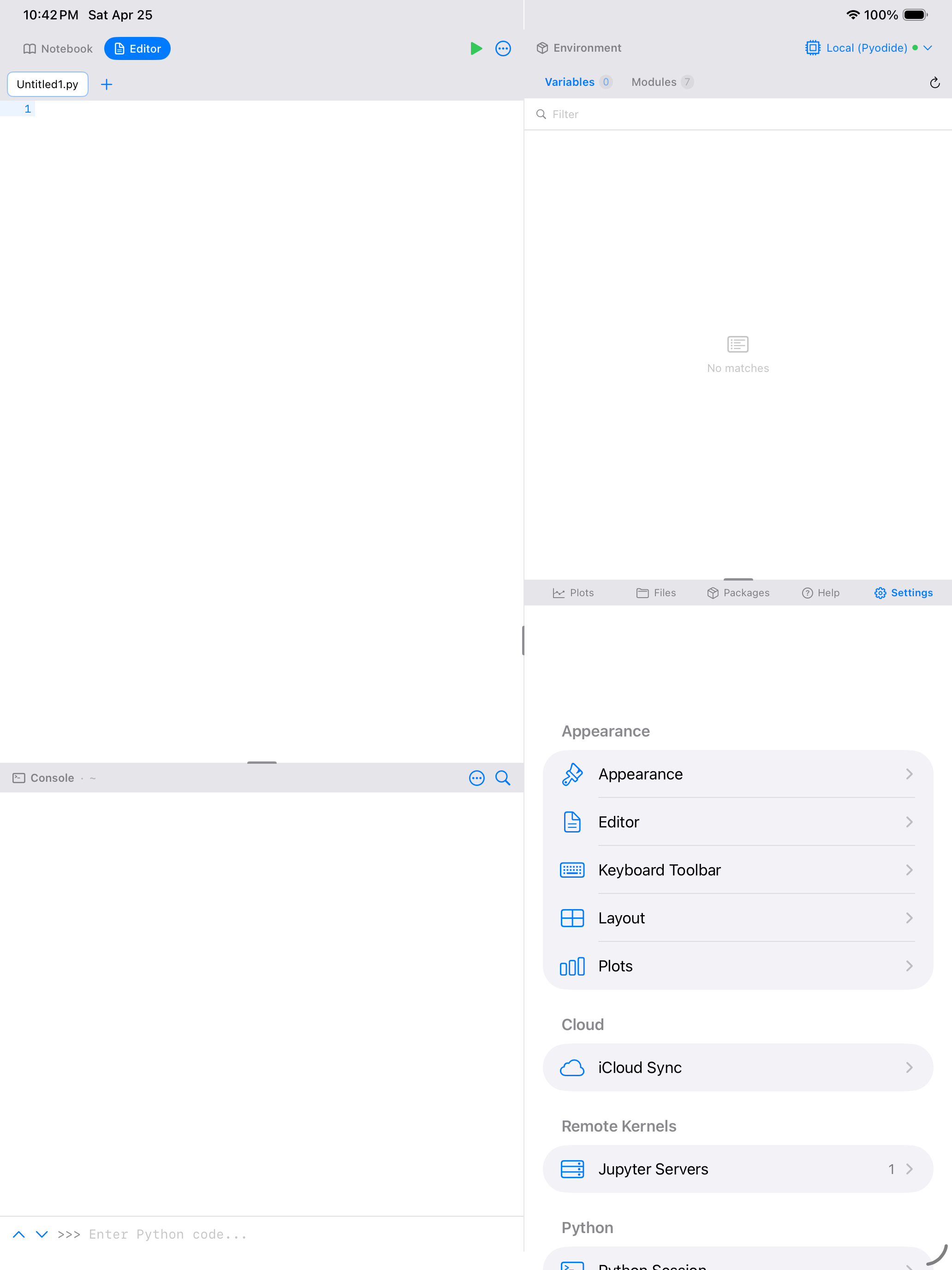
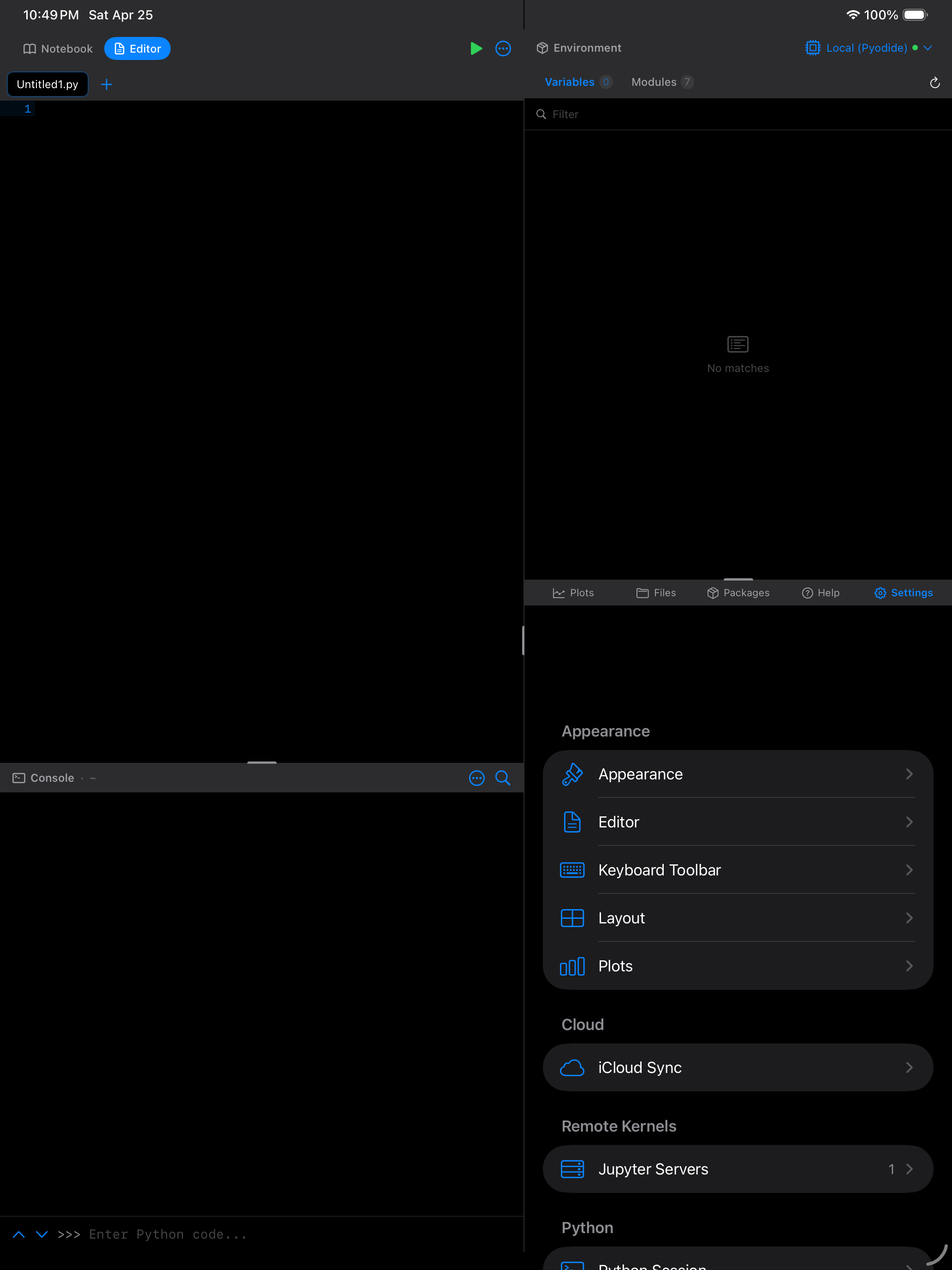
Settings lets you customize the app’s appearance, editor behavior, navigation layout, and Python session. It also provides help resources, keyboard shortcuts, and diagnostic tools.
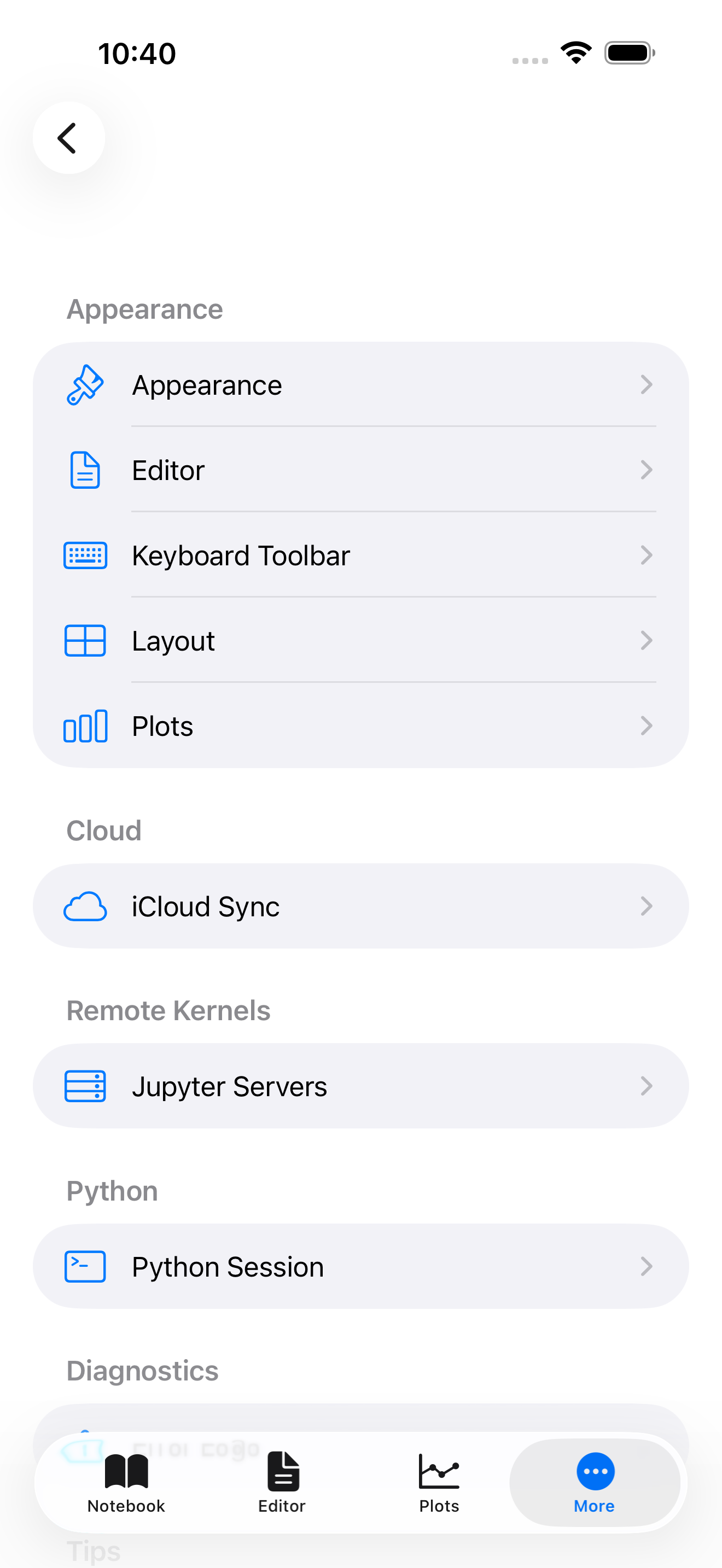
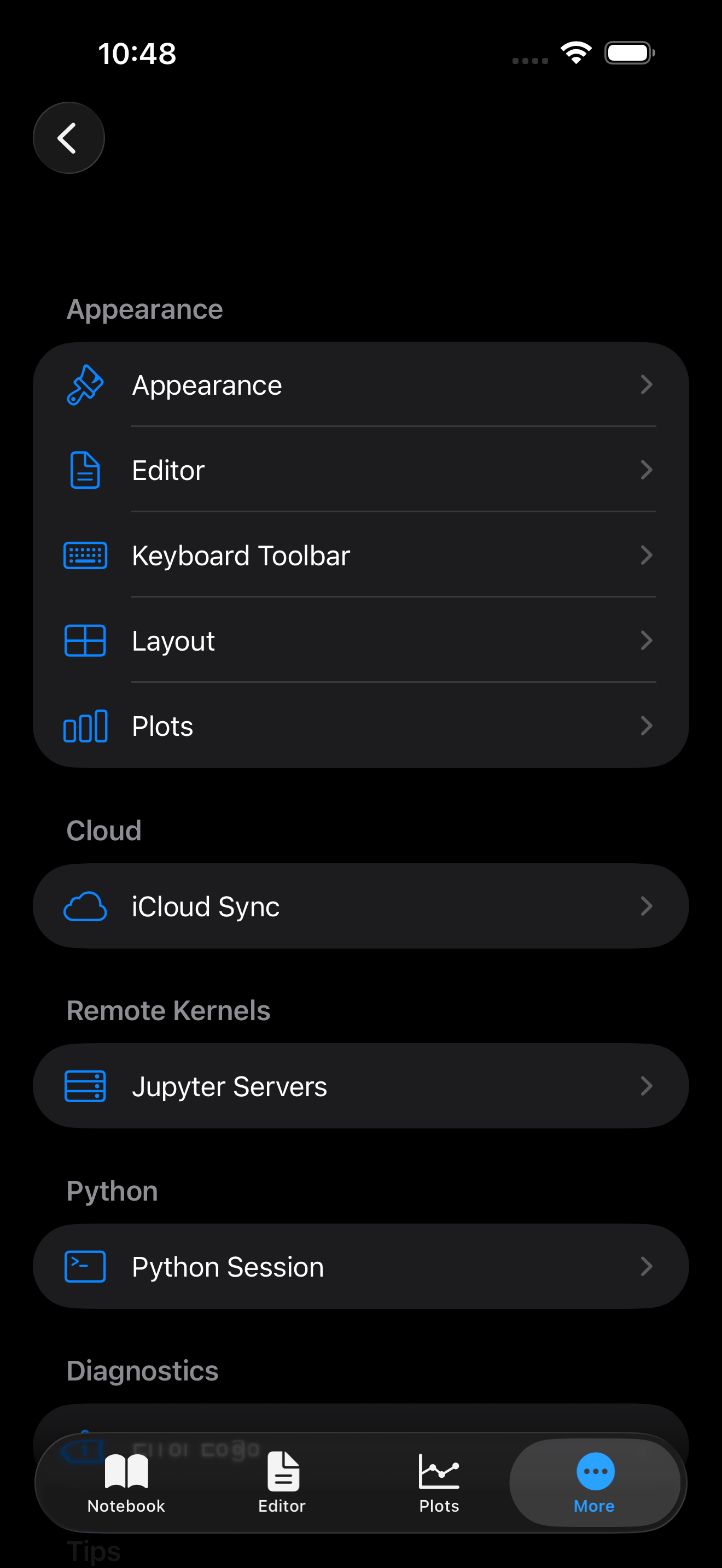
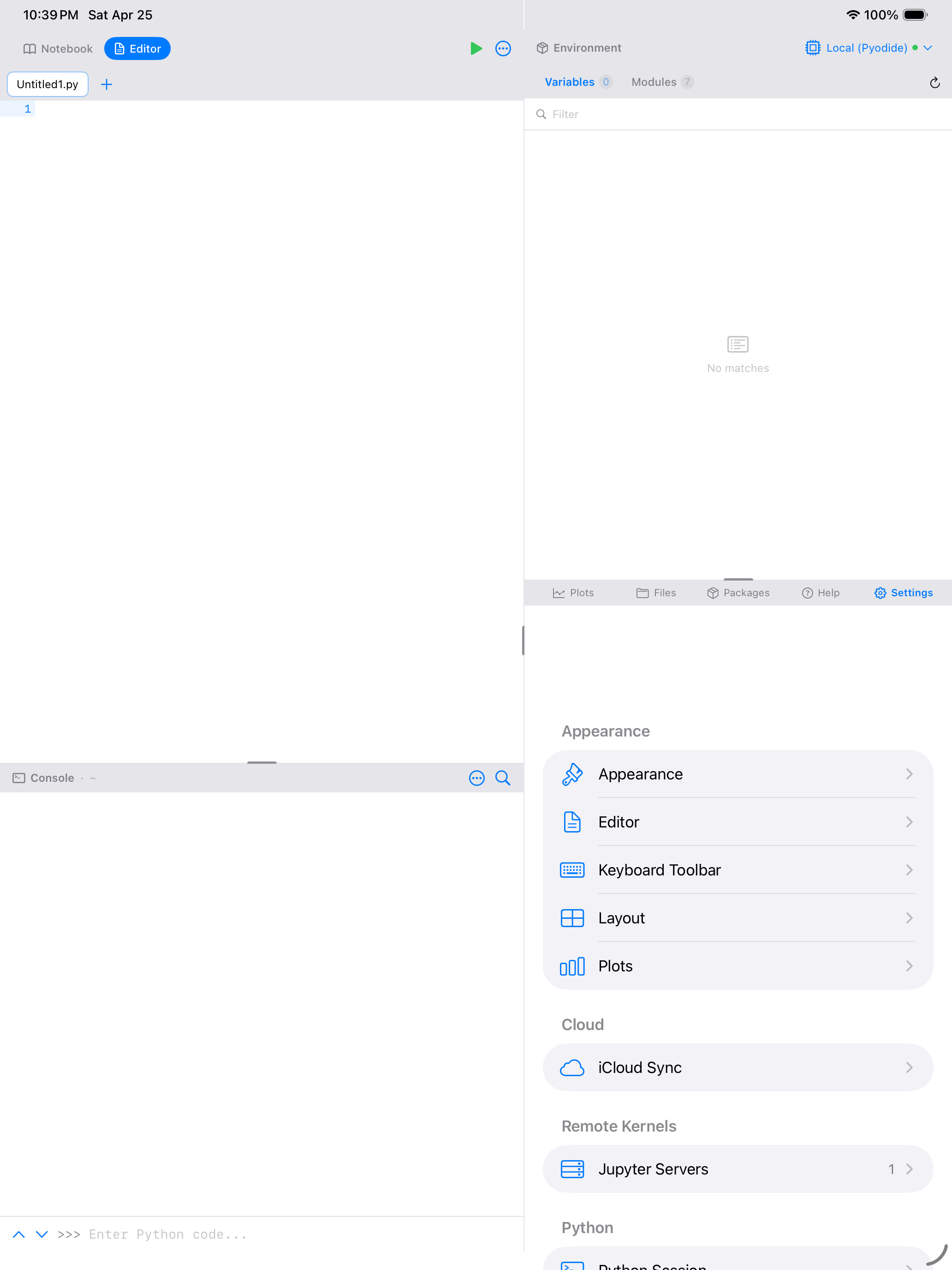
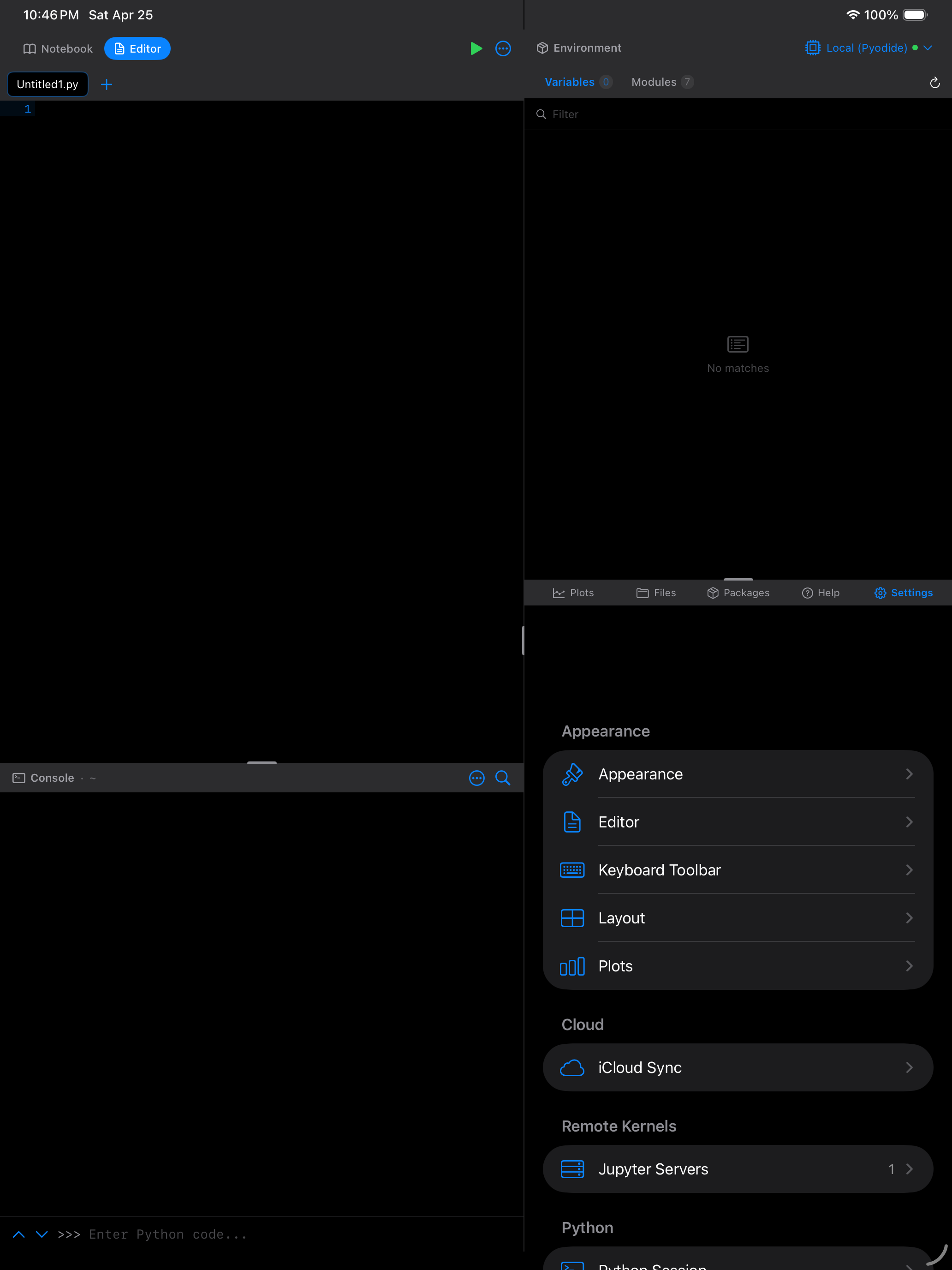
What you are seeing above:
- Appearance: theme, custom editor themes, font sizes
- Editor: syntax highlighting, brackets, line numbers, indentation
- Layout: tab bar vs. multi-pane workspace (iPad)
- Python Session: restart Python, package cache, memory tools
- Cloud Sync, Keyboard, Plots, Help, About, Support, and more
Appearance
Pick a theme, tune font sizes, and customize the editor color scheme. Changes take effect immediately, with no restart needed.
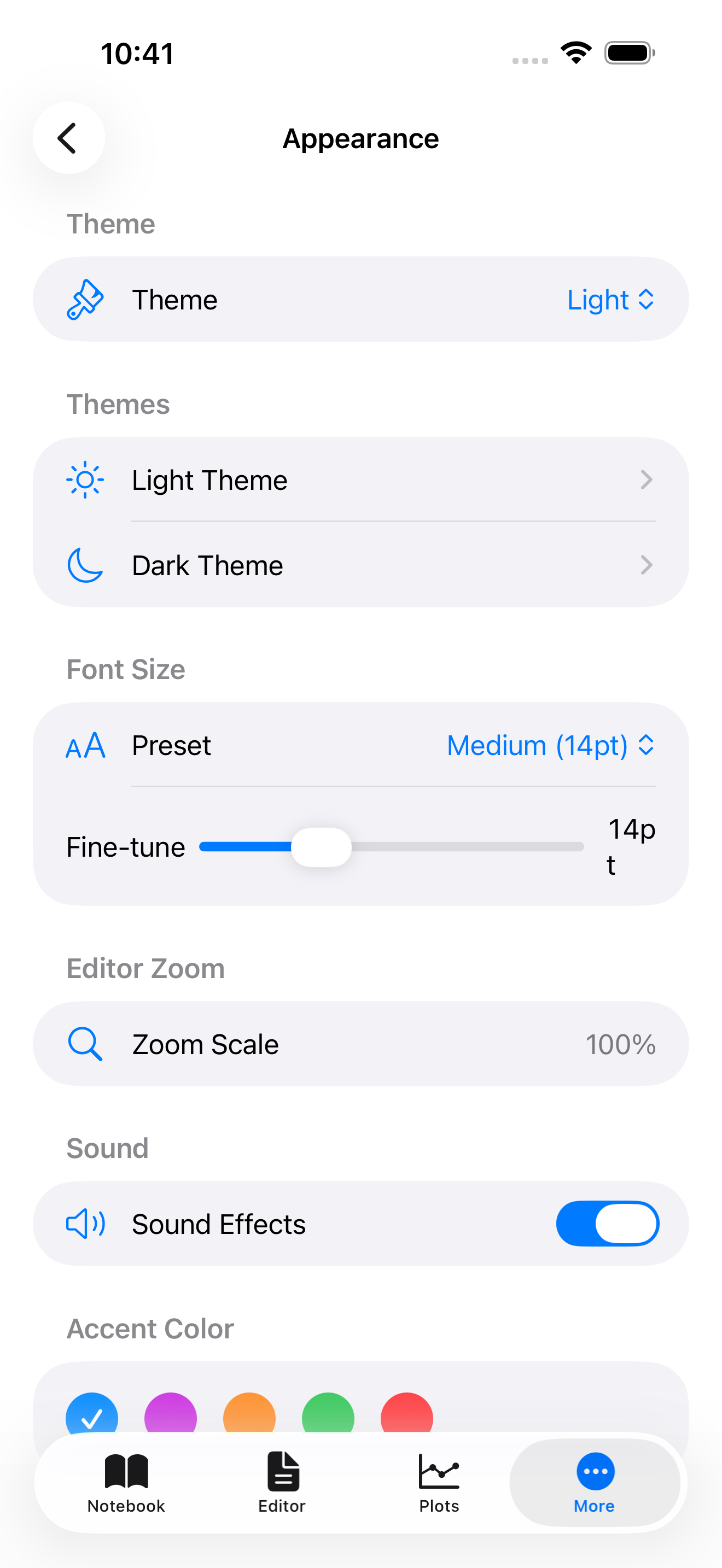
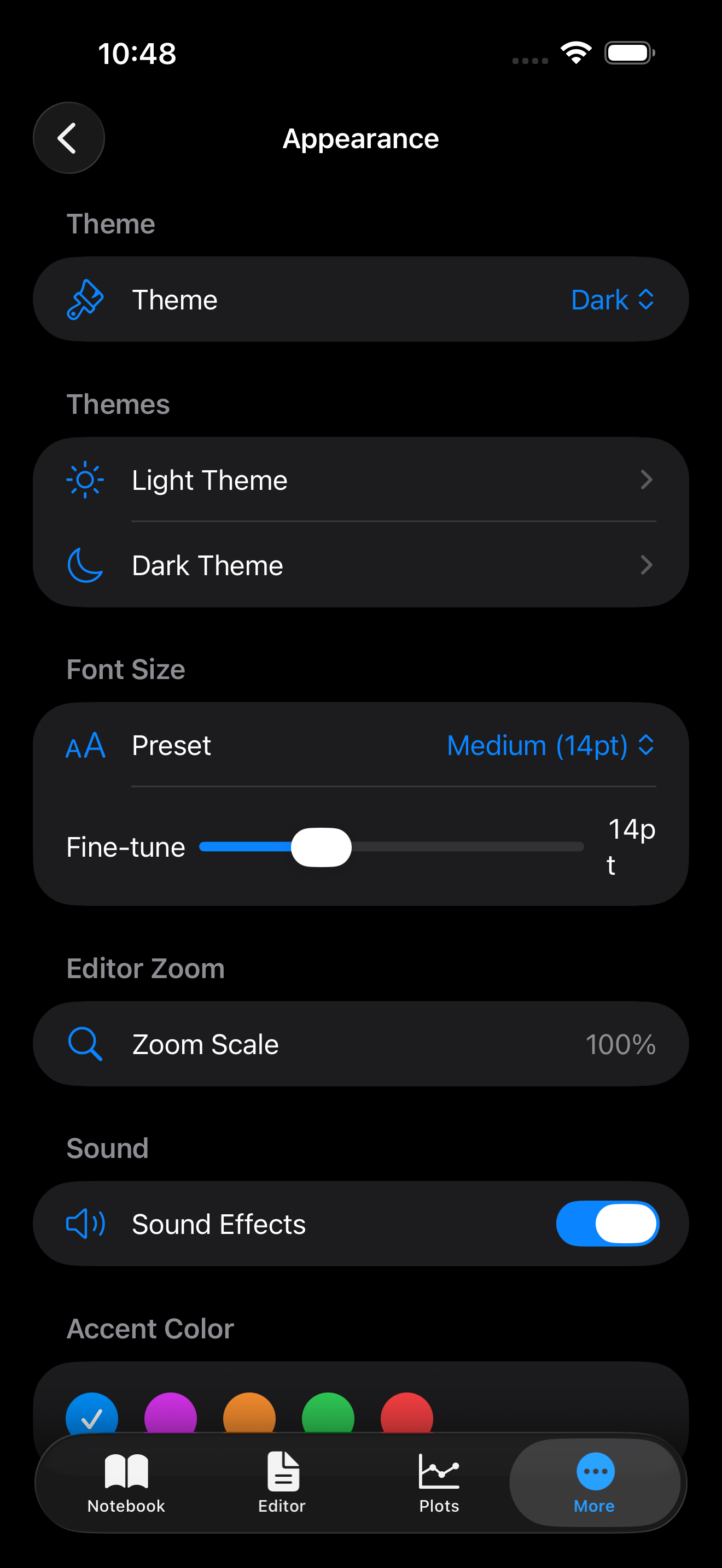
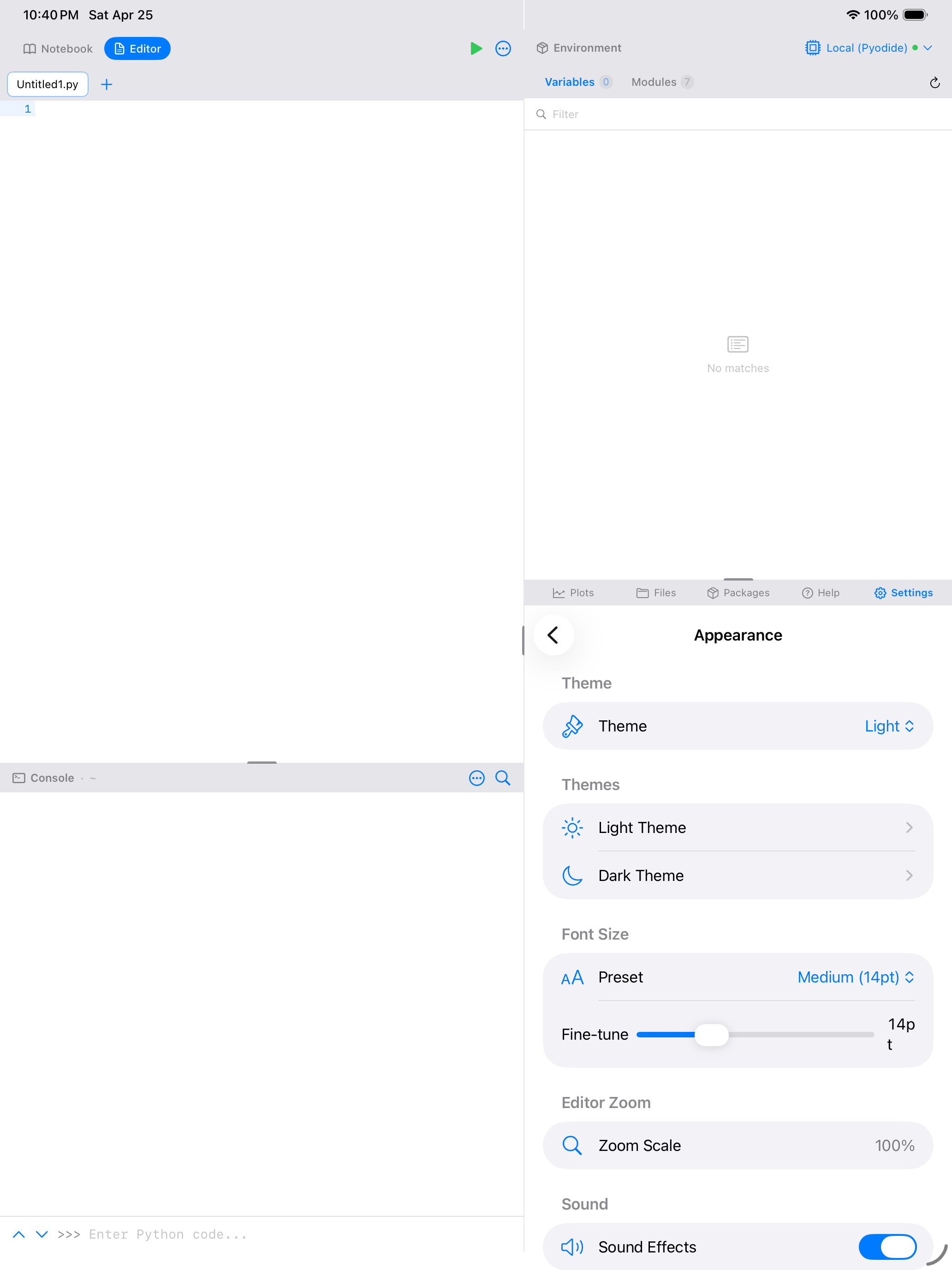
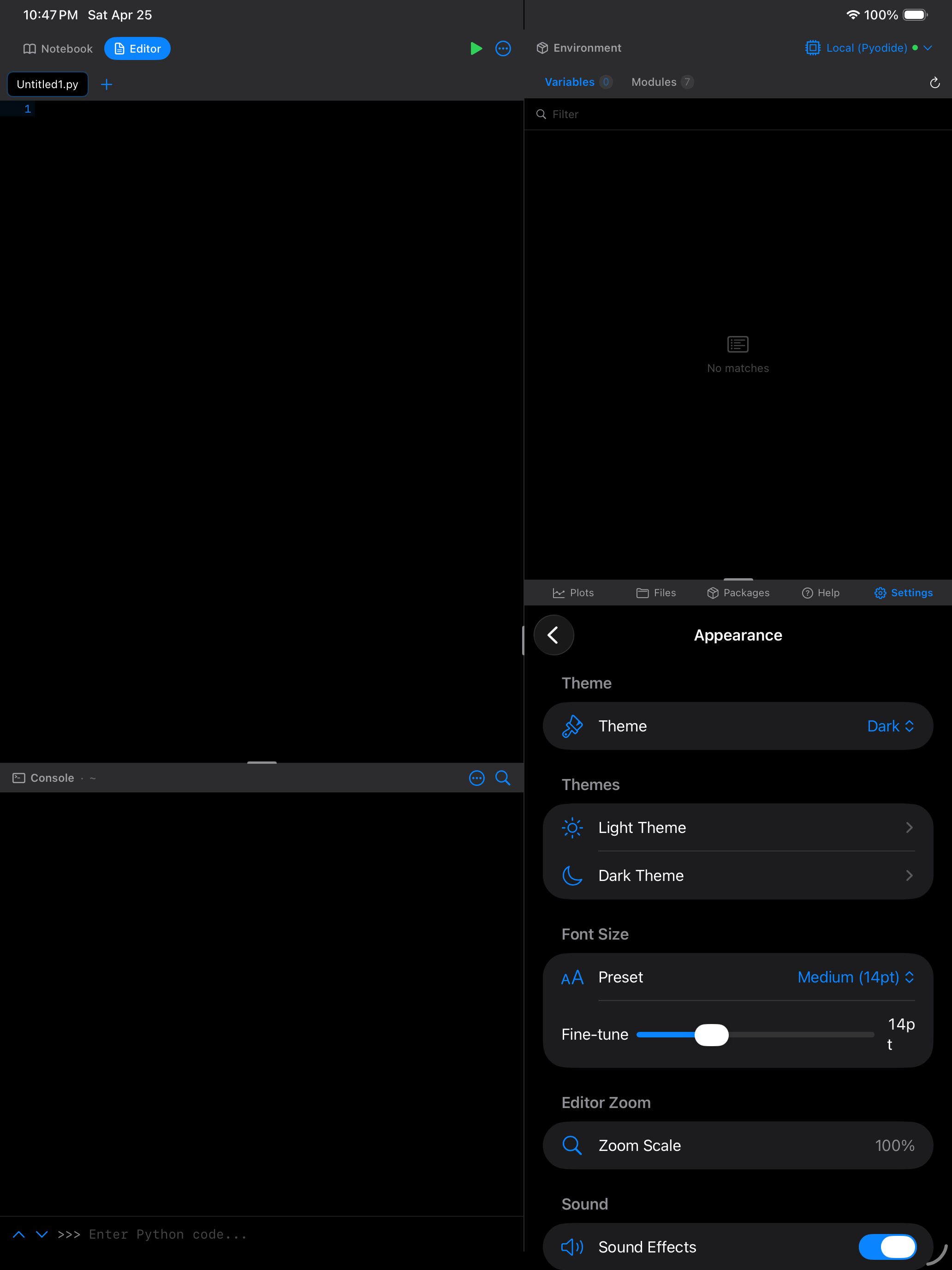
Theme & Font Size
For full details on built-in themes, custom theme creation, importing VS Code themes, accent colors, and font size options, see the dedicated Themes page.
Editor Settings
These settings control how the code editor looks and behaves when you type or paste code.
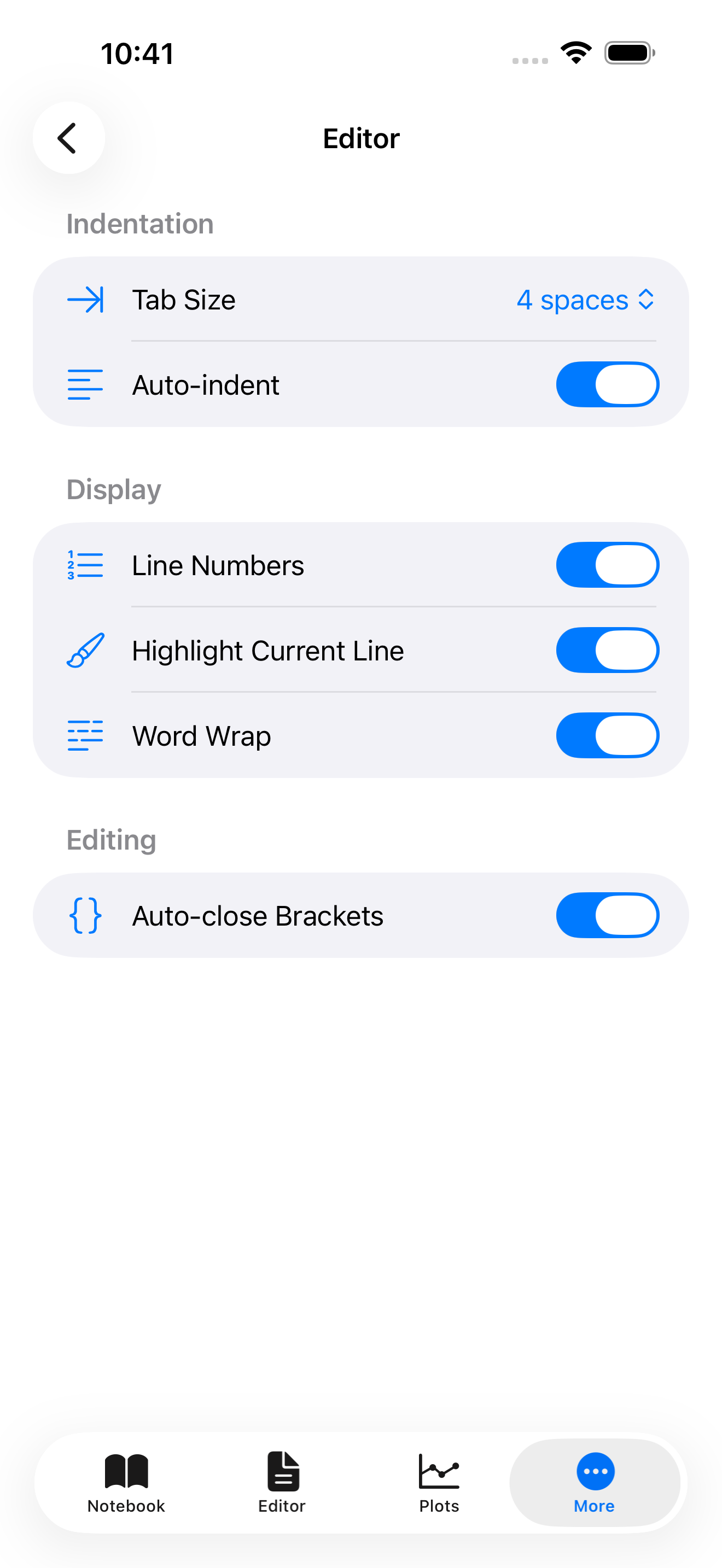
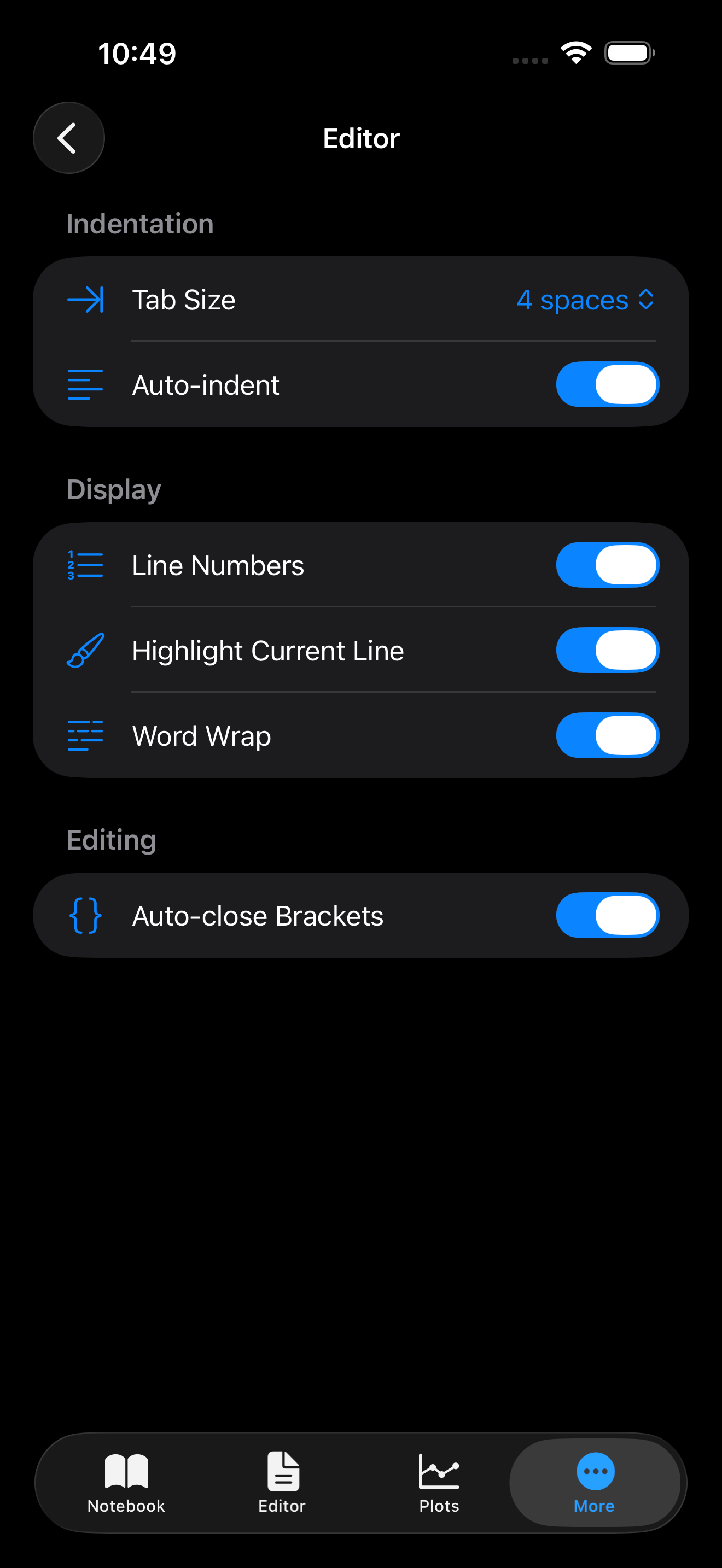
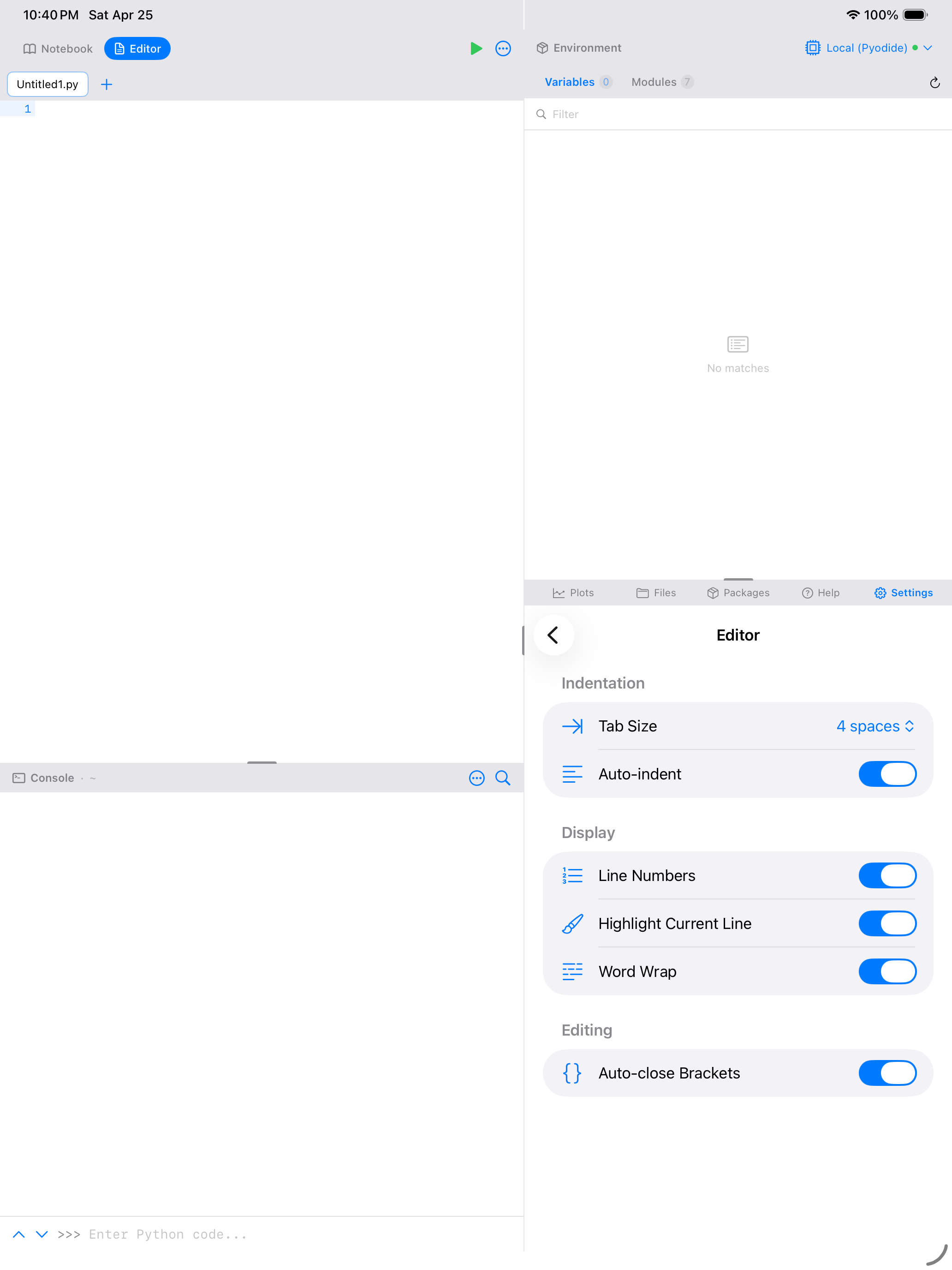
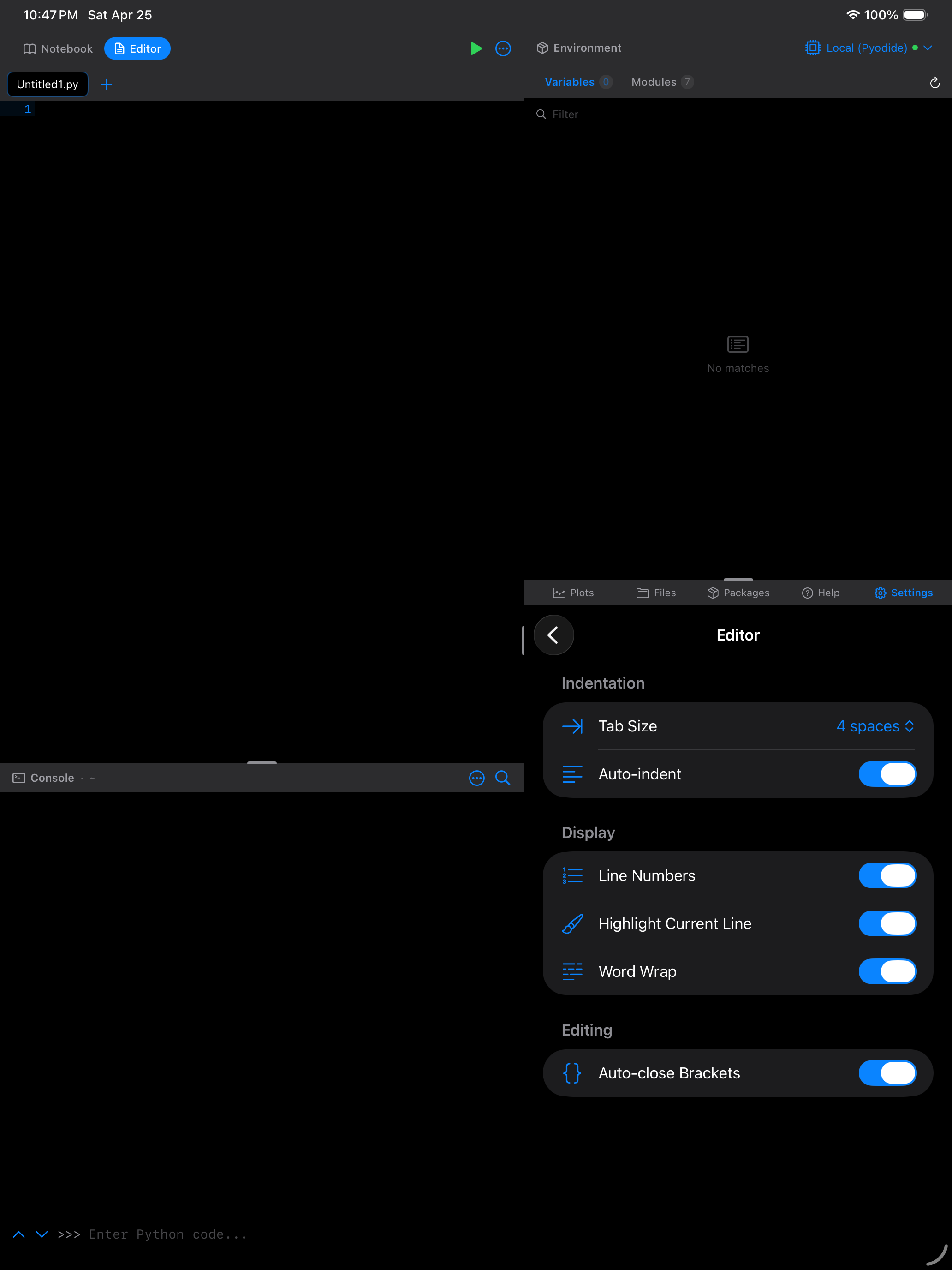
| Setting | Description |
|---|---|
| Syntax Highlighting | Toggle Python syntax highlighting on or off. When enabled, keywords, strings, comments, and functions are color-coded. |
| Rainbow Brackets | Color-codes matching pairs of parentheses, brackets, and braces so you can see nesting at a glance. |
| Show Line Numbers | Displays line numbers in the left gutter. |
| Code Folding | Allows collapsing function definitions, class bodies, loops, and other blocks by tapping the fold indicator in the gutter. |
| Auto-Indent | Automatically indents new lines to match the current block level when you press return. |
| Indentation Style | Choose between spaces or tabs for indentation. |
| Tab Size | Number of spaces per indentation level (2 or 4). Only applies when using spaces. |
Layout
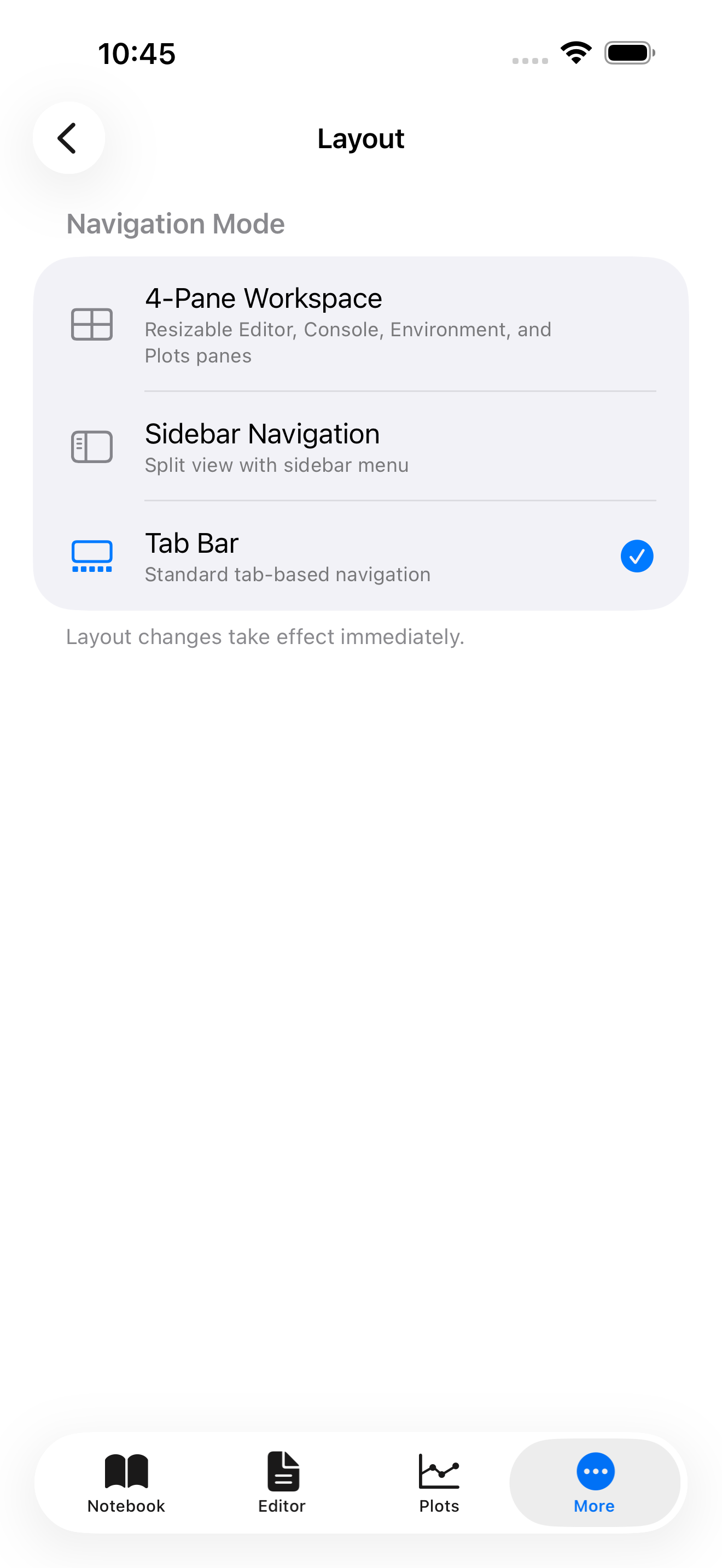
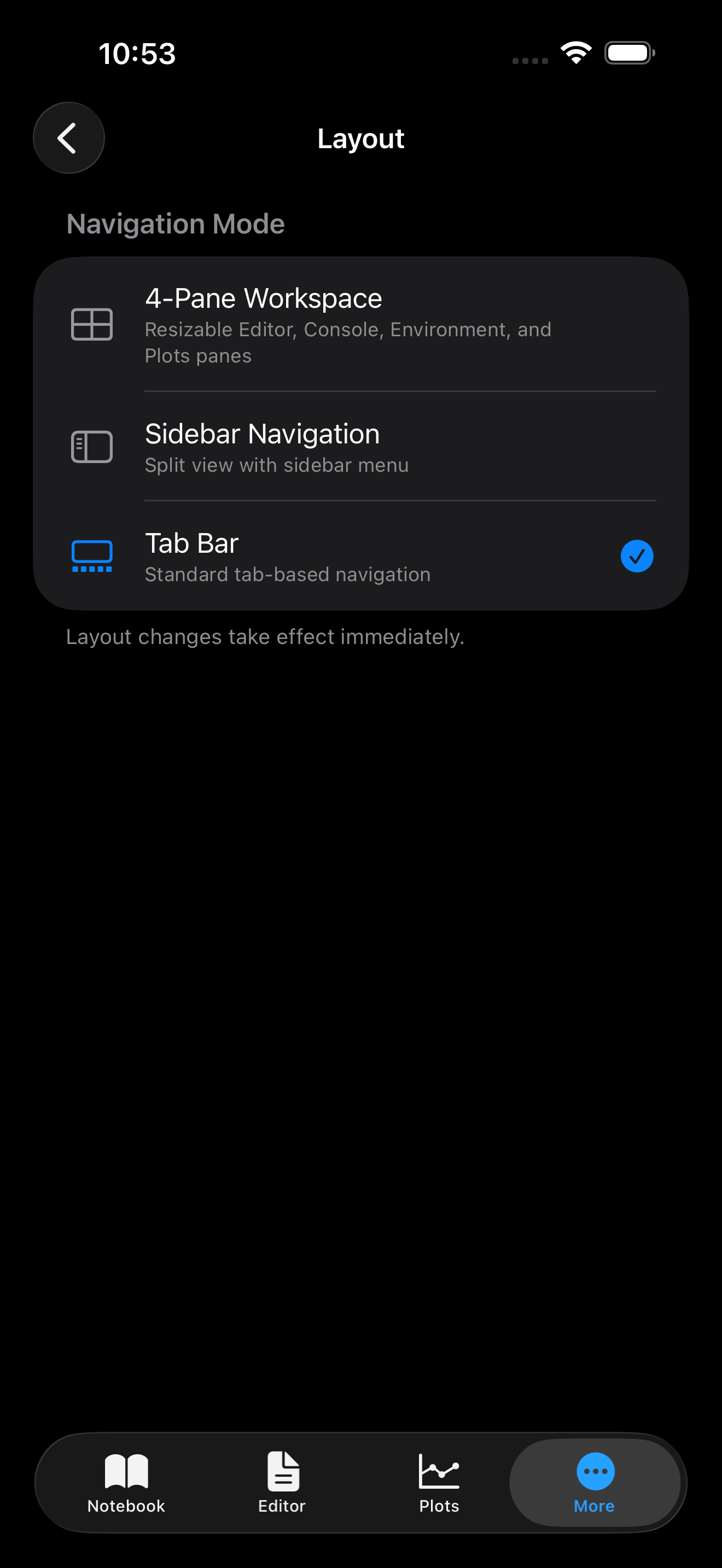
Layout controls how you navigate between the Notebook, Editor, Console, Plots, and other sections. Three modes are available:
All three are offered on every device. Which ones actually apply depends on how much width the app has, not on whether you are on an iPhone or an iPad:
| Mode | Where it applies | Description |
|---|---|---|
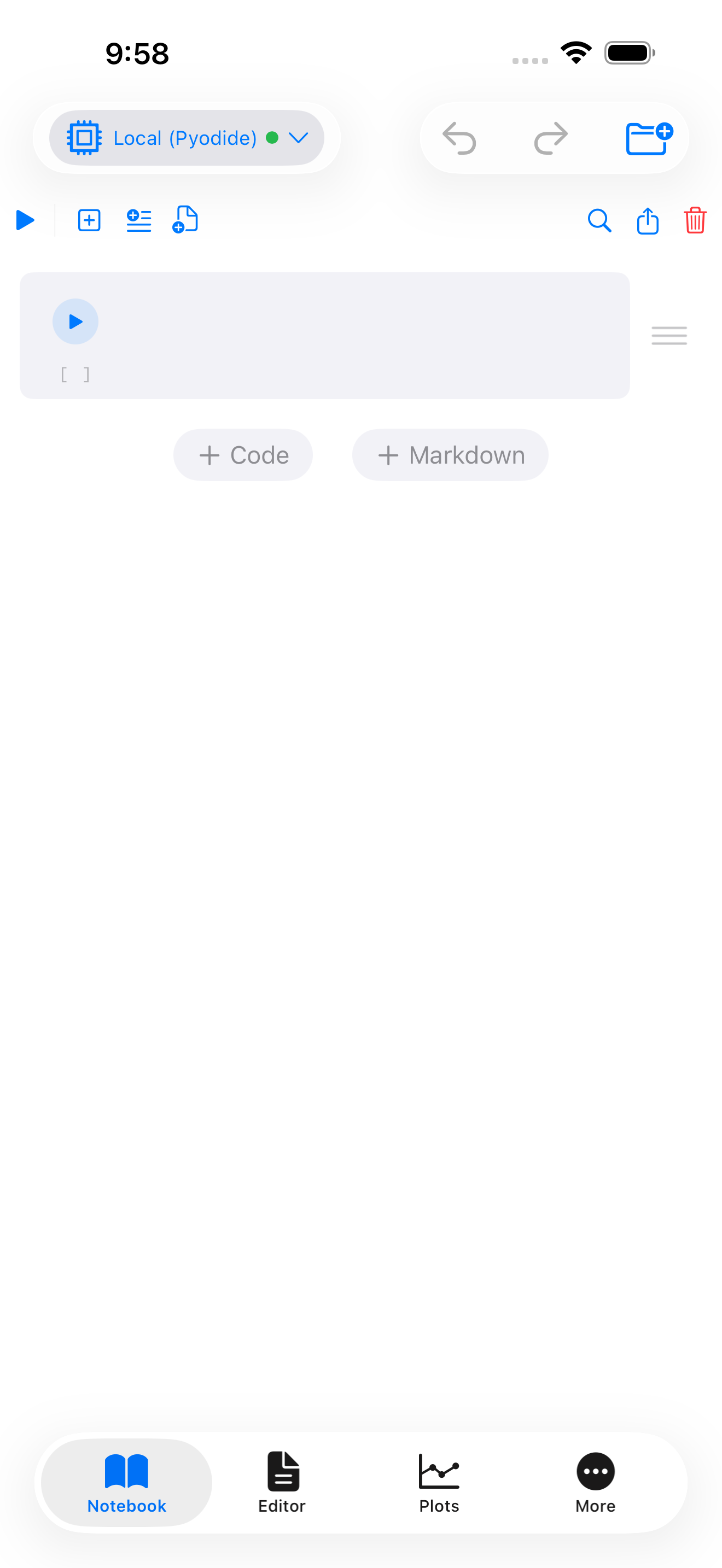
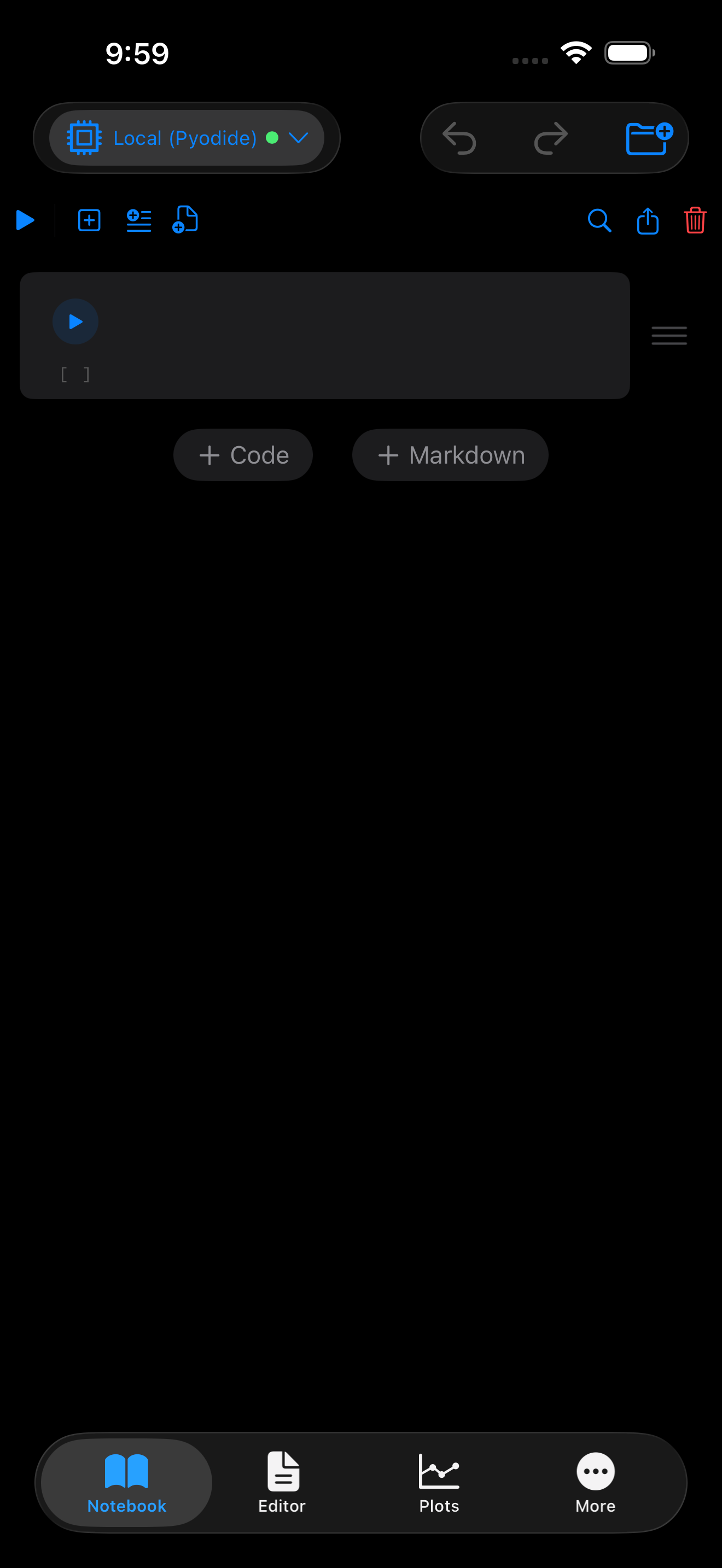
| Tab Bar | Any device, any orientation | The default on iPhone, and available on iPad. Every section is one tap away and fills the screen. On iPad it appears along the top rather than the bottom. |
| Sidebar | Anywhere with a wide layout | A collapsible list of every section (Notebook, Editor, Console, Environment, Plots, Files, Projects, Packages, Help, Settings), with one shown at a time in the detail pane. That means iPad in either orientation, and a large iPhone held in landscape. |
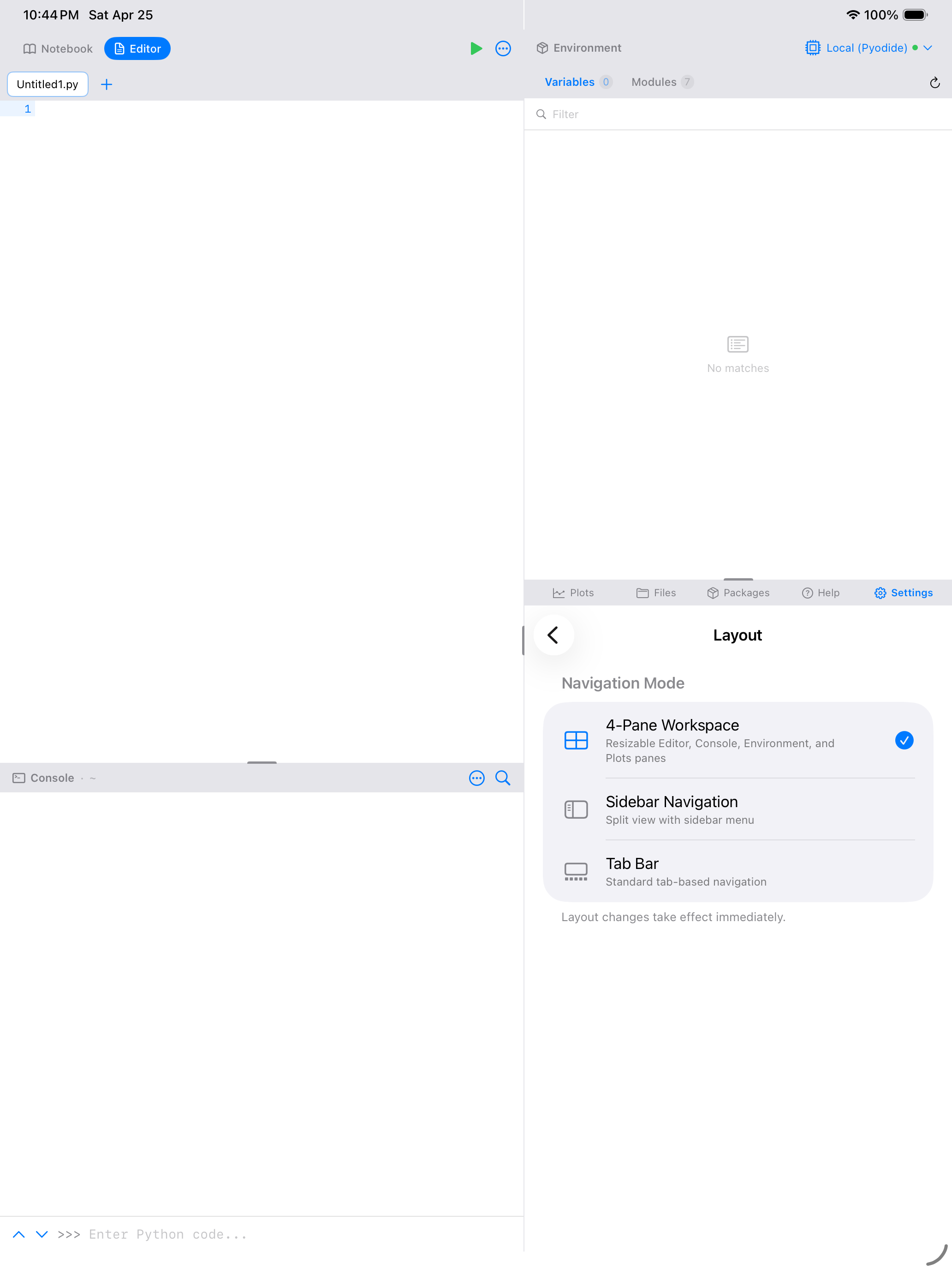
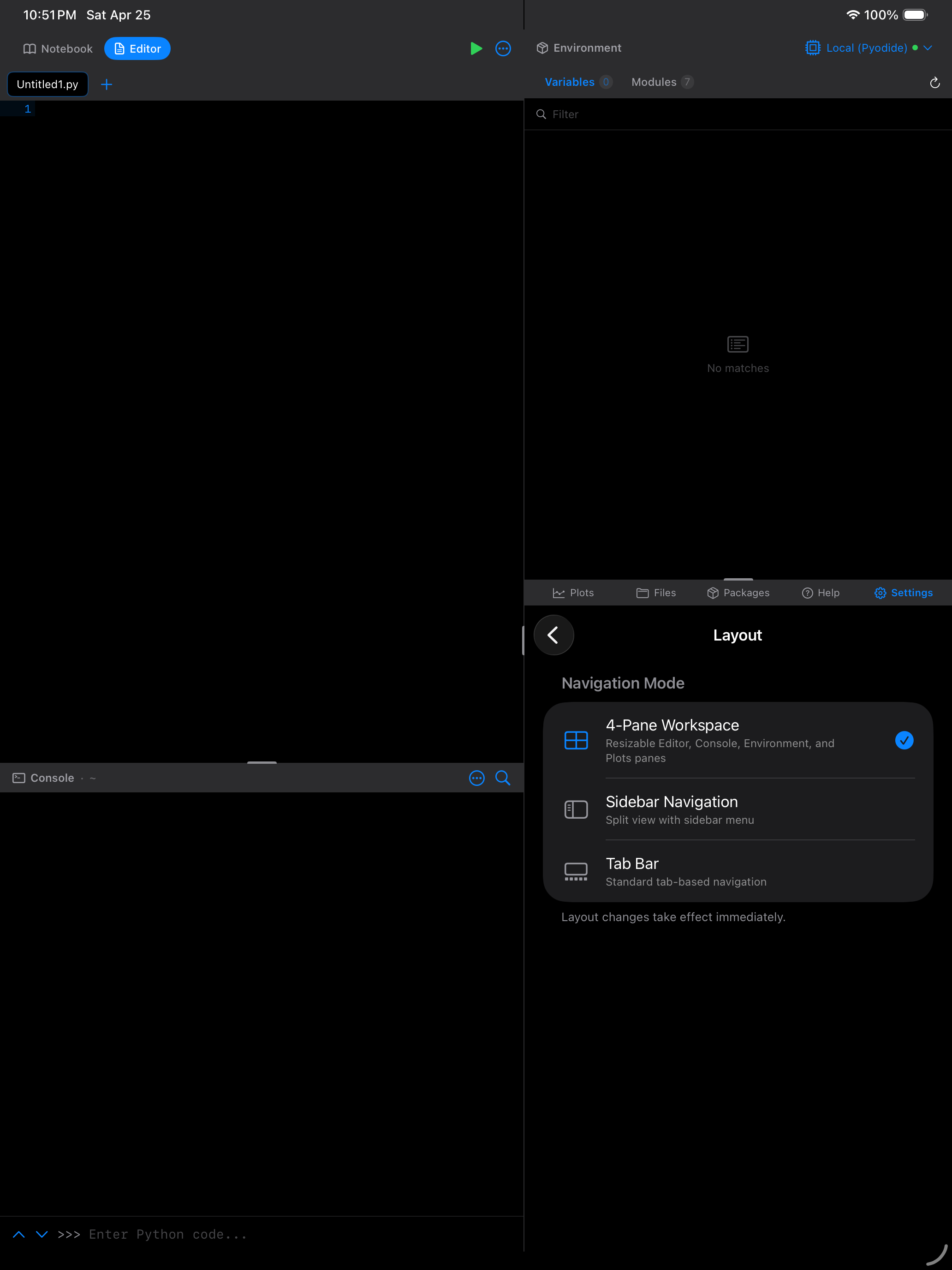
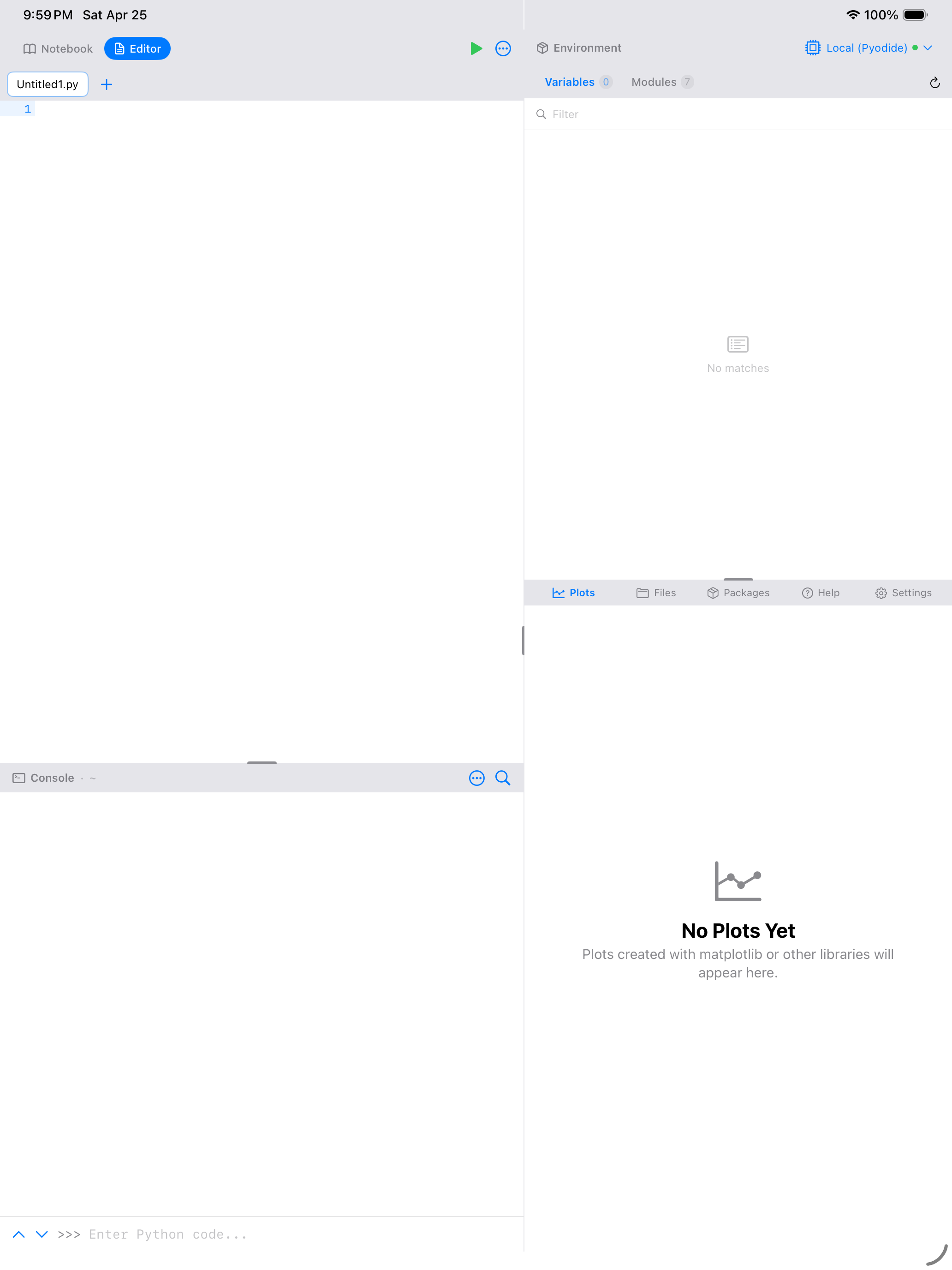
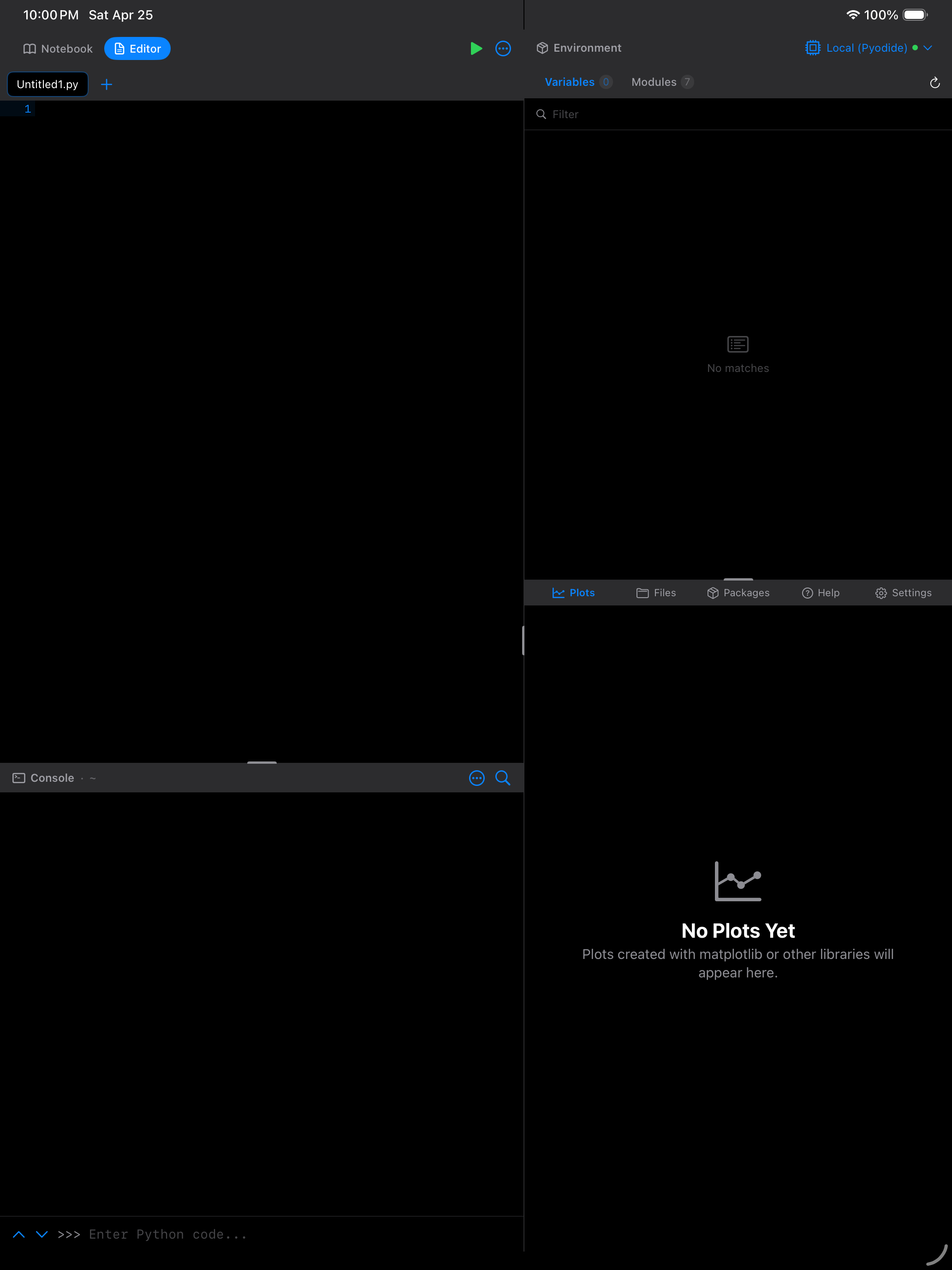
| Multi-Pane Workspace | Anywhere with a wide layout | The default on iPad. Several panes at once: Editor or Notebook top-left, Console bottom-left, Environment top-right, and a tabbed pane for Plots, Files, Packages, Help and Settings bottom-right. Drag any divider to resize. |
Choosing Sidebar or Multi-Pane Workspace on an iPhone held in portrait has no visible effect: there is not enough width, so the app stays on the tab bar. Turn the phone to landscape and the choice takes effect. The setting is remembered either way.
What each layout looks like
The table describes the modes; these show them.
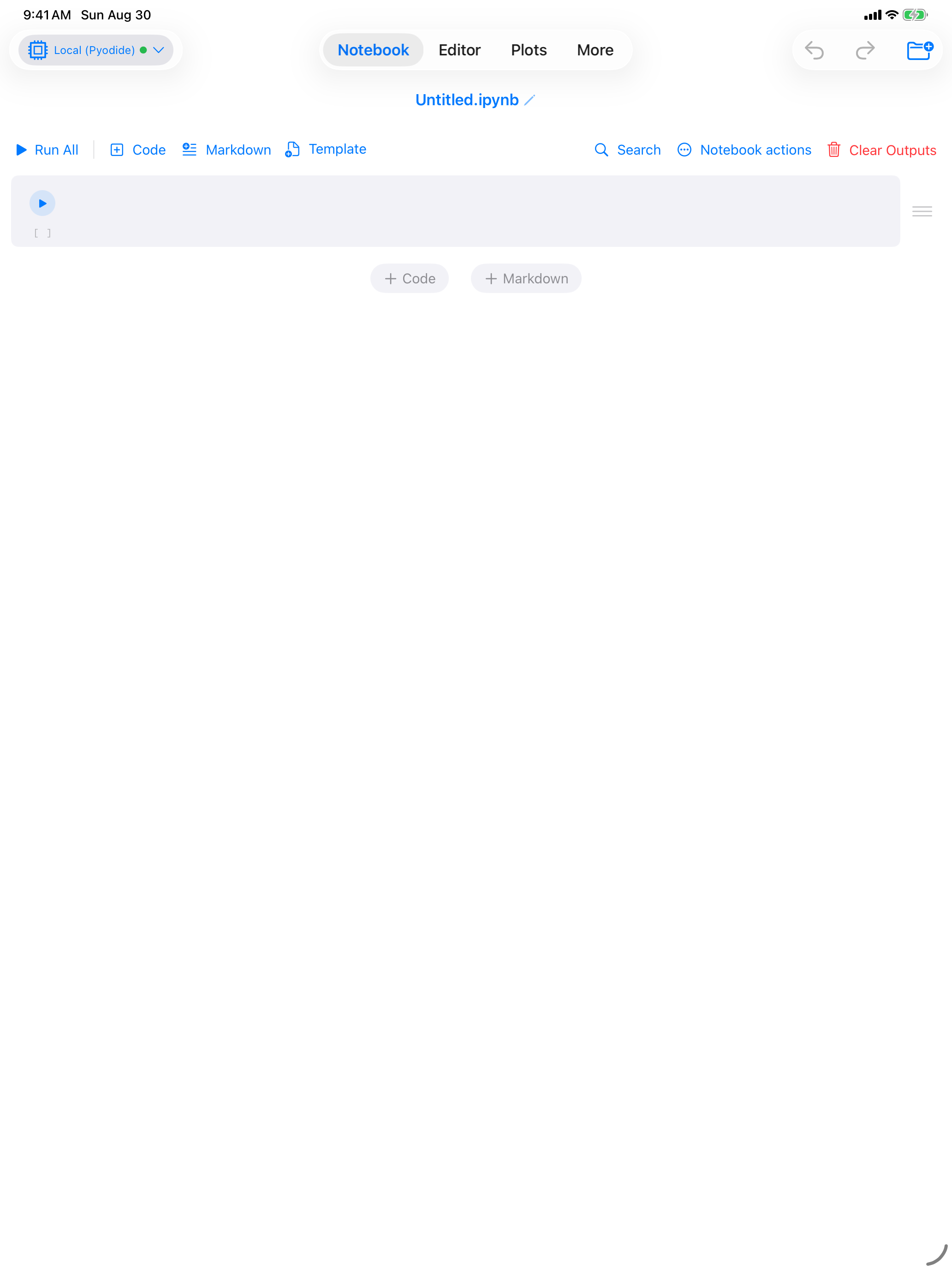
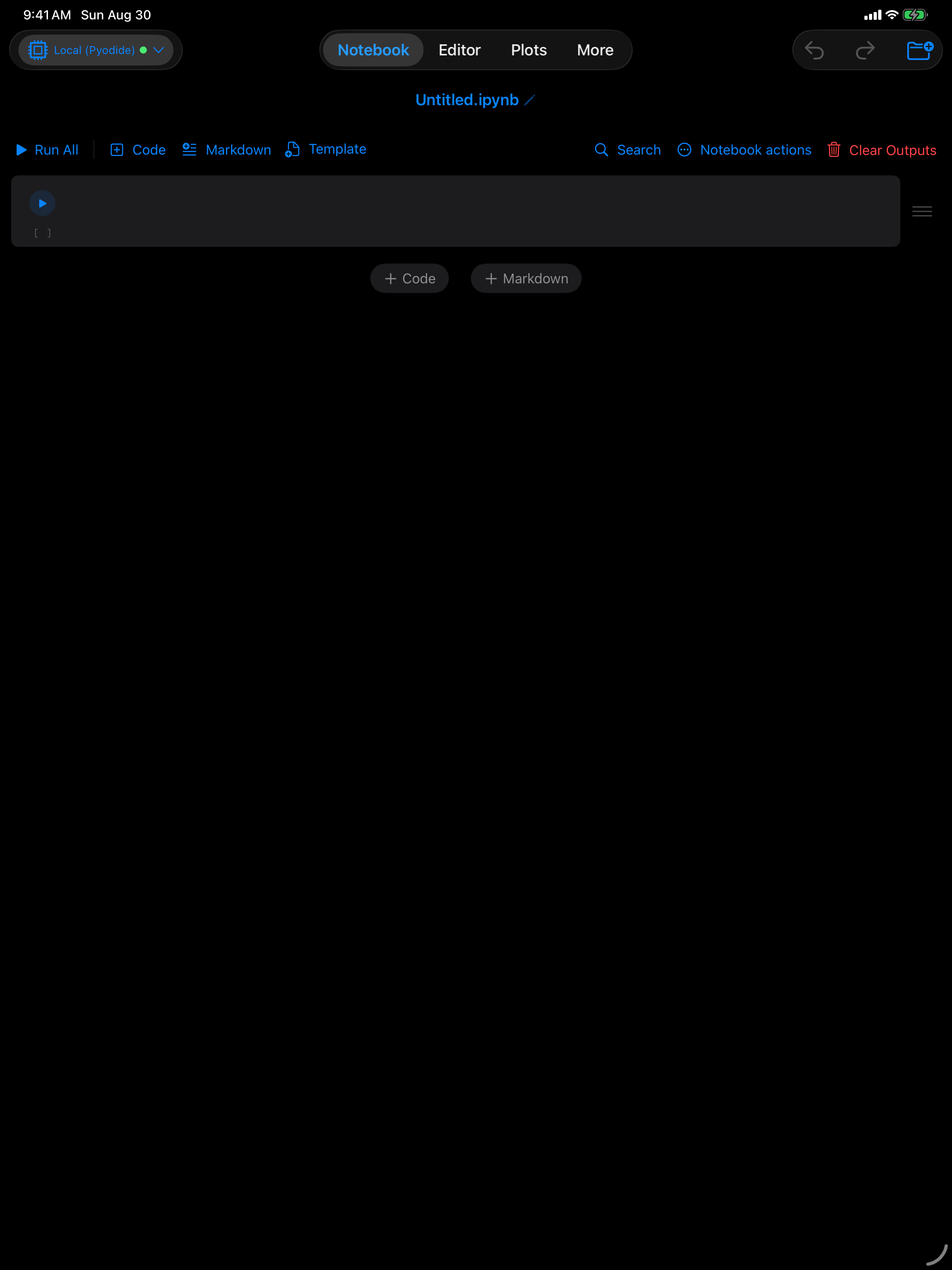
Tab Bar. One section fills the screen, and a row of tabs switches between them. The default on iPhone, and available on iPad too, where the row sits along the top instead of the bottom.
Multi-Pane Workspace. Several sections at once: Notebook or Editor top-left, Console bottom-left, Environment top-right, and a tabbed pane bottom-right for Plots, Files, Packages, Help and Settings. Drag any divider to resize. The default on iPad.
Sidebar. Every section listed down the left, one shown at a time in the detail pane. You get more room for the active view than the workspace gives, and switching sections is faster than with the tab bar. The list collapses when you want the space back.
Turn a large iPhone to landscape and the same layout appears, because that is enough width for it.
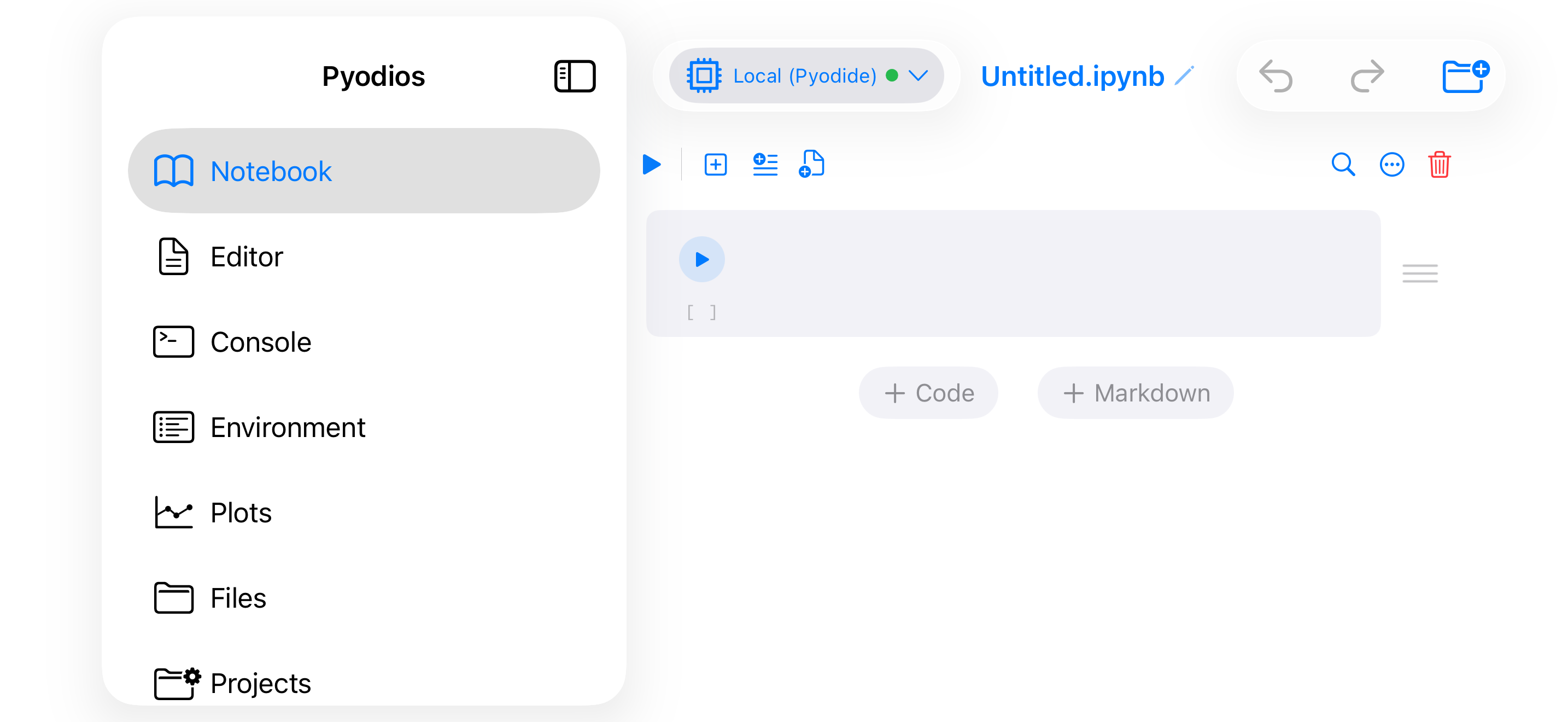
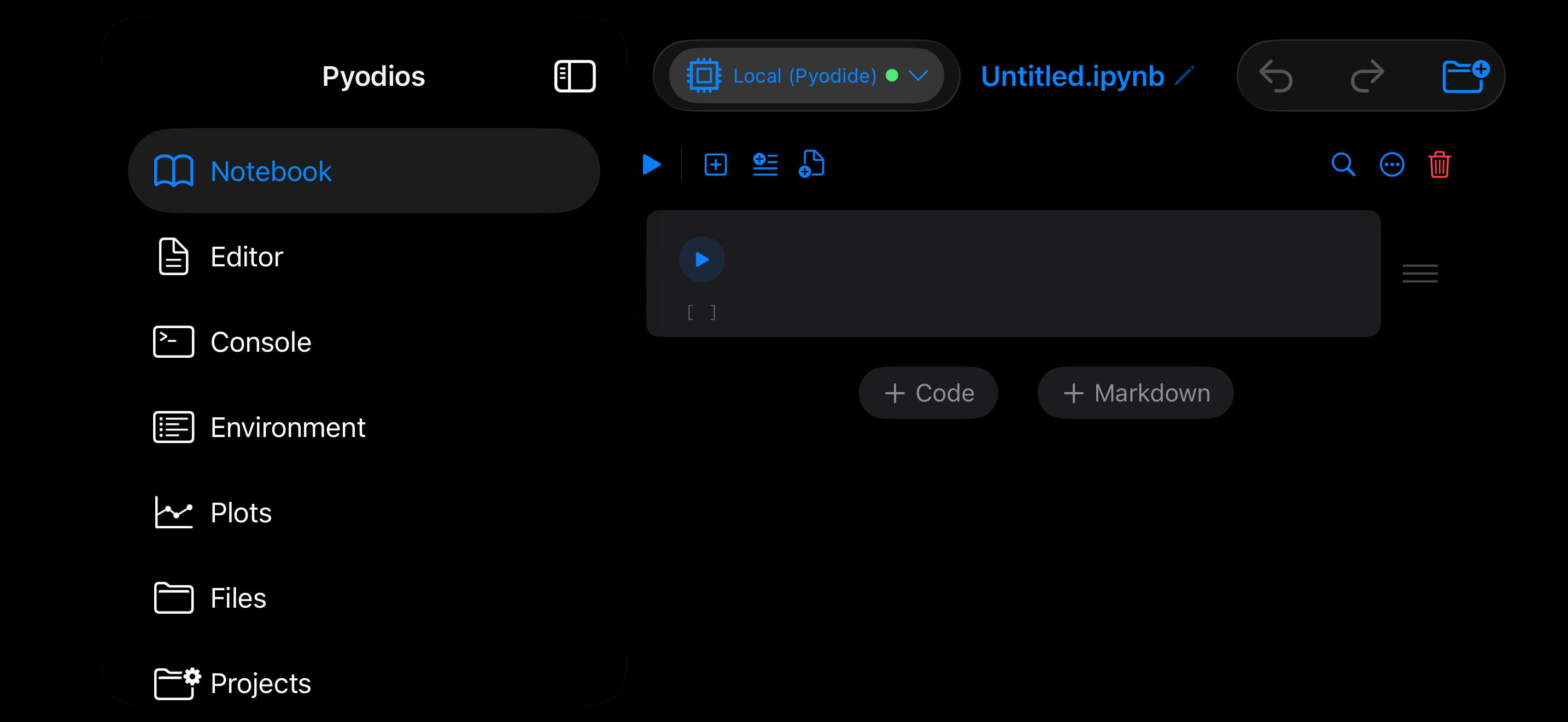
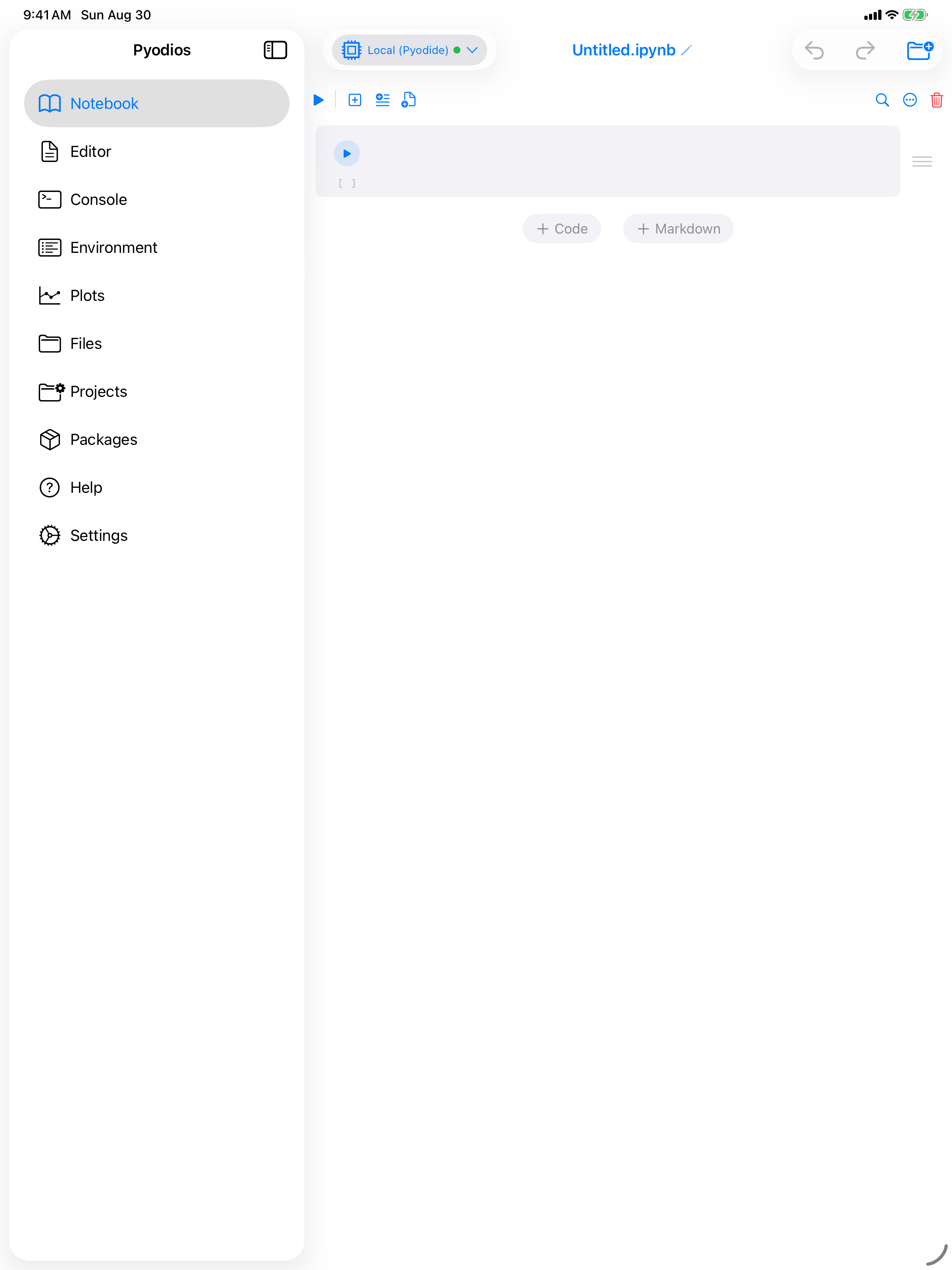
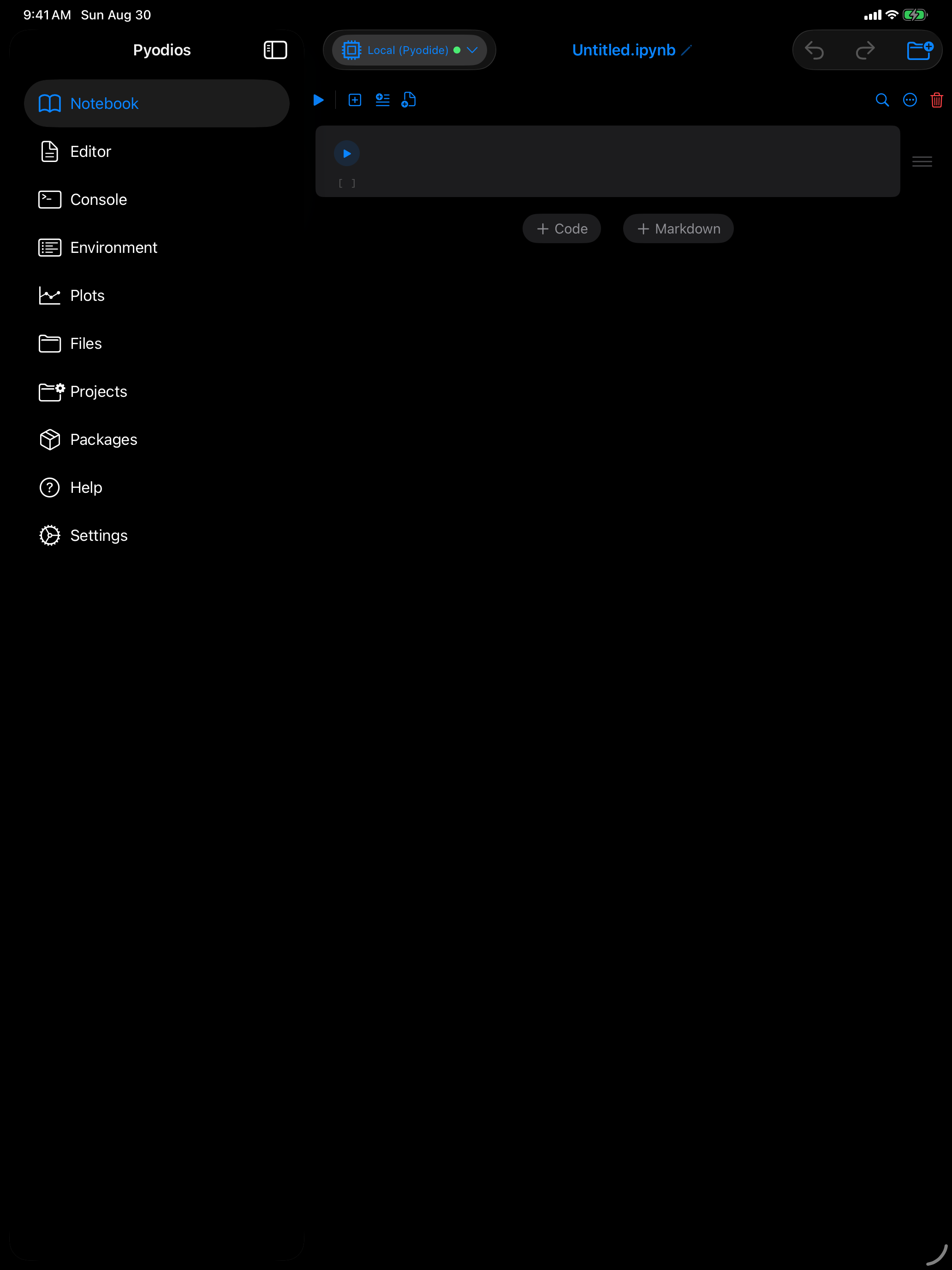
Collapsing the list gives the whole screen to whatever you are working on, and the toggle in the top-left corner brings it back. The trade-off compared to the workspace is one thing at a time, at full width.
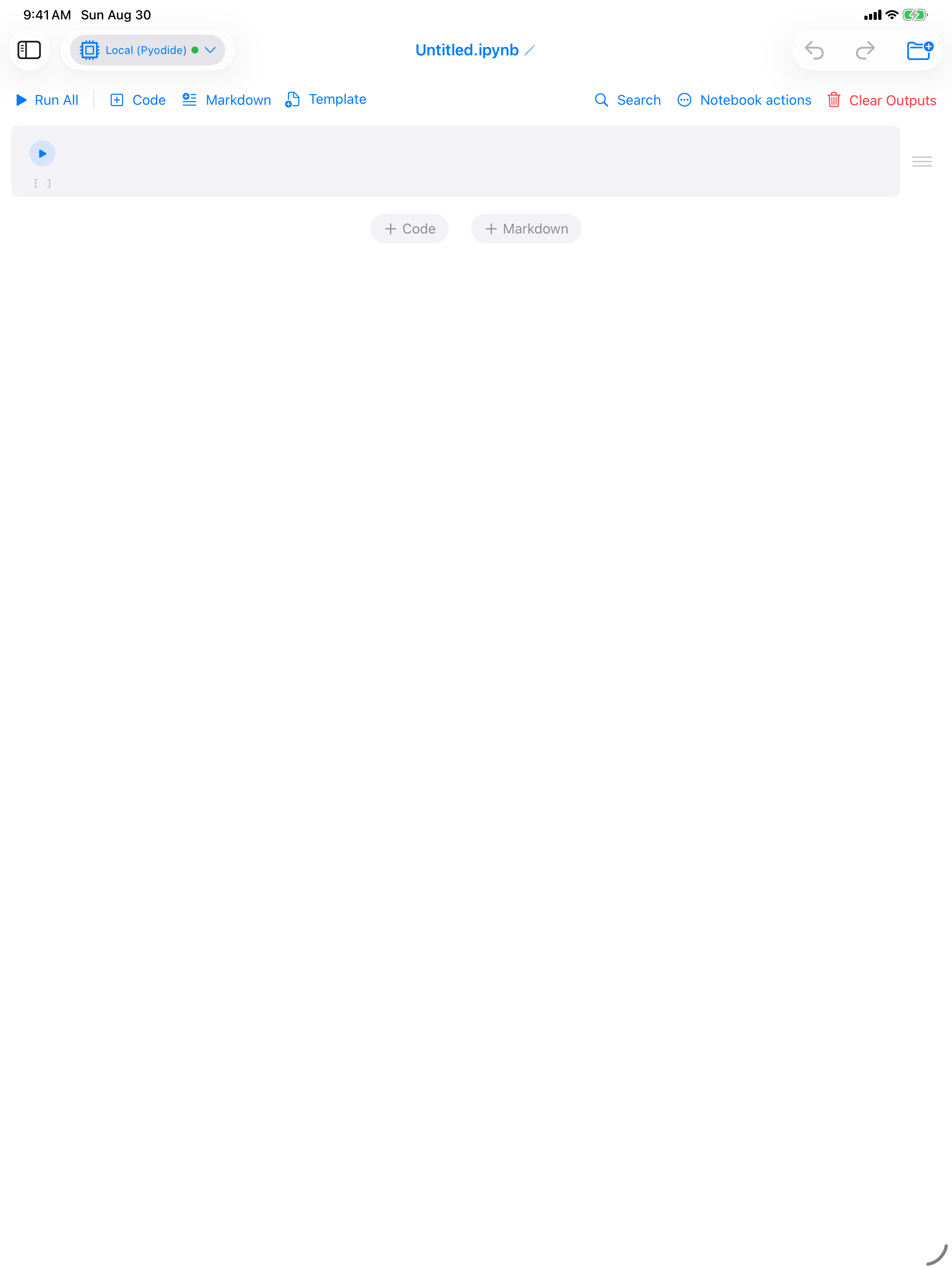
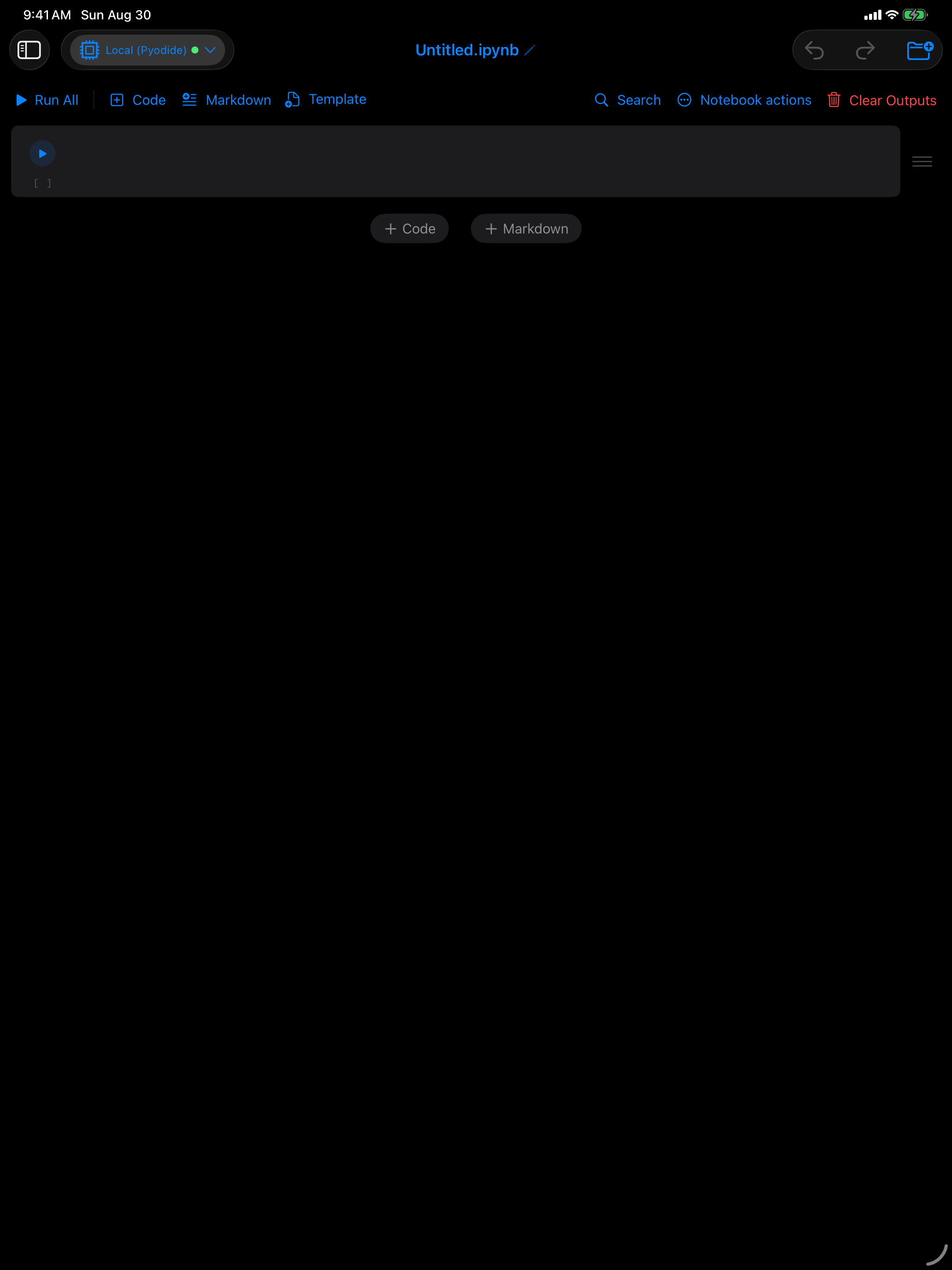
On iPad, try Multi-Pane Workspace in landscape for a desktop-like experience. Sidebar is a good middle ground when you want more room for the active view but still need to switch quickly. On iPhone in portrait the Tab Bar is the only layout that applies, and it makes the best use of the width available.
Python Session
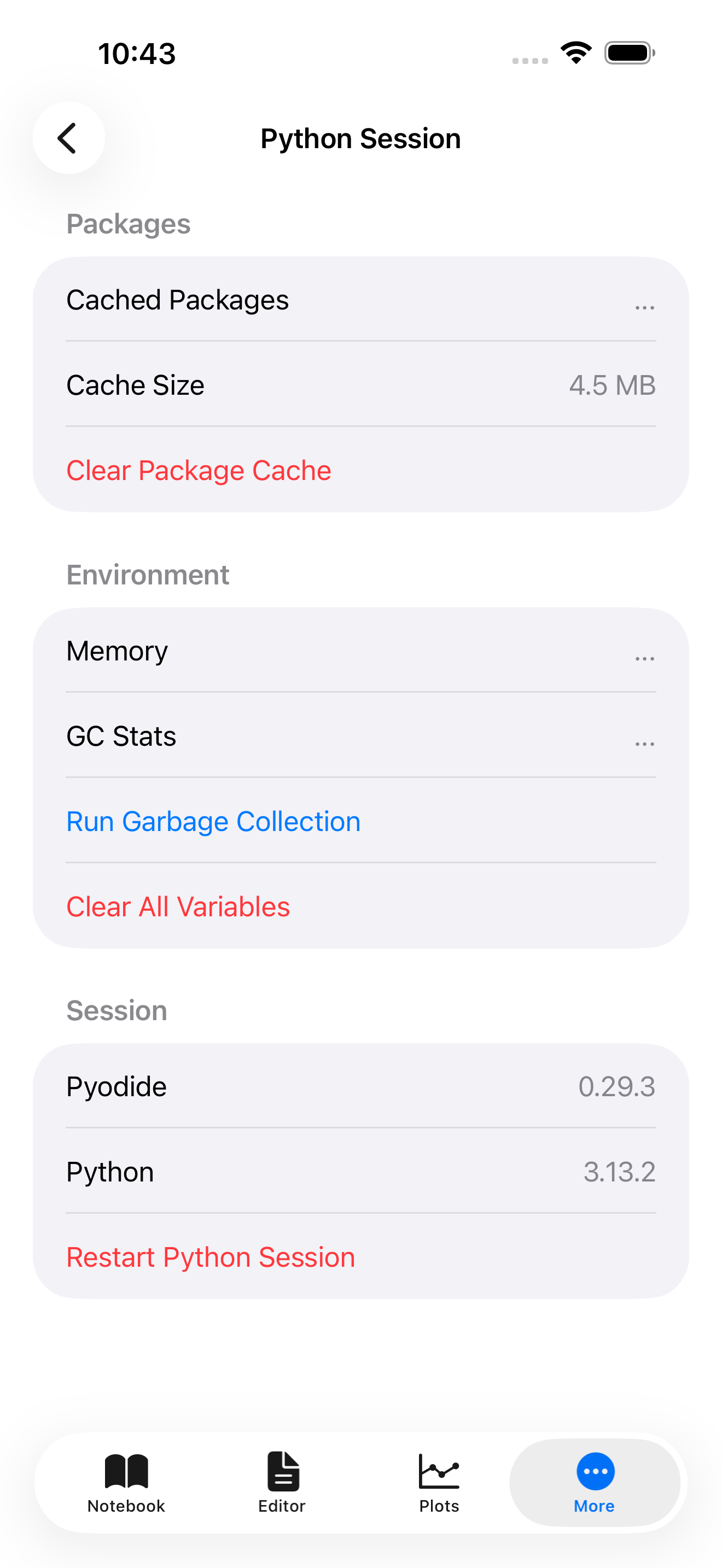
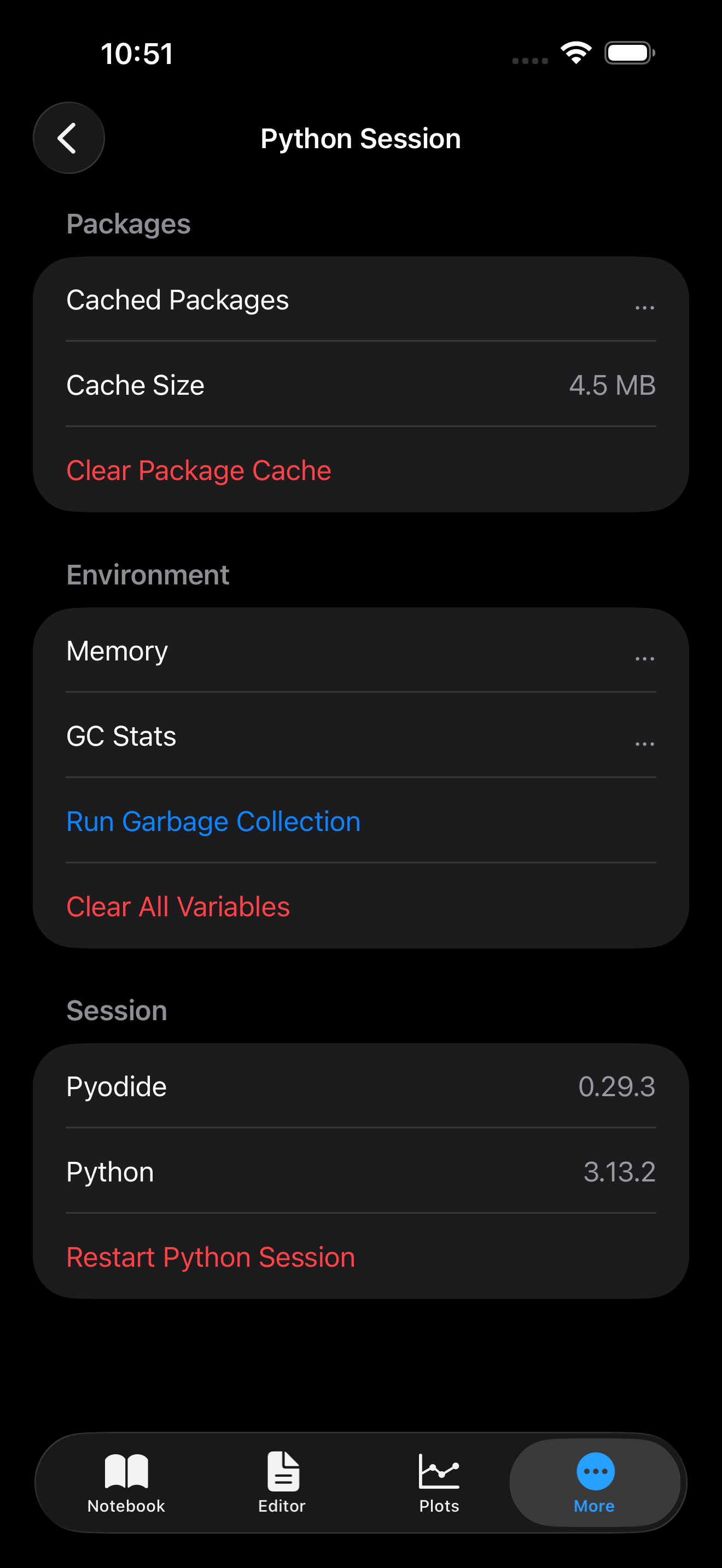
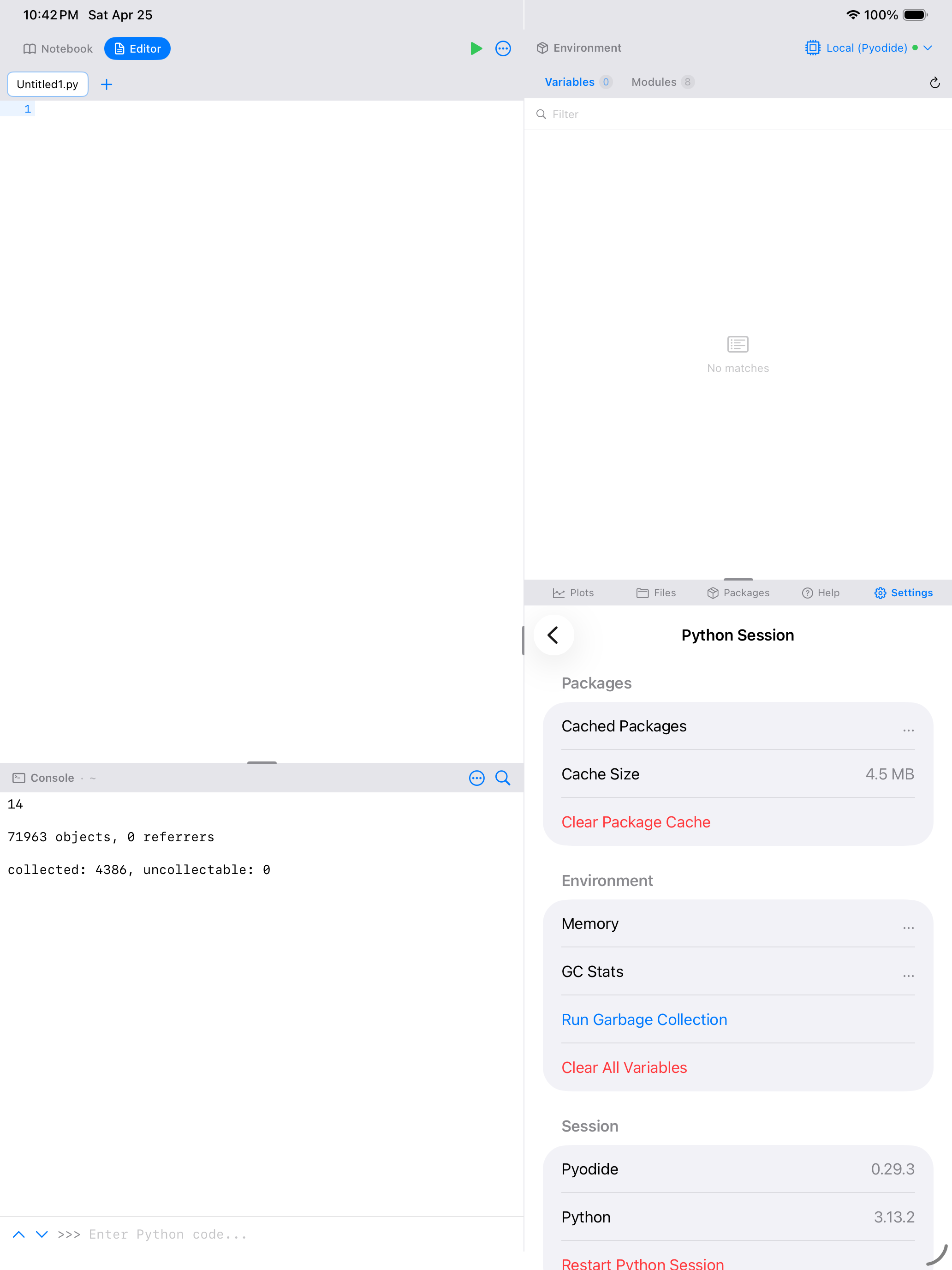
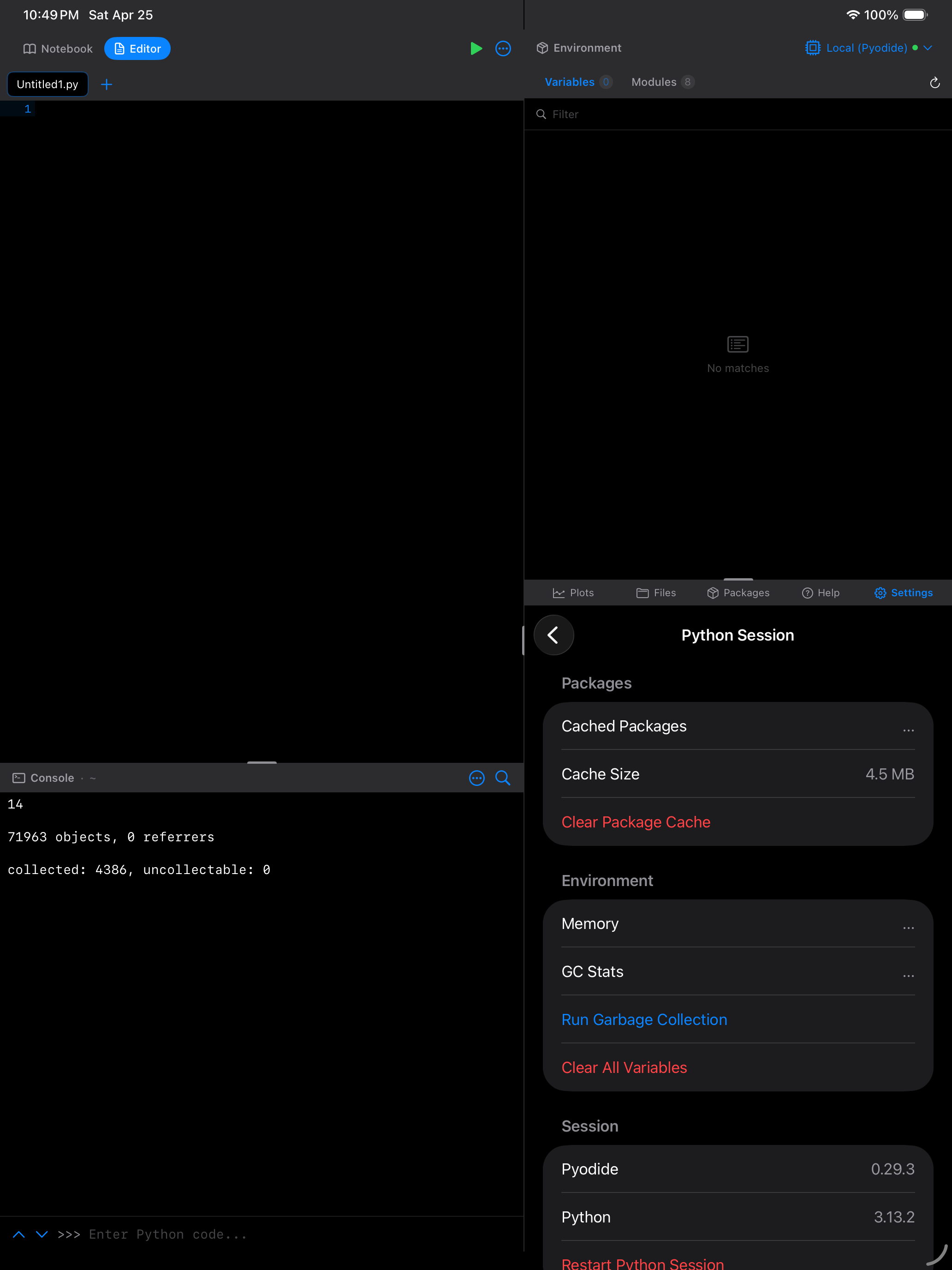
Controls for the Python engine, at Settings > Python > Python Session. This is where you check the package cache, free up memory, see which runtime you are on, and restart Python.
Packages
| Item | Description |
|---|---|
| Cached Packages | How many packages are currently loaded in the session. |
| Cache Size | Disk space taken up by cached wheels. |
| Clear Package Cache | Deletes the cached wheel files. Nothing is removed from the running session, but the next launch has to download those packages again. |
| Re-install Previous Packages | Only appears when packages from an earlier runtime version are waiting to come back. See After a runtime upgrade below. |
Environment
| Item | Description |
|---|---|
| Memory | A live count of Python objects and referrers in the session. |
| GC Stats | Totals from Python’s garbage collector: how many objects it has collected and how many it could not. |
| Run Garbage Collection | Runs a collection pass and reports how many objects were freed. |
| Clear All Variables | Deletes all user-defined variables from the Python environment, leaving imported modules alone. Asks for confirmation first. |
Session
| Item | Description |
|---|---|
| Pyodide | The Pyodide version this build ships. |
| Python | The CPython version that this Pyodide build provides. |
| Restart Python Session | Completely restarts the Pyodide runtime. Clears all variables and imported packages. Preserves your files and cached wheels. Asks for confirmation, then takes a few seconds to reinitialize. |
If the app feels slow or behaves unexpectedly, try restarting Python. Your cached packages will be restored automatically on the next session.
Looking for the startup log? It lives under Settings > Support > Startup Log, covered in Support below.
After a runtime upgrade
When the app updates to a new Python version (3.13 to 3.14 in v1.1.0), packages you installed yourself have to be fetched again because the old wheels cannot load on the new runtime. A Re-install Previous Packages row appears here showing how many are still pending. Tapping it downloads them one at a time; anything that fails stays on the list for a retry. The same offer appears as a banner on the Packages tab.
Re-installing needs an internet connection. Packages that ship inside the app are never on this list. See the release notes for the full upgrade story.
Cloud Sync
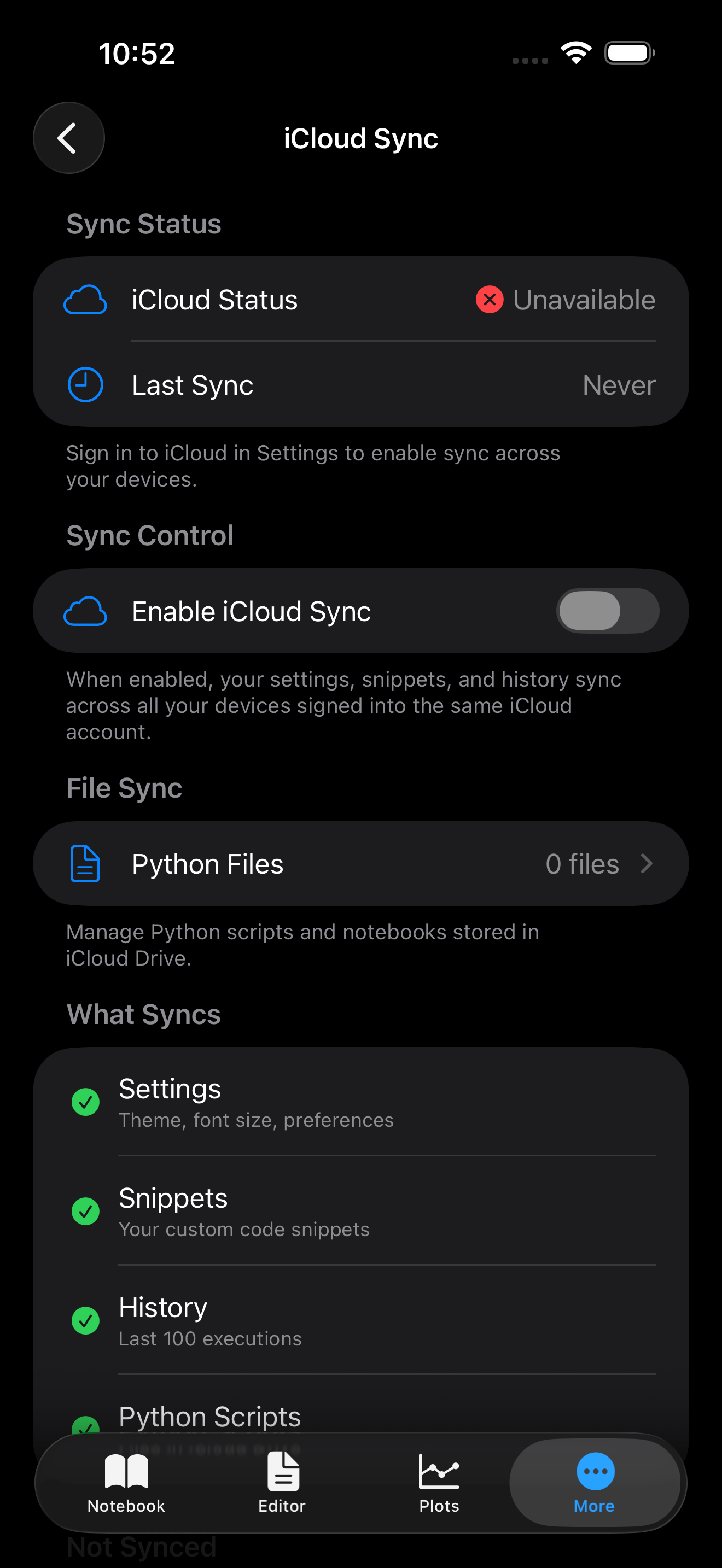
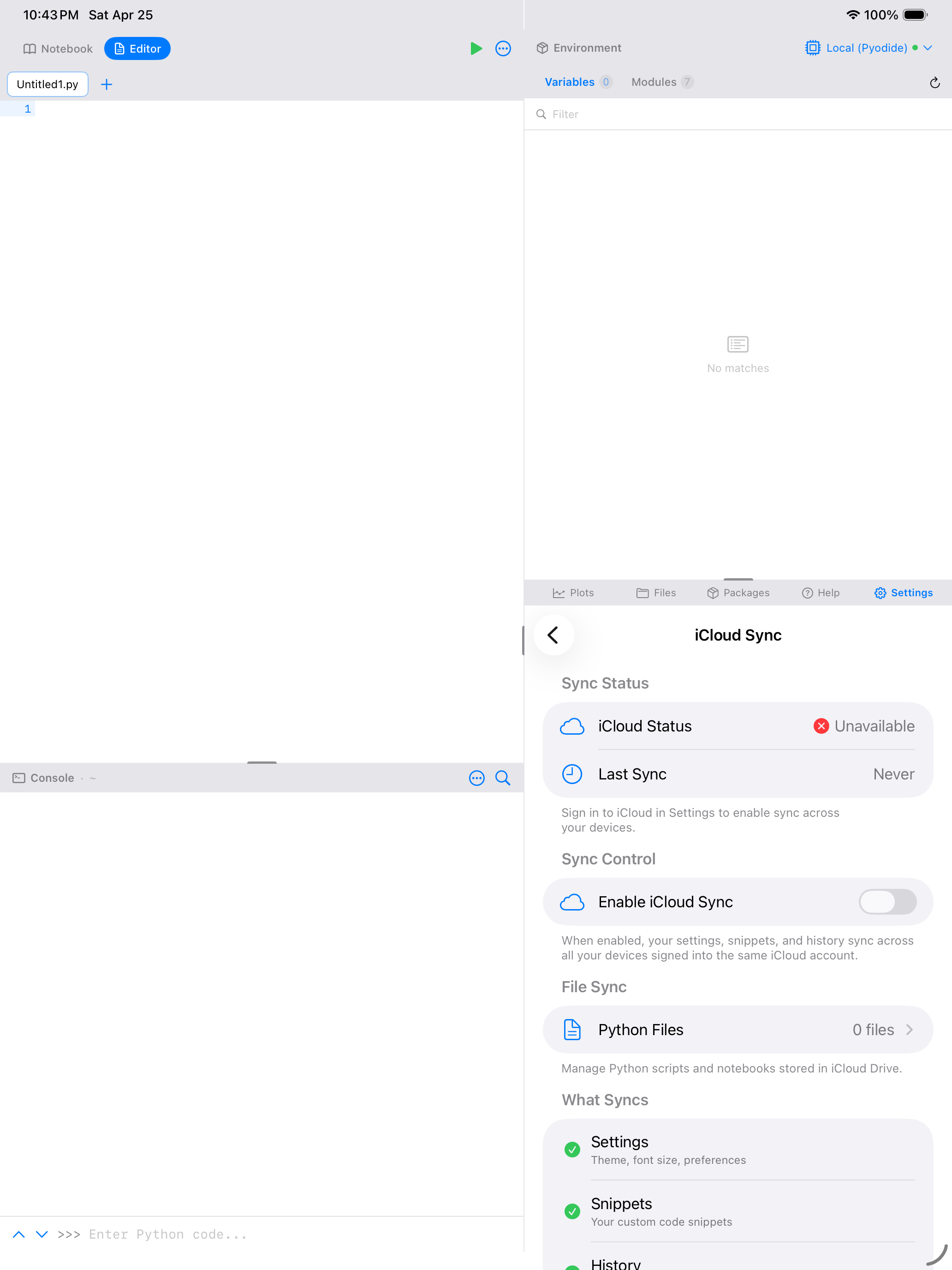
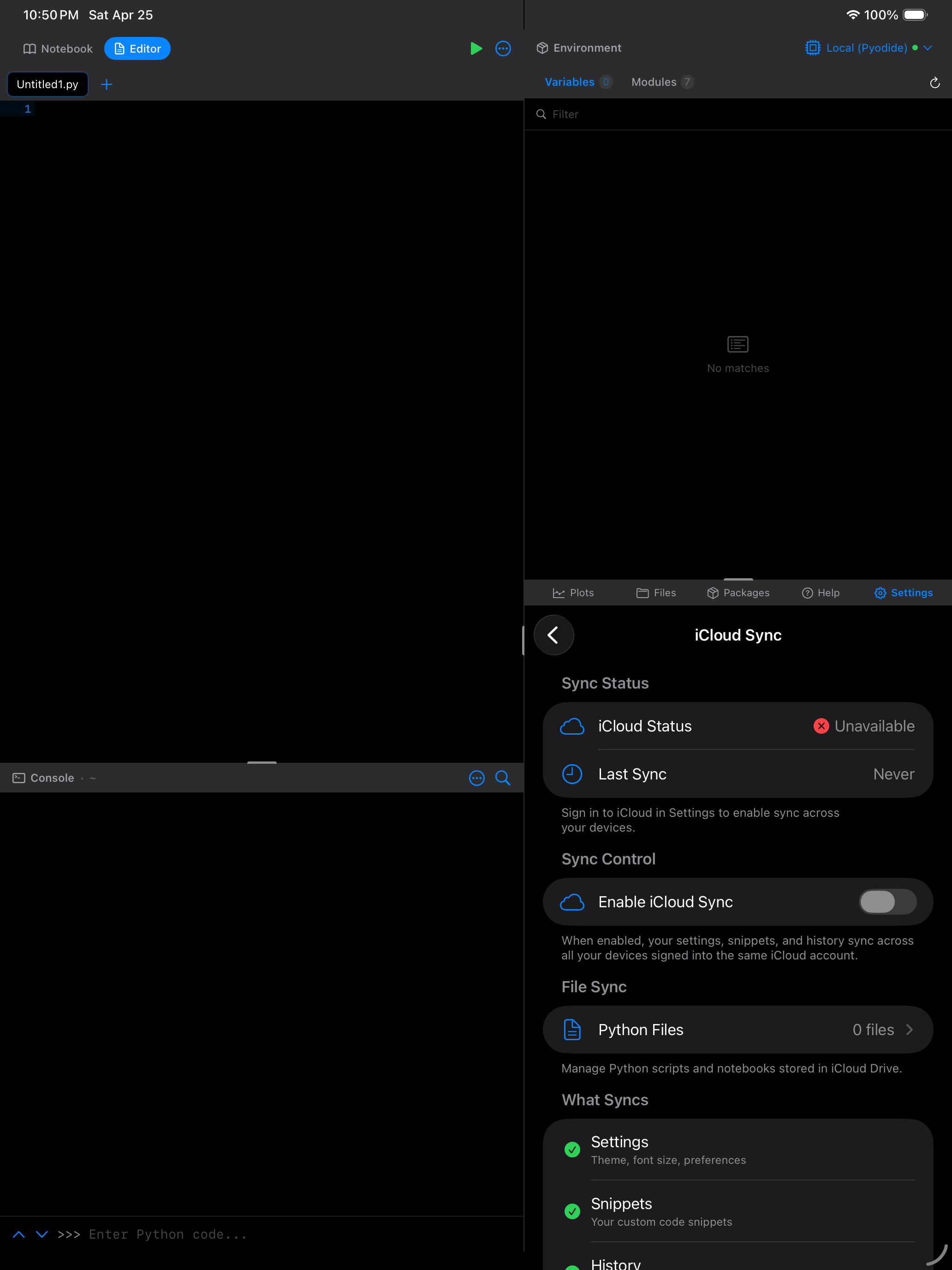
| Setting | Description |
|---|---|
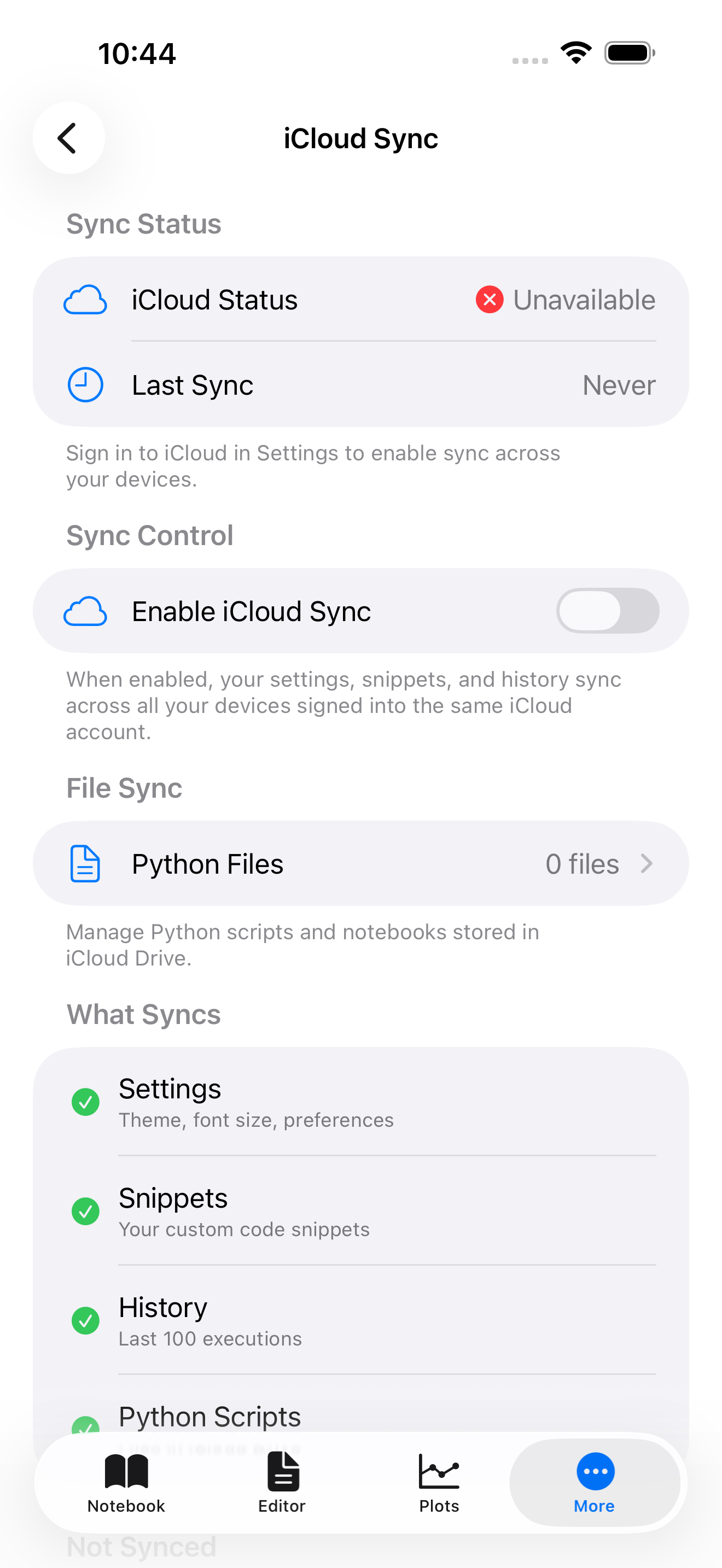
| iCloud Sync | Toggle on to sync notebooks and scripts to iCloud Documents. Files are available across all devices signed into the same Apple Account. |
| Sync Status | Shows the current sync state and the last sync time. |
Keyboard Toolbar
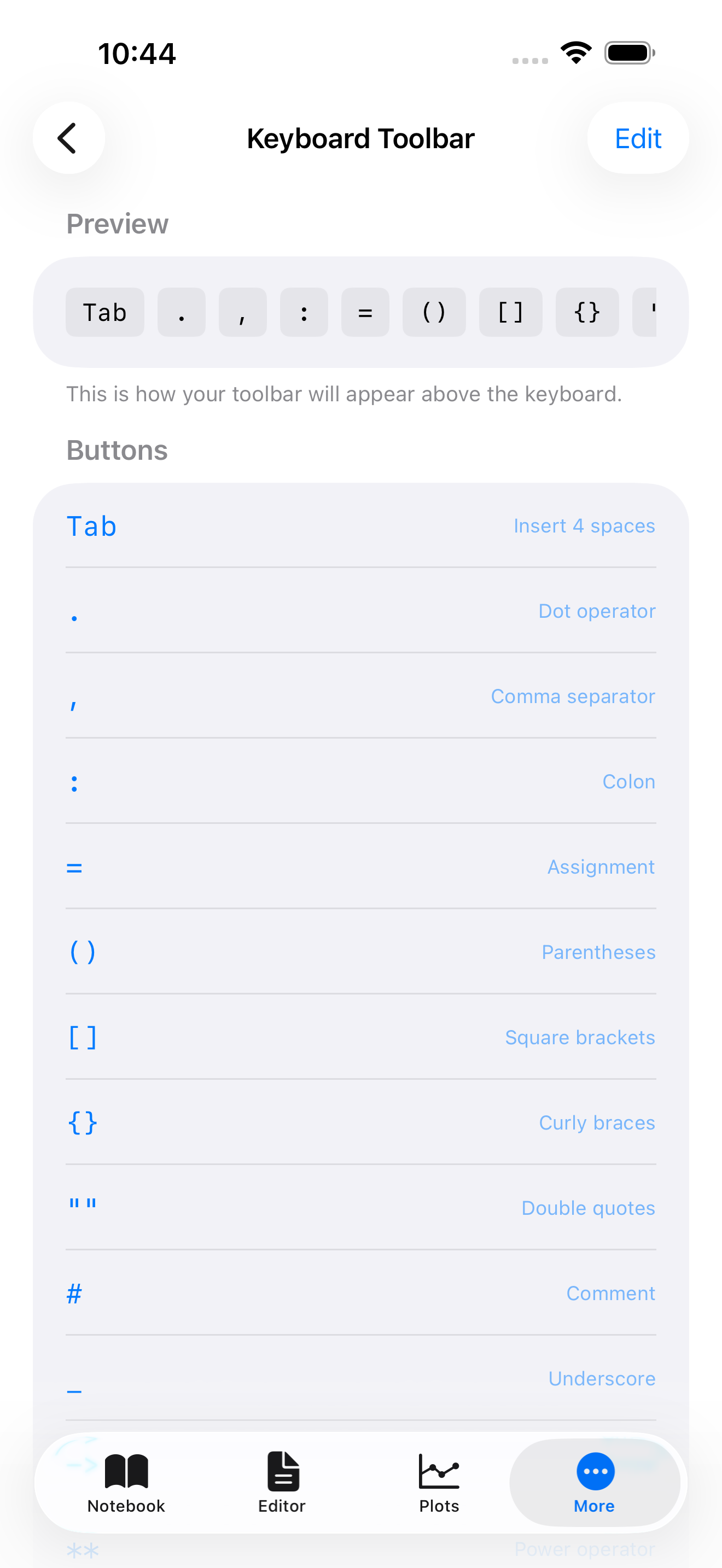
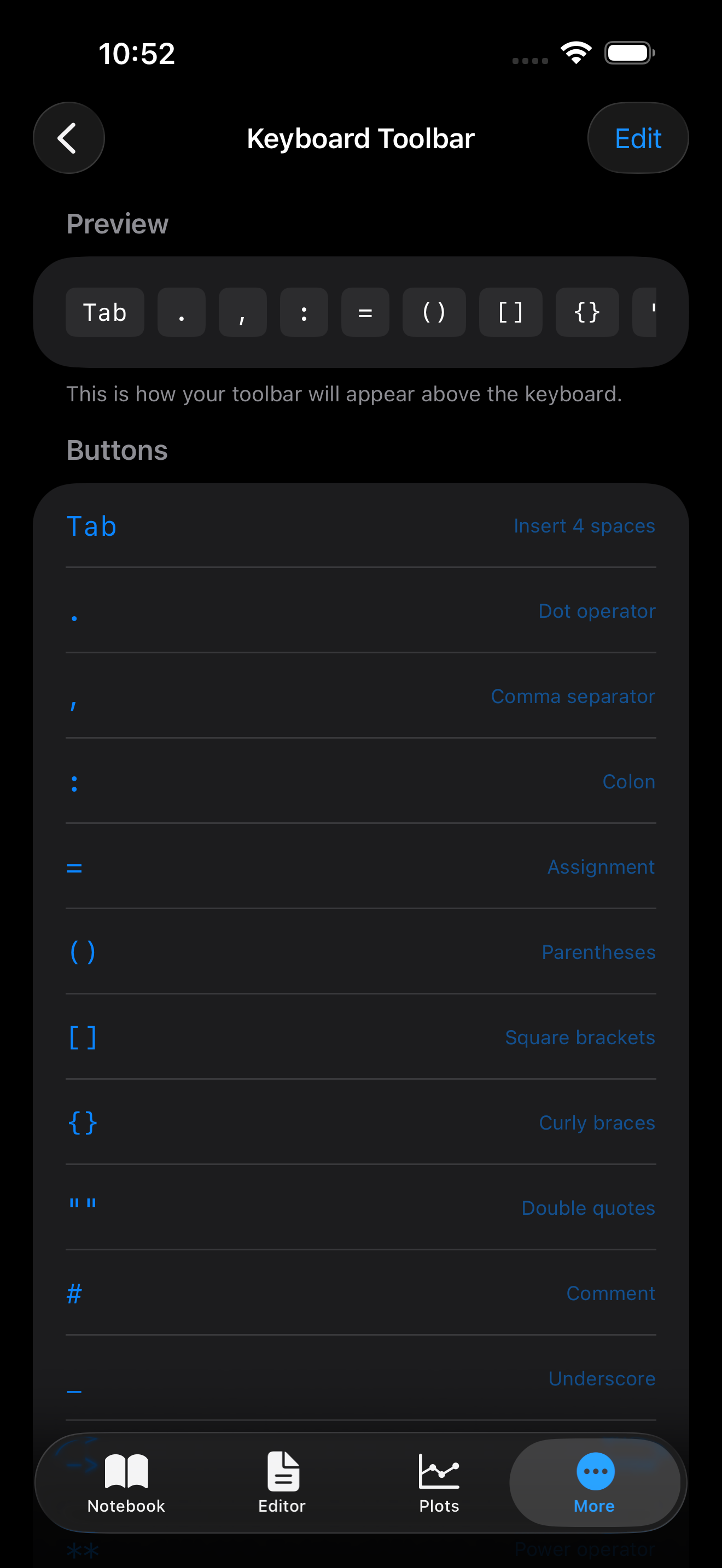
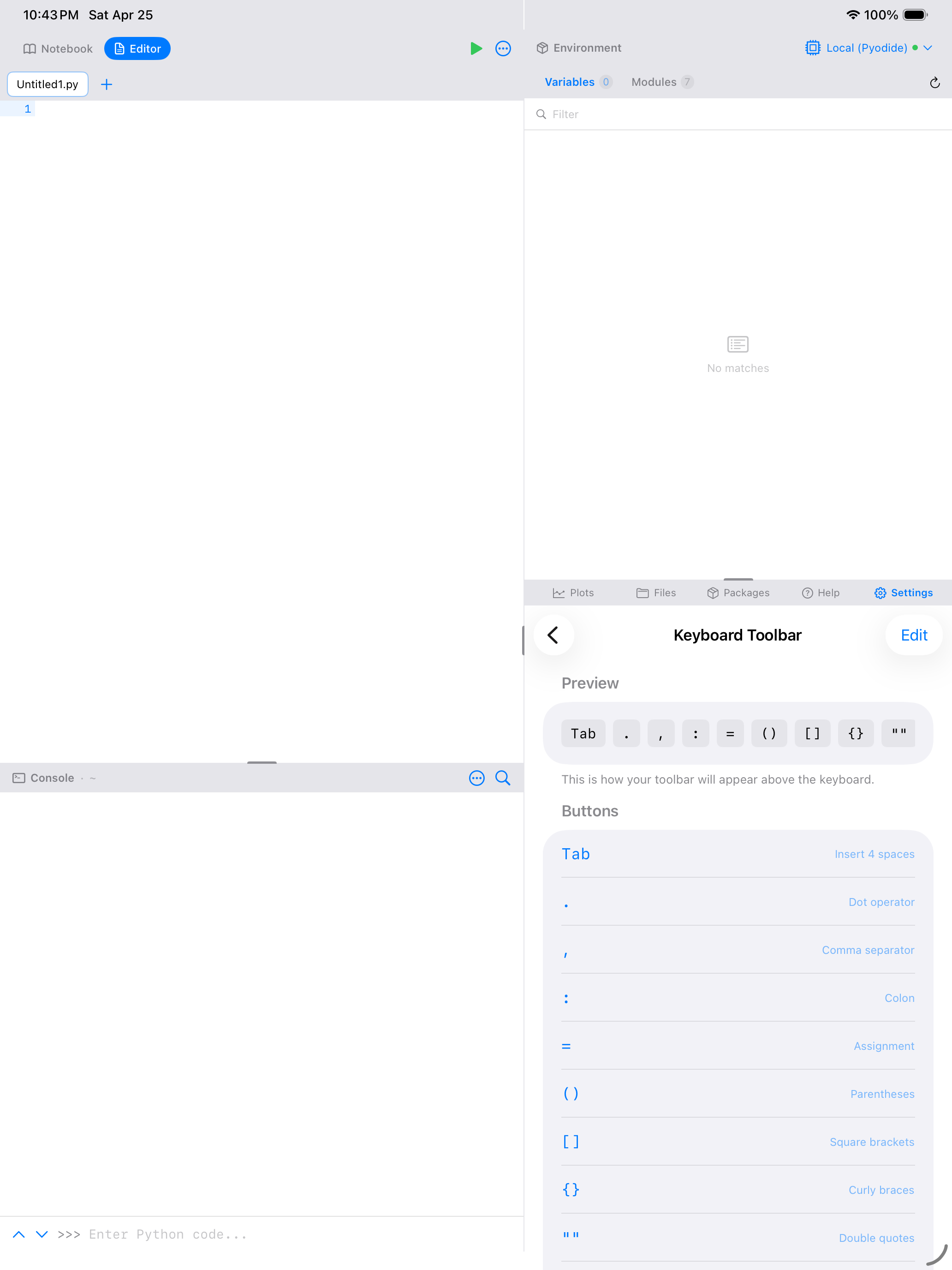
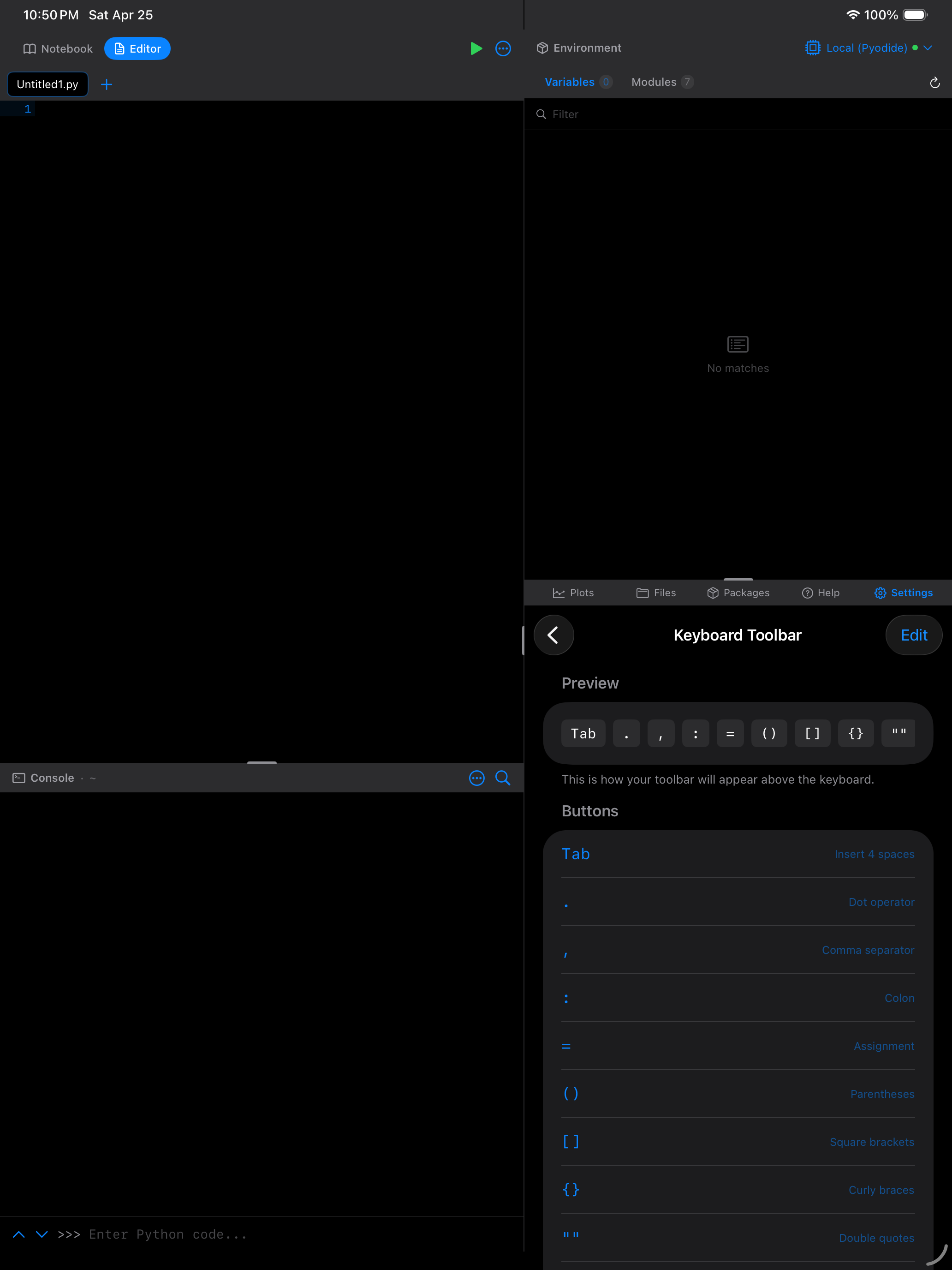
Settings > Appearance > Keyboard Toolbar controls the strip of Python symbol buttons that sits above the software keyboard in the Console and the Editor. These buttons type text: tapping one inserts its snippet at the cursor.
The screen shows a live Preview of the strip, then the buttons themselves. Tap Edit in the top right, or work directly on the list:
- Drag a button to reorder it. The order here is the order in the strip.
- Swipe a button to delete it. Deletion is permanent, so use Add Button or Reset to Defaults to get one back.
- Tap a button to edit its label, the text it inserts, where the cursor lands afterwards, and its description.
Reset to Defaults restores the shipped set, and asks first.
This is the keyboard accessory strip, not the app’s navigation toolbar, and it is not editable in place: there is no long-press gesture on the strip itself. Notebook cells currently use the built-in set rather than your customised one.
Default shortcuts:
| Category | Action | Shortcut |
|---|---|---|
| Run | Run Cell / Selection | Cmd+Enter |
| Run | Run All Cells | Cmd+Shift+Enter |
| File | Save | Cmd+S |
| File | New File | Cmd+N |
| File | Close File | Cmd+W |
| Find | Find | Cmd+F |
| Find | Find & Replace | Cmd+Option+F |
| Edit | Toggle Comment | Cmd+/ |
| Edit | Duplicate Line | Cmd+D |
| Navigate | Code Completion | Ctrl+Space |
Customizing shortcuts
All shortcuts are fully customizable. Go to Settings > Keyboard Shortcuts to see the list. Tap any shortcut to open the editor where you can:
- Choose modifier keys (Command, Option, Control, Shift) with toggle buttons
- Pick a key from a grid of letters, numbers, and special characters
- See a live preview of the shortcut combination
- Reset an individual shortcut to its default
A blue dot appears next to shortcuts you have customized. Use Reset All to Defaults at the bottom of the list to undo all customizations at once.
On iPad, hold the Cmd key to see a discoverability overlay listing all active shortcuts for the current screen.
Plot Settings
Controls how plots are displayed and cached.
| Setting | Description |
|---|---|
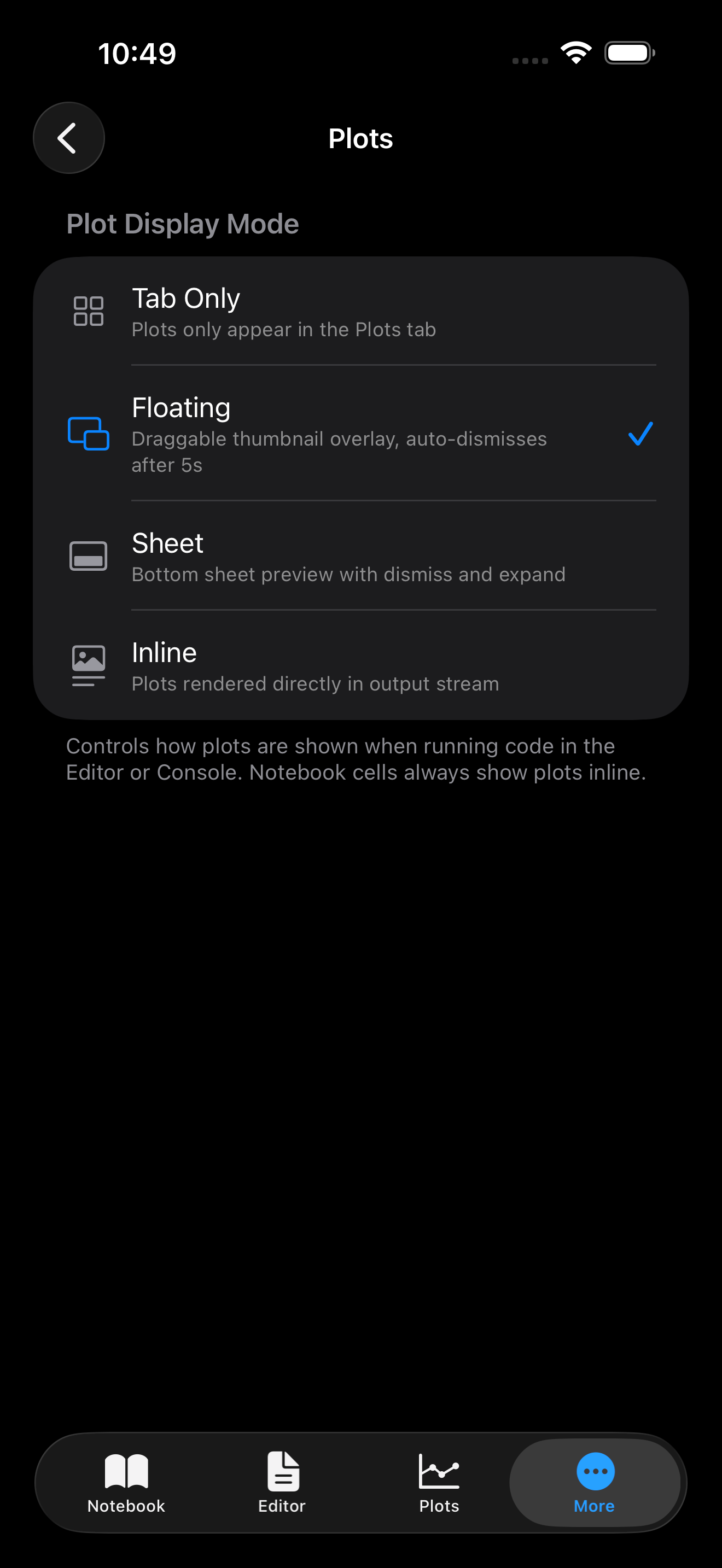
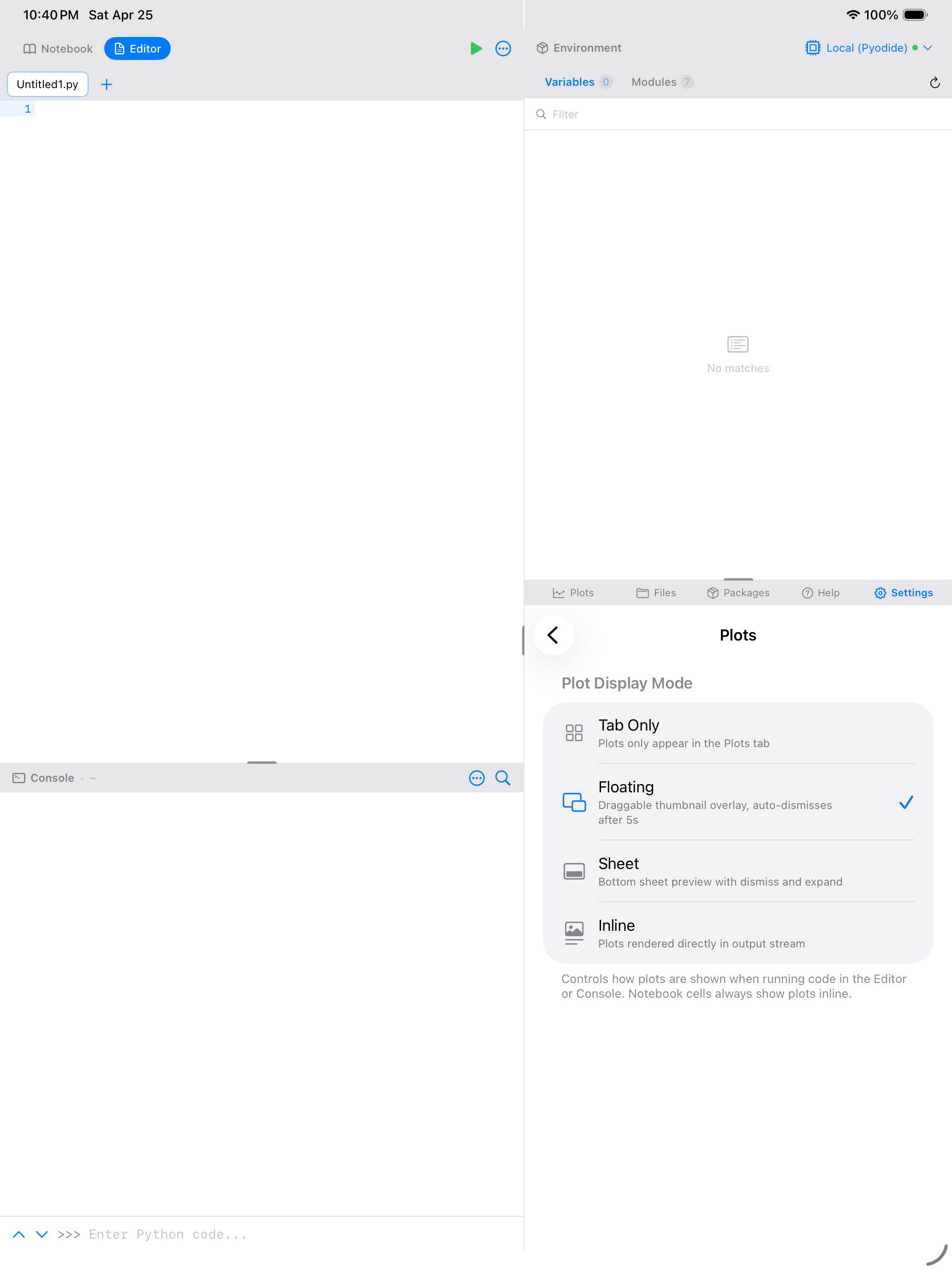
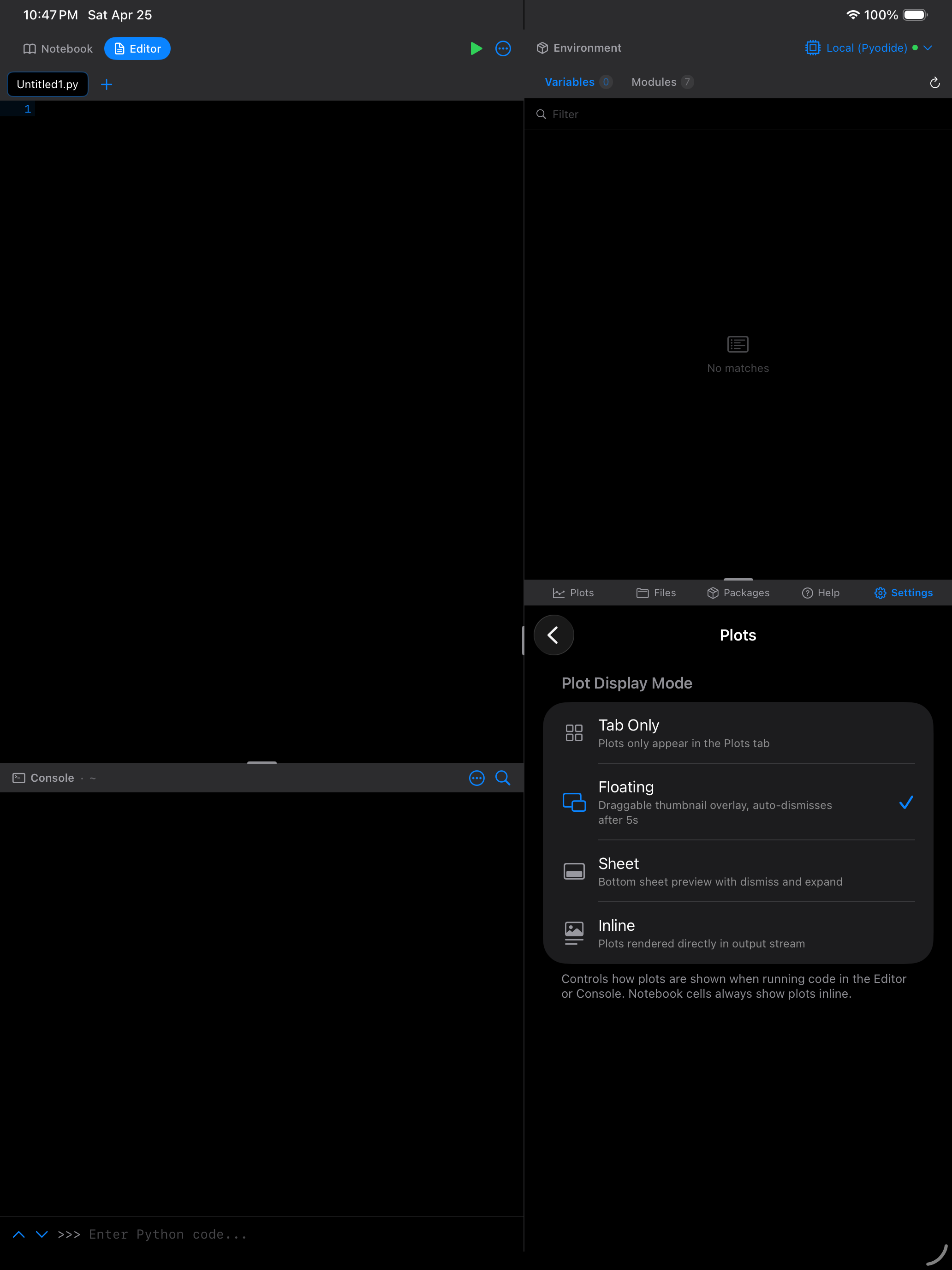
| Plot Display Mode | How new plots appear when generated from the Editor or Console. See the Plots guide for details on each mode. |
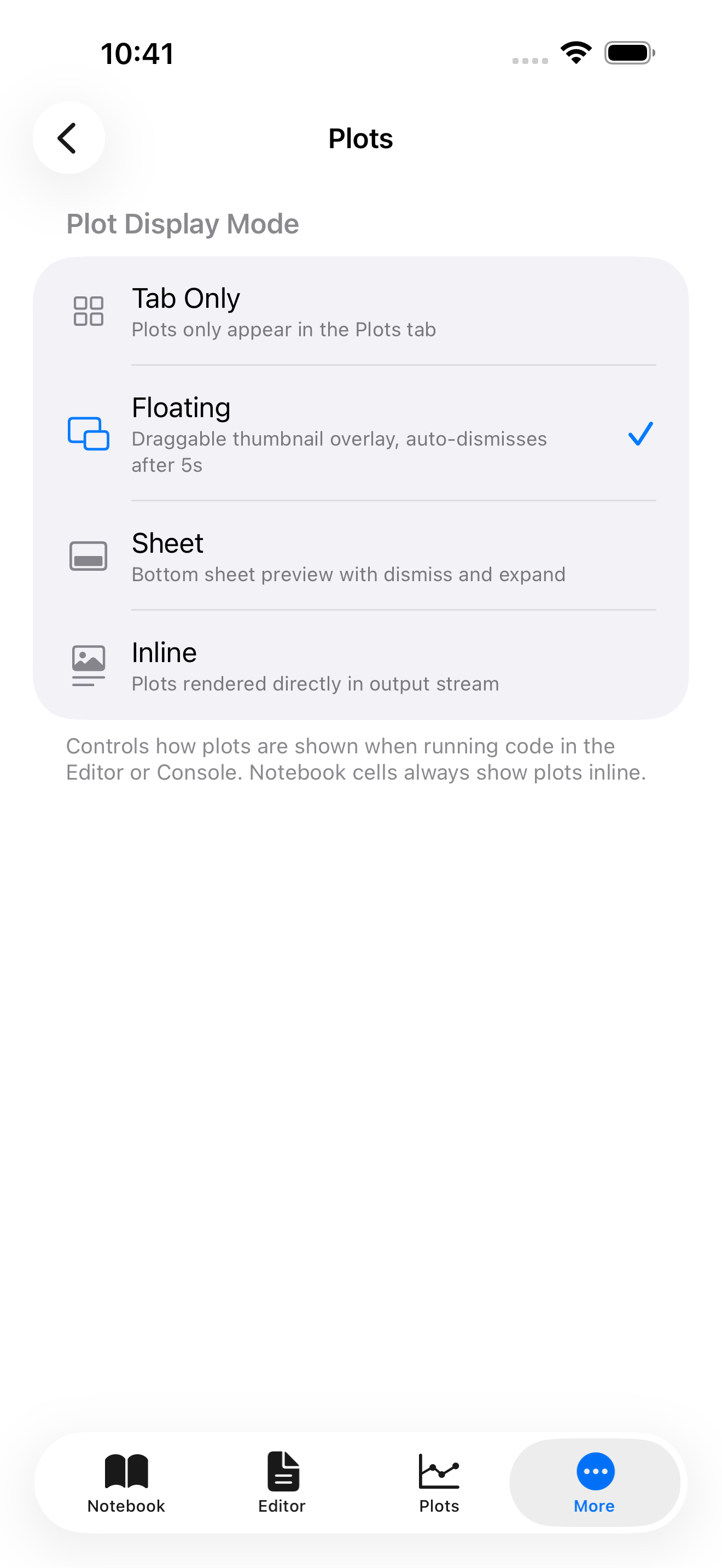
Plot Display Mode
| Mode | Description |
|---|---|
| Tab Only | Plots appear only in the Plots tab gallery. This is the default. |
| Floating | A draggable thumbnail appears in the corner of the screen when a new plot is generated. Tap to expand, swipe to dismiss. |
| Sheet | A bottom sheet previews new plots with dismiss and expand options. |
| Inline | Plots render directly in the output stream (Editor output tray or Console). |
Help Resources
Quick access to documentation and learning materials, organized by category.
Getting Started
| Item | Description |
|---|---|
| Show Tutorial | Replays the onboarding walkthrough that you saw when you first opened the app. |
| Keyboard Shortcuts | Opens the shortcut reference card (also accessible via Cmd+? on external keyboards). |
Python Documentation
| Item | Description |
|---|---|
| Pyodide Docs | The Pyodide project documentation at pyodide.org. |
| Python 3 Docs | Official Python language reference at docs.python.org. |
| Available Packages | List of packages available for Pyodide/WebAssembly. |
| micropip Docs | Documentation for the micropip package manager used to install packages. |
Community
| Item | Description |
|---|---|
| Pyodide GitHub | The Pyodide open-source repository for issues and discussions. |
| NumPy Docs | NumPy reference documentation. |
| Matplotlib Docs | Matplotlib plotting library documentation. |
About
Version numbers, runtime details, legal documents, credits, and open-source licenses.
Version and Runtime
| Item | Value |
|---|---|
| App Version / Build | Current release version and build number from the App Store. |
| Pyodide Version | 314.0.5 in version 1.1.0 (the WebAssembly Python runtime bundled with the app). |
| Python Version | Python 3.14.2 in version 1.1.0 (the CPython version compiled into Pyodide). |
| Runtime | WebAssembly. |
The two runtime rows are read from the build you are running, not typed in, so what About shows is always the runtime your code actually executes on. Version 1.0 shipped Pyodide 0.29.3 with Python 3.13.2.
Version 1.1.0 requires iOS 26 or iPadOS 26 or later. On an earlier version of iOS the App Store simply will not offer you the update, and you stay on the version of Pyodios you already have. There is no in-app message about this, so if the update never appears, check your iOS version first.
Credits and Legal
| Item | Description |
|---|---|
| Acknowledgments | Credits for the open-source projects that make Pyodios possible: Pyodide, CPython, Comlink, micropip, and others. |
| Licenses | Open-source licenses for all bundled technologies (MPL-2.0 for Pyodide, PSF License for CPython, Apache 2.0 for Comlink). |
| Privacy Policy | Link to the app’s privacy policy. |
| Terms of Use | Link to the terms of service. |
Keyboard Shortcuts
A reference card listing every shortcut, useful mainly with a hardware keyboard on iPad. It is not in the Appearance group: open it from Settings > Help & Resources > Keyboard Shortcuts, or on iPhone from the More tab.
Reset All on that screen restores the default bindings, and asks first.
Error Log
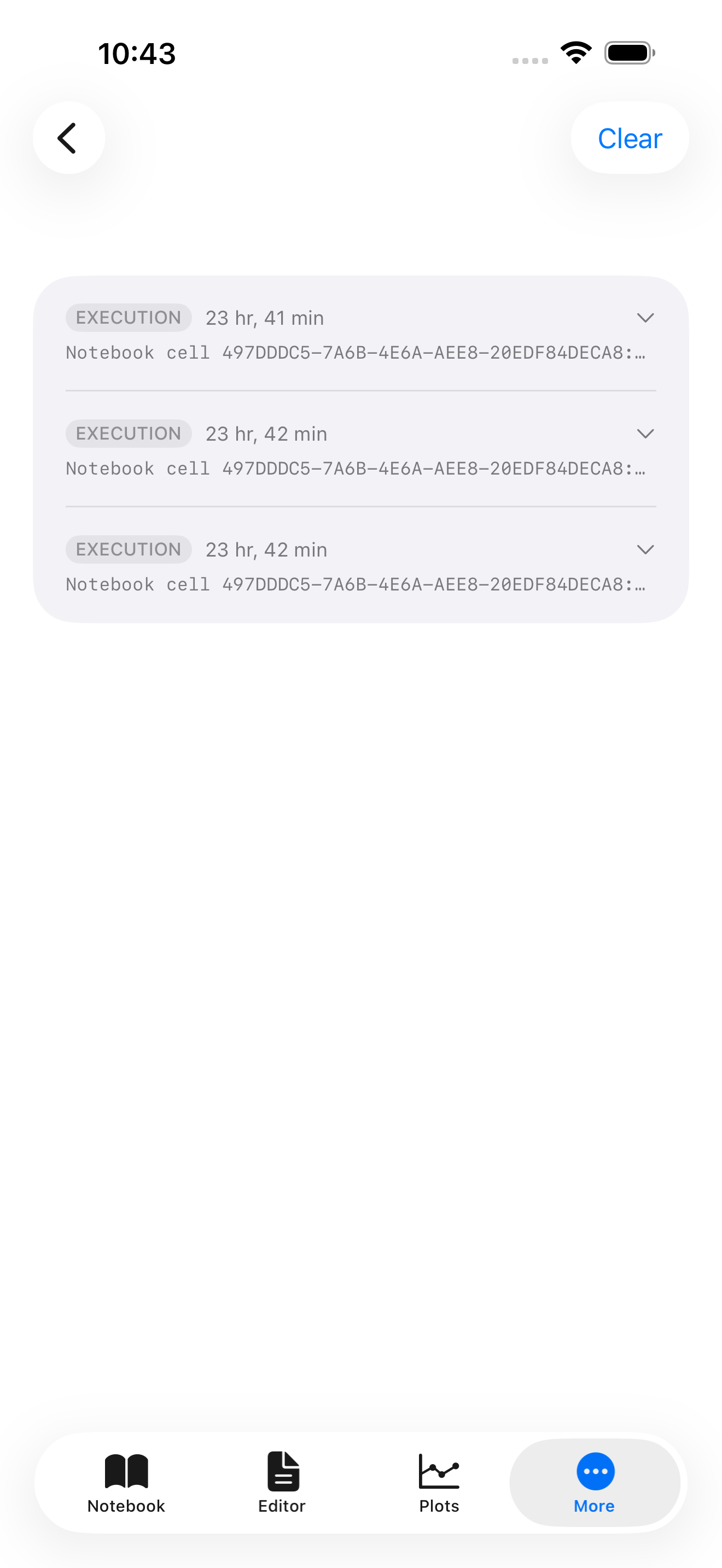
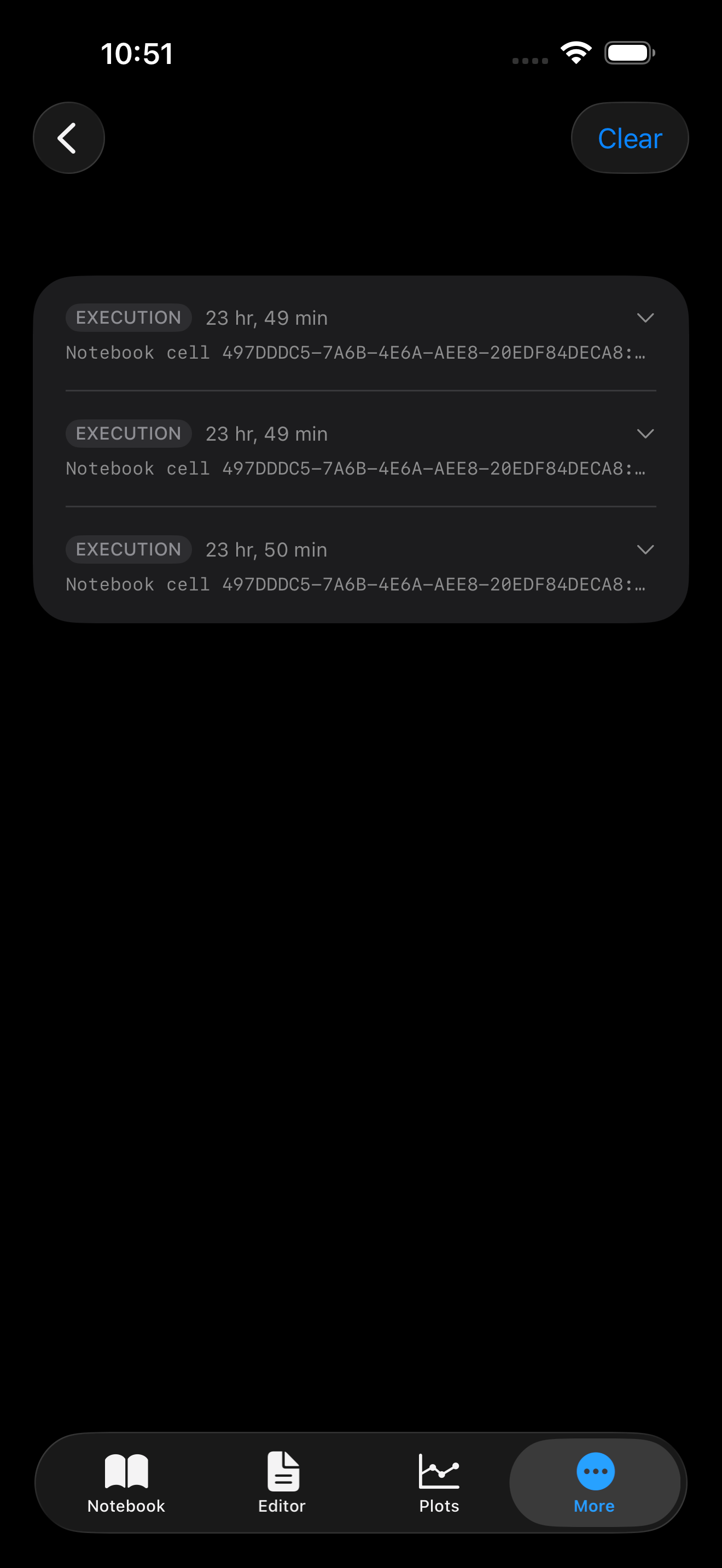
The error log captures warnings and errors that occur during your session. You can view the log and export it as a text file for troubleshooting or when reporting issues.
| Item | Description |
|---|---|
| View Error Log | Opens the full error log with timestamps and error details. |
| Export Error Log | Shares the log file via the iOS share sheet so you can email it or save it. |
| Clear Error Log | Removes all logged entries. |
Support
Diagnostic tools and a feedback form for reporting bugs or suggesting features.
| Item | Description |
|---|---|
| Send Feedback | Opens a form where you pick a type (Bug Report, Feature Request, Question, or Other) and describe the issue. |
| Startup Log | The record of the current app launch: what loaded and when, a timestamp on every entry, a total launch time at the end, and anything that failed along the way. |
The feedback form
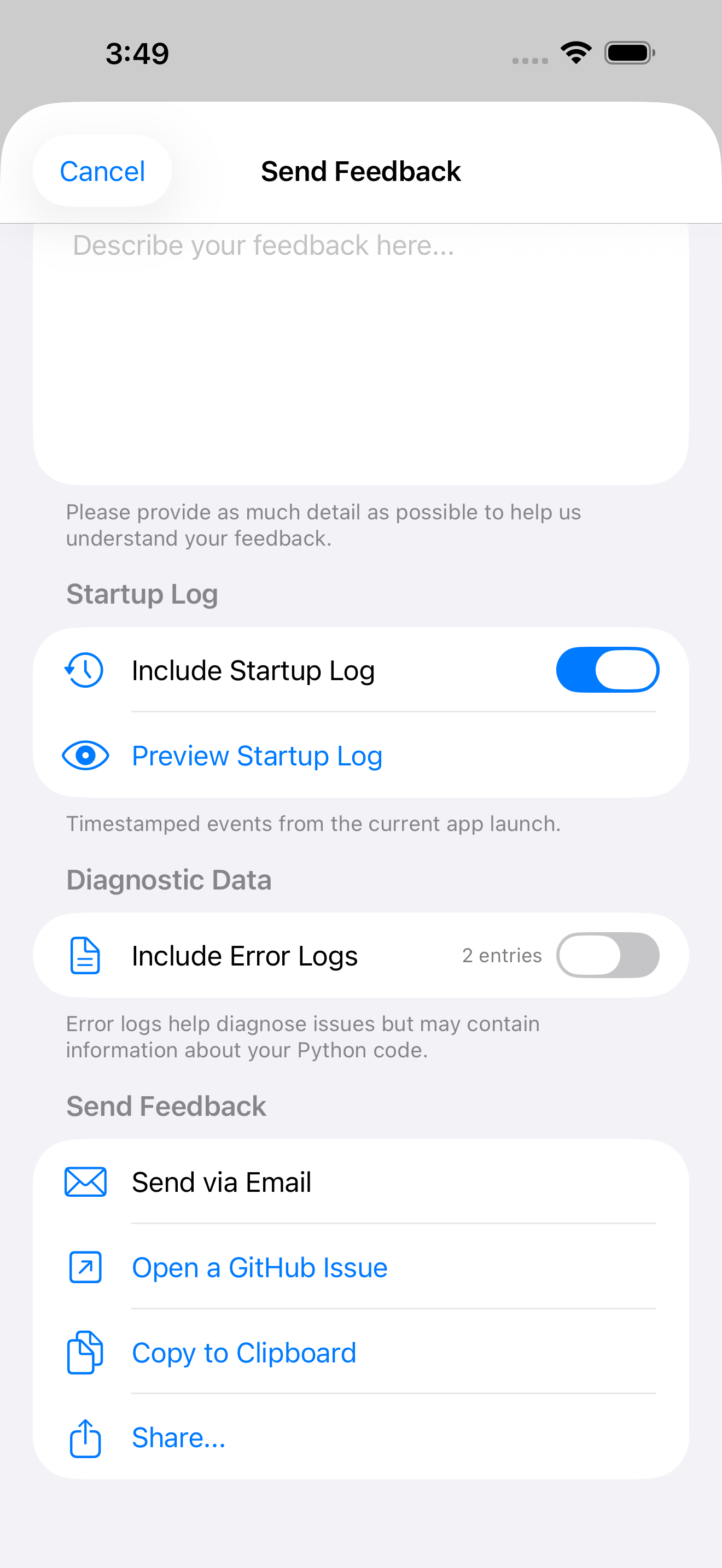
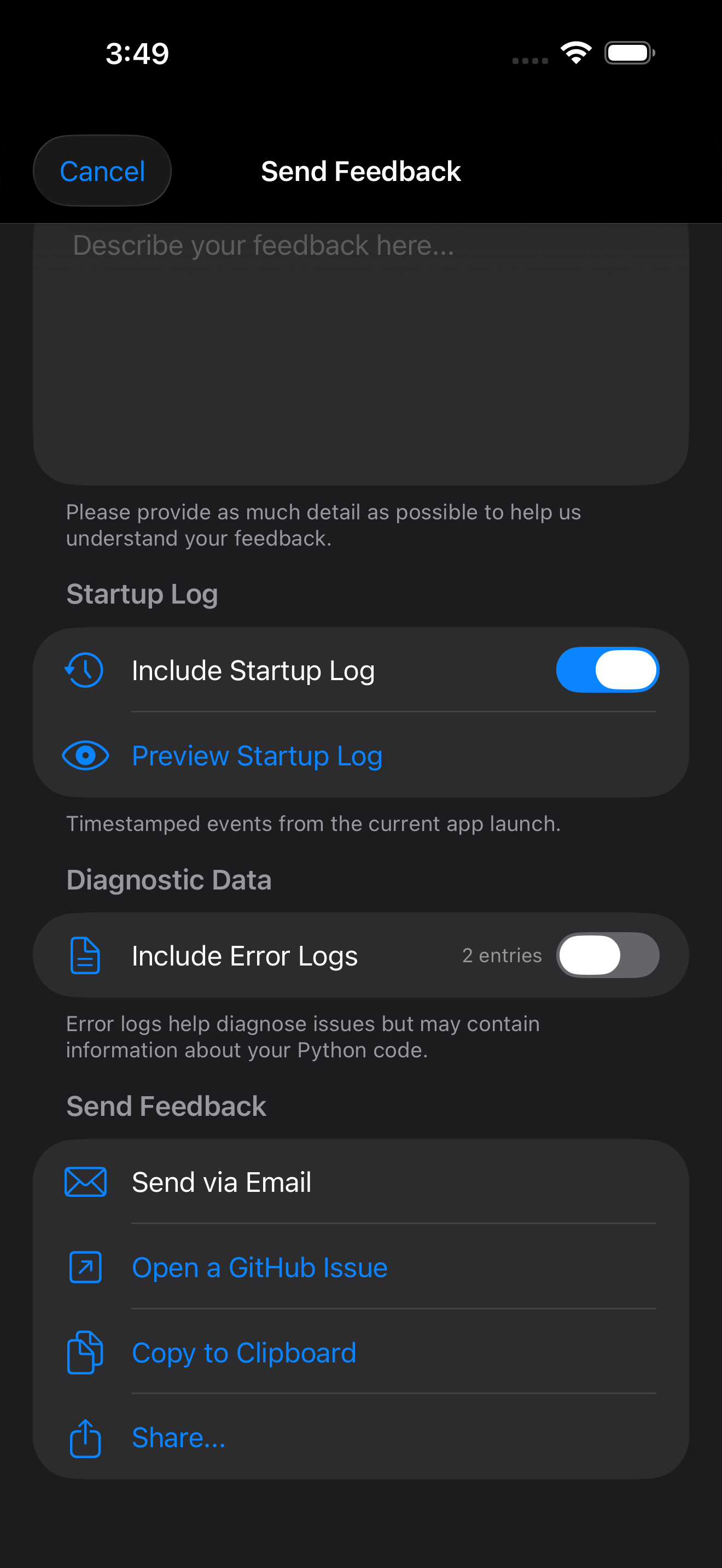
Shown on iPhone; the form is the same on iPad, reached the same way through Settings.
Attachments
The feedback form has two toggles for what travels with your report:
| Toggle | What it adds |
|---|---|
| Include Startup Log | Timestamped events from this app launch. On by default. Tap Preview Startup Log to read it before you send it. |
| Include Error Logs | Recent entries from the Error Log. Off by default, since your own Python code can appear inside error messages. |
Sending options
| Option | What happens |
|---|---|
| Send via Email | Opens Mail with the report in the body and the logs you selected as attachments. |
| Open a GitHub Issue | Opens your browser on the issue tracker, on the form that matches the type you picked, with its fields filled in. |
| Copy to Clipboard | Puts the whole report on the clipboard so you can paste it anywhere. |
| Share… | Hands the report to the iOS share sheet. |
Filing on GitHub
The tracker uses issue forms, so Open a GitHub Issue opens the one that matches what you picked at the top of the feedback form and fills it in for you:
| Feedback type | Form that opens |
|---|---|
| Bug Report | Bug report |
| Feature Request | Feature request |
| Question, Other | Question |
Your description lands in that form’s first field. The bug form has its own inputs for app version, iOS version and device, so those are filled separately rather than pasted into the text. The other two forms have no such inputs, so the same details are added below your description instead: app version and build, iOS version, device model identifier, a device memory summary, and the Pyodide and Python versions.
Anything you toggled on above goes into the form’s last free-text field, the one for additional context. A long log is trimmed to keep the link short enough for a browser to open. If you need the whole thing, use Copy to Clipboard and paste it into the issue yourself.
Nothing is sent anywhere on its own. The draft opens in your browser and stays a draft until you press GitHub’s own submit button, so you can edit it, cut anything out, or close the tab and think better of it. Posting does require a GitHub account.
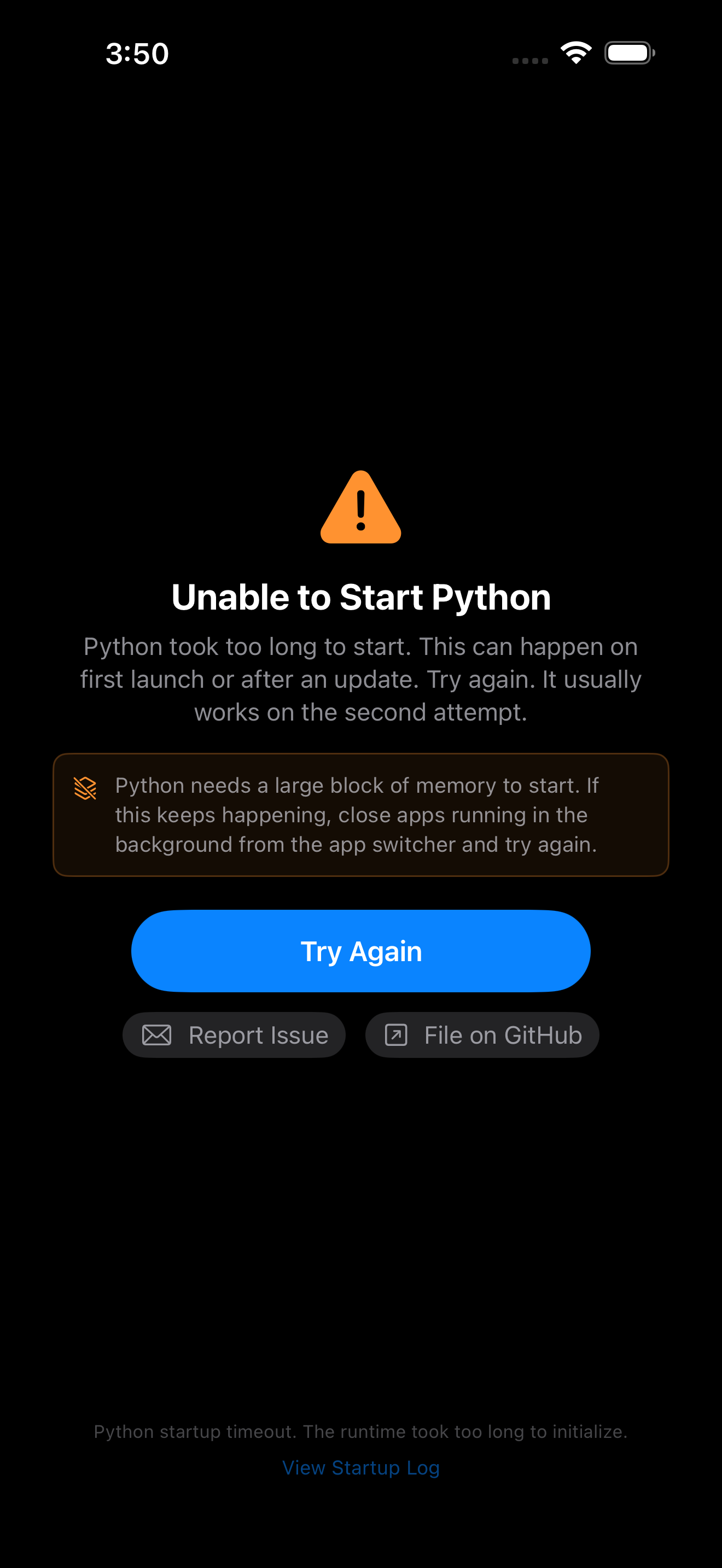
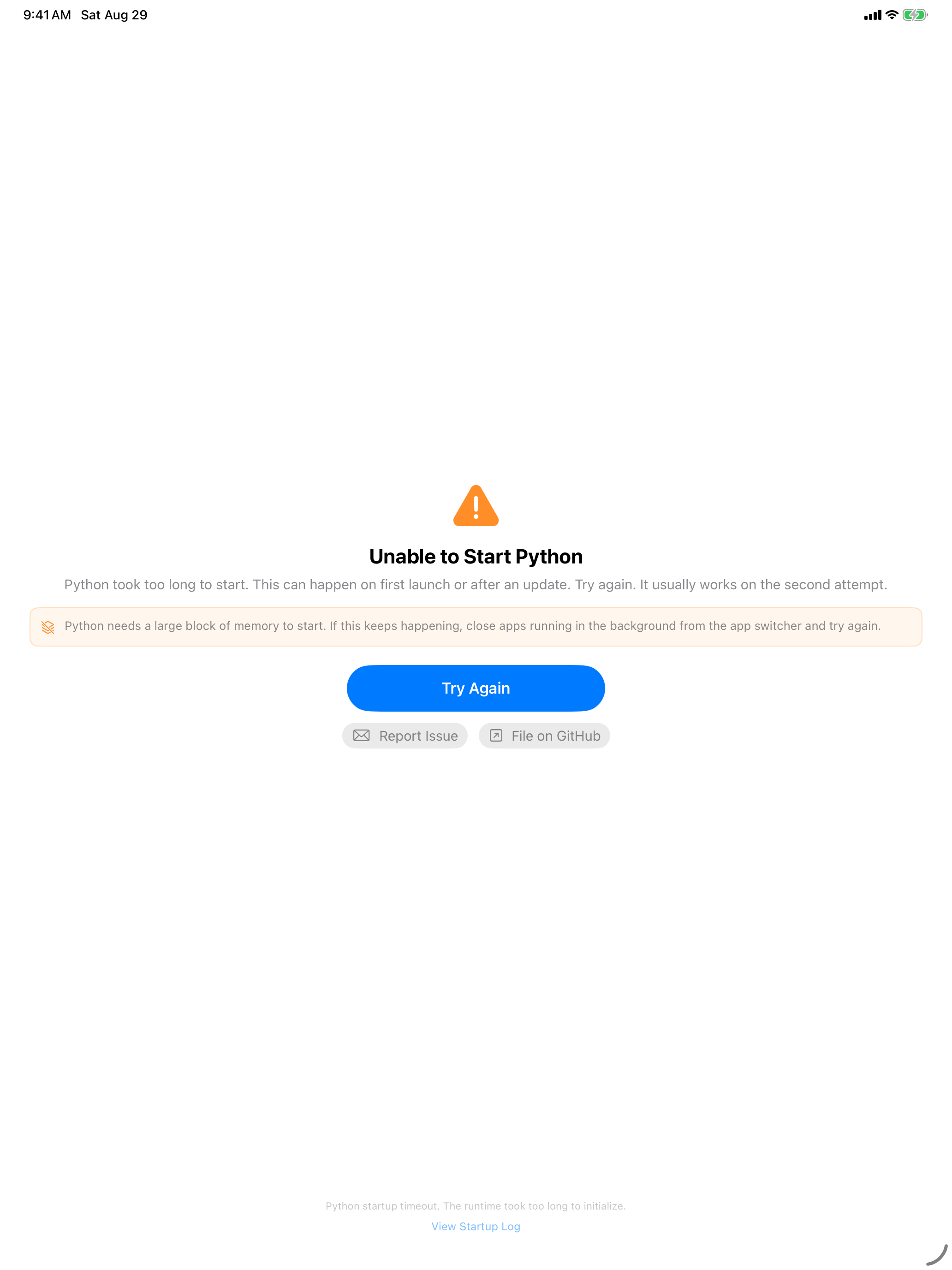
The same option sits on the Unable to Start Python screen, labeled File on GitHub next to Report Issue. That one opens the bug report form with the startup error and the tail of the startup log already in it, which is the quickest way to report a launch that never finishes: the app never gets far enough to reach Settings.
The screen itself, with File on GitHub beside Report Issue:
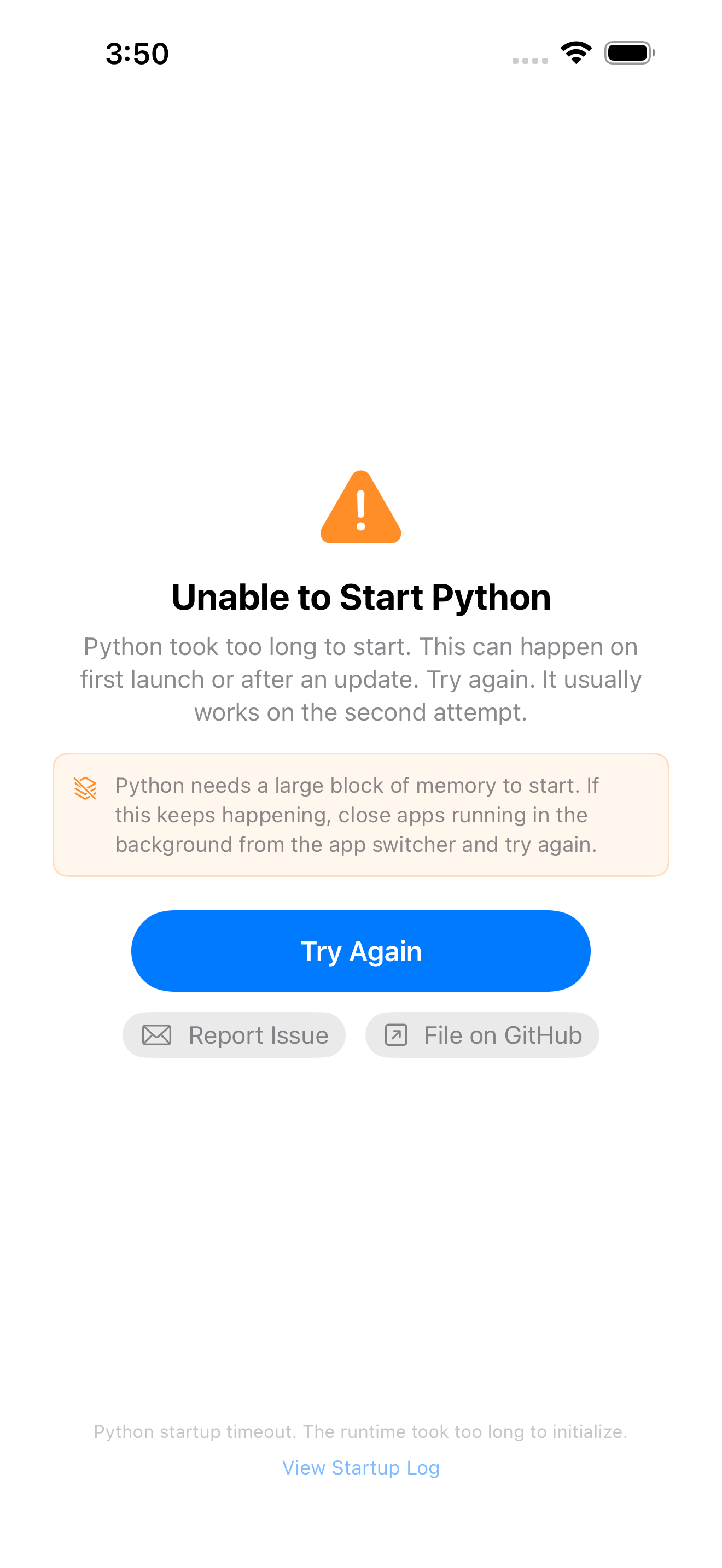
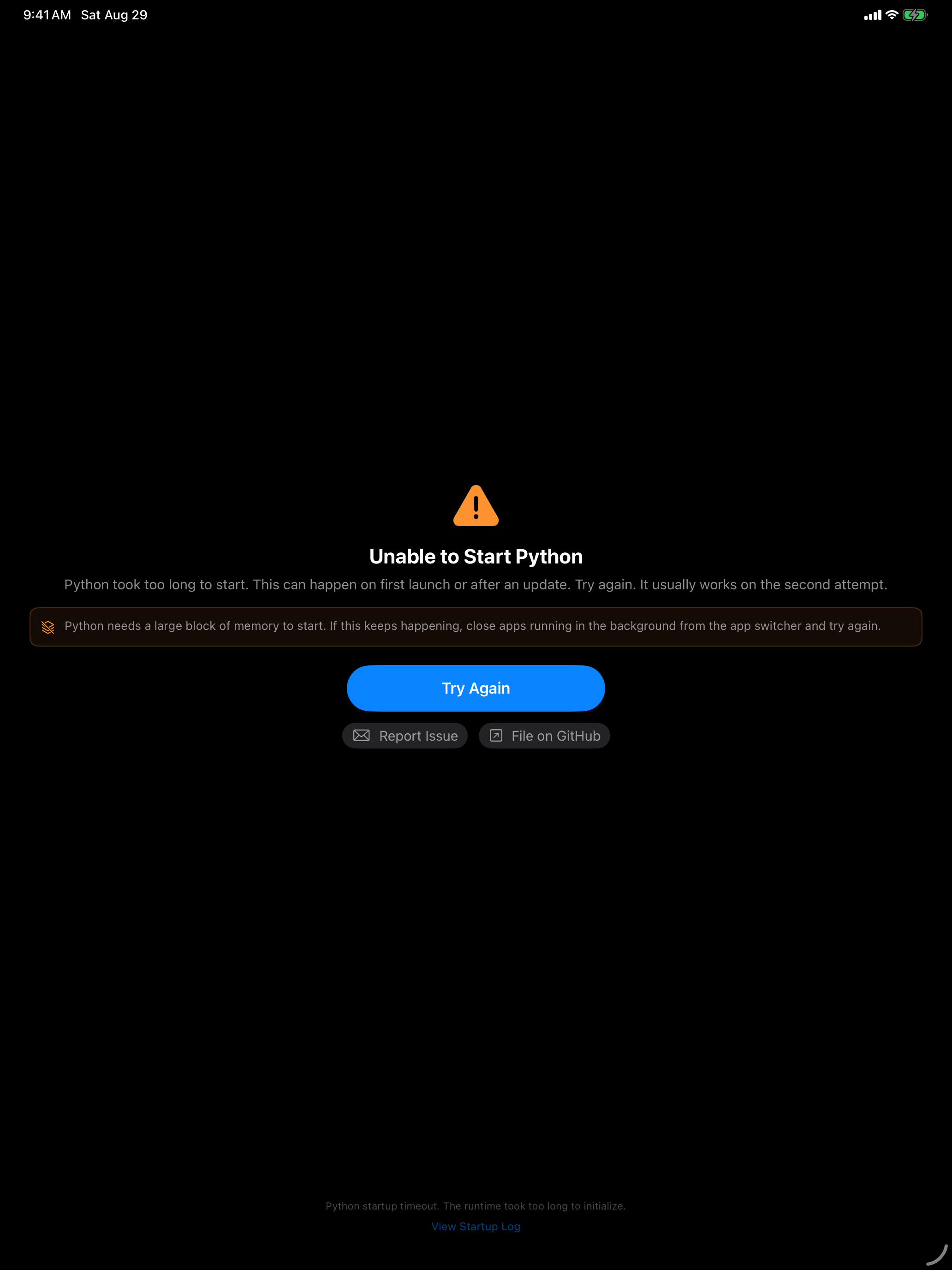
A GitHub issue has to fit inside a URL, so this route always carries only the tail of any attached log, marked where earlier lines were dropped, and a very long report is trimmed again with a note where it was cut. If that happens, use Copy to Clipboard or Share… in the feedback form instead. Neither has a length limit.
Startup failure banners
If something optional does not come up during startup (the matplotlib backend, for instance), a banner appears at the top of the screen reading Some features are unavailable. Expand it to see exactly what failed and why, and retry an item. Retry All appears only when more than one thing failed, so a single failure offers just the one retry. Dismissing it hides the banner for the rest of the launch without pretending the feature recovered, and the same information is written to the Error Log.
Resetting
There is no single button that resets everything. Each reset is next to the thing it affects, and none of them touch your files or your installed packages:
| Reset | Where | Asks first |
|---|---|---|
| Reset to Defaults | Settings > Keyboard Toolbar | Yes |
| Reset All (shortcuts) | Settings > Keyboard Shortcuts | Yes |
| Reset All Tips | Settings > Tips | No |
| Reset Environment | Settings > Python Session | Yes |
Theme, font sizes and the individual toggles have no bulk reset: change them back in the screen where you set them. Cached packages are cleared separately from Settings > Python Session.